Library
Where thread artifacts stay organized and ready to reuse.
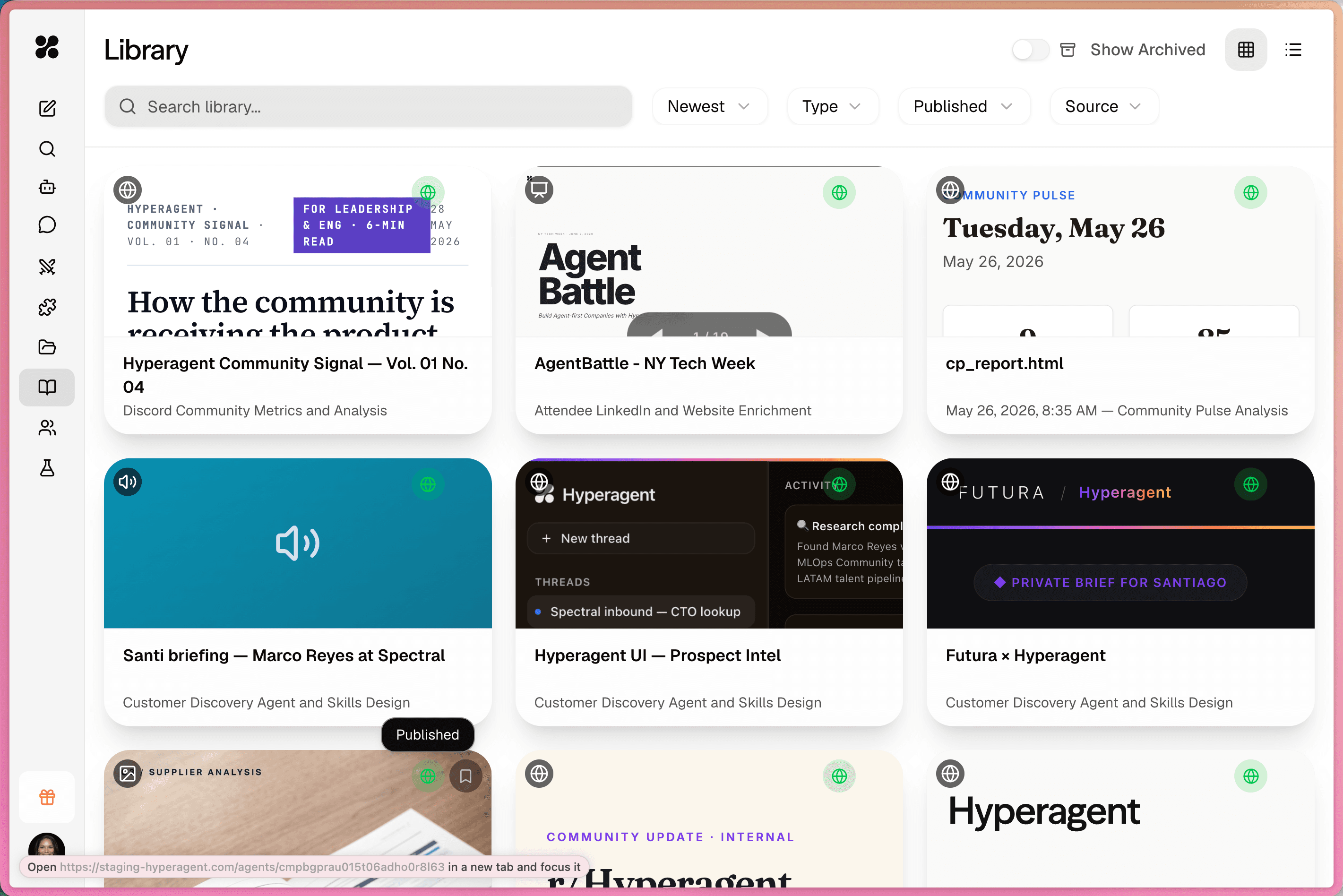
The Library keeps the outputs from your threads in one place: documents, tables, webpages, images, videos, maps, apps, and files. Use it when you want the finished work, not the full conversation behind it.
Where finished work lands
A thread is where an agent researches, reasons, uses tools, and produces outputs. Those outputs are artifacts: the files the agent creates as it works.
The Library gives those artifacts a dedicated view. They still belong to the thread that created them, so you can always return to the original context, but you do not have to retrace the whole run to find the finished piece.
That matters once your account starts filling up with useful work: renewal summaries, competitor tables, or client reports. The Library is where you search, filter, open, share, and reuse what your agents have already created.
What shows up in the library
The Library collects the artifacts agents create while they execute. You do not need to save them separately.
You can search the Library by artifact title or filename. Filters help narrow the view by type, published status, source, saved items, global items, agent, project, thread, and archived artifacts.
📄Documents
📊Tables
🌐Webpages
📽️Slides
🖼️Images and media
🗺️Maps
⚡HyperApps
📎Files
The Library holds finished work, not working memory
Thread and Project Context Documents are the agent's notes, so they stay out, along with system files like thumbnails and configuration exports. What you browse here is what your agents produced, not how they produced it.
How artifacts get there
You do not create a Library item separately from the work. The agent creates outputs while working in a thread, and those outputs appear in the Library automatically.
Every invocation type produces Library items the same way. Scheduled runs, webhooks, Live Mode ticks, Slack mentions, Telegram messages, emails, and MCP clients all create threads. Artifacts from those threads appear in the Library just like artifacts from manual conversations.
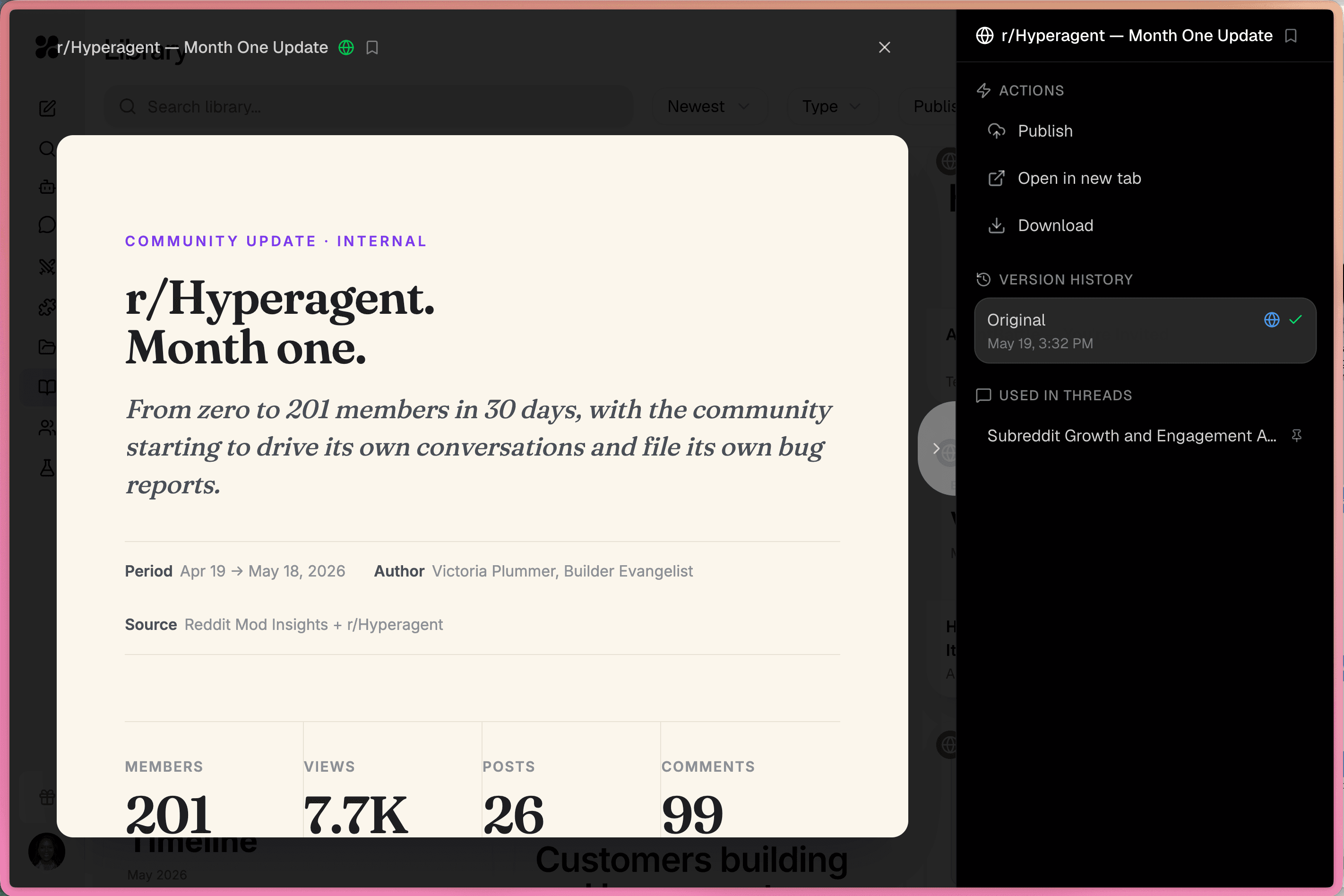
When you open a Library item, you can click through to the source thread to see the prompt, context, tool calls, decisions, and feedback that shaped the output.
Finding the right artifact
The Library becomes more useful as agents create more artifacts. Search and filters help you get back to the right output without digging through old threads.
- Search. Match against the artifact title or filename.
- Category. Narrow to images, video, audio, webpages, slides, tables, documents, or apps.
- Scope. View everything, saved items, global items, items from a specific agent, a specific project, or a specific thread.
- Published status. Show published items, unpublished items, or both.
- Sort. Sort newest or oldest.
- Archived threads. Artifacts from archived threads are hidden by default. Toggle archived items on when you need them.
Library search does not search inside artifact content. It does not inspect the body of a document, the rows of a table, or the HTML of a webpage. If you remember the topic but not the exact title, narrow by project, agent, artifact type, scope, or published status.
What you can do with artifacts
Once an artifact is in the Library, you can use it beyond the thread that created it.
↩️Return to the source
🔗Share or publish
📤Export
🕰️Track versions
📌Reuse as context
⭐Save favorites
Tables and media do not have version history. If you need a clear audit trail for changing written work, pages, decks, or apps, use the artifact types that keep versions.
In-place editing for promoted workspace files
Files and artifacts promoted to a Team library can be updated and edited directly in place by agents and team members.
Previously, promoting a file produced a static shared copy, and later edits would create detached duplicate files. Promoted library files now update the canonical record directly. The existing share link and public URLs remain stable, while full version history is preserved, allowing you to review changes or restore earlier versions directly from the library history.
Reusing artifacts as context
Artifacts stay connected to the thread that created them, so you can always get back to the source trail: the prompt, files, tool calls, decisions, feedback, and revisions behind the output.
When you want to reuse an artifact in a new run, the path depends on what kind of artifact it is.
- Documents. Use documents when the artifact should become written context. @ mention a document in a thread, add it to an agent as a context file, share it across a project, or make it global. This works well for research notes, brand voice guides, operating principles, customer briefs, and project plans.
- Tables. Use tables when the agent needs structured data again. @ mention a table in a thread, add it to an agent as a context file, or mark it global when a pricing table, account tracker, lead list, or dataset should be available broadly.
- Files, media, and published outputs. Images, videos, audio, webpages, slides, maps, and files work more like finished deliverables. To reuse one, paste the published URL, attach the file, add a supported file as context, or bring over the exact reference yourself.
- HyperApps. HyperApps have their own URL. Once created, you can open the app directly from that URL, no matter which thread produced it.
For anything an agent should always have, use a context file. For anything needed once, @ mention the document or table, paste the URL, or attach the file in the thread.
FAQs
Threads keep the run. The Library keeps the artifacts organized and ready to reuse. Use it to search, filter, open, share, export, version, and reuse the documents, tables, webpages, media, maps, apps, and files your agents create.