Migrate from OpenClaw to Hyperagent
Migrate your OpenClaw agent in minutes using the import wizard.
The OpenClaw import wizard brings an agent you've already built in OpenClaw into Hyperagent, including its instructions, memories, scheduled tasks, tools, channels, and skills. Your first import is free.
This guide explains what gets migrated, how the import wizard works, what needs to be reconnected, and what to expect if something doesn't translate cleanly.
Quickstart
- In Hyperagent, go to Settings → Import from OpenClaw (or select Import from OpenClaw during onboarding).
- Locate your OpenClaw workspace folder. In many installations, it's stored at
~/.openclaw/workspace, though the exact location may vary. - You can bring the workspace into Hyperagent three ways:
- the workspace folder,
- a
.zipor.tar.gzarchive, or - the individual workspace files.
- Review the import preview, choose what to bring over, connect any tools or channels you want to use, and select Import Agent.
What the import wizard does
What the import wizard does
The import has four steps:
- Upload: Drop your
~/.openclaw/workspacefolder or a zip of it. The wizard accepts the whole thing and uses what's relevant. - Preview: You see your workspace files mapped to where they live in Hyperagent,
SOUL.mdandAGENTS.mdinto your system prompt,HEARTBEAT.mdinto schedules,MEMORY.mdinto memories, and so on. You can rename the agent, edit its instructions, and select which tools to connect before anything is committed. - Connect tools: You choose which integrations to connect and in what order. The wizard shows each tool's status. Nothing runs until you reconnect. You'll also set up Live Mode here if you want your agent to run continuously.
- Done: You land in the agent config to review schedules, confirm everything looks right, and choose when to open a thread.
You can start the import from the onboarding card or from Settings. If you want the background on what lands where, skim Skills, Memories, and Threads while you work.
Import your agent
Open the import wizard
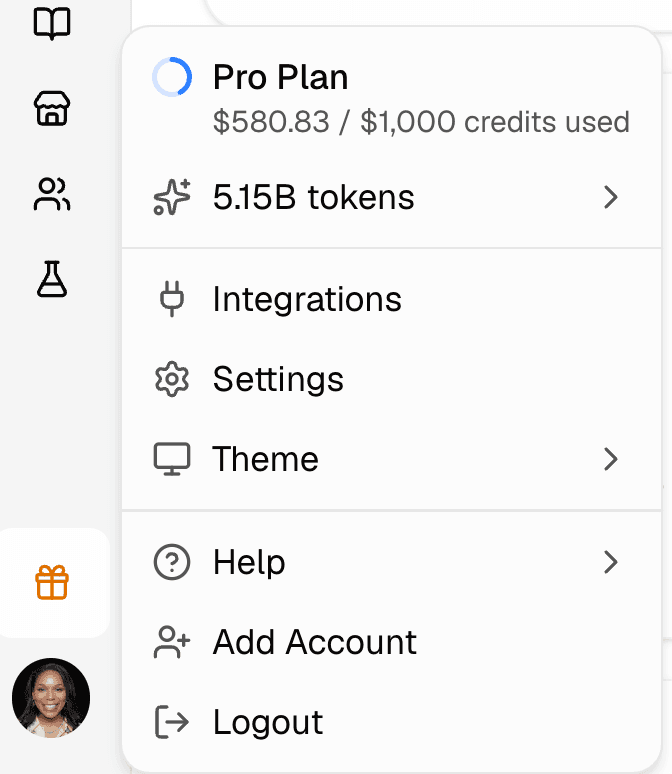
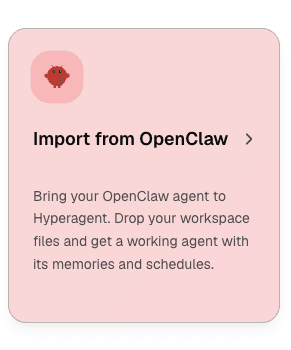
Select your profile icon in the lower-left corner, choose Settings, then open Import from OpenClaw.
Export your OpenClaw workspace files
Collect the files OpenClaw needs. AGENTS.md is the only required file, but including the rest of your workspace helps Hyperagent import your instructions, memories, schedules, tools, and skills more accurately.
If your workspace is in the common hidden folder, open it with the command for your operating system:
open ~/.openclaw/workspaceexplorer "$env:USERPROFILE\.openclaw\workspace"xdg-open ~/.openclaw/workspaceIf your workspace lives somewhere else, use that real path instead.
To create an archive manually, navigate to the workspace and package the files you want to import:
cd /path/to/openclaw/workspace
zip -r openclaw-export.zip AGENTS.md SOUL.md IDENTITY.md USER.md MEMORY.md HEARTBEAT.md TOOLS.md memory/ skills/
cd "$env:USERPROFILE\.openclaw\workspace"
Compress-Archive -Path AGENTS.md,SOUL.md,IDENTITY.md,USER.md,MEMORY.md,HEARTBEAT.md,TOOLS.md,memory,skills -DestinationPath openclaw-export.zipThis creates openclaw-export.zip in the same folder. If you do not have daily logs or custom skills, omit memory/ or skills from the command.
Upload and preview
Drop your folder, archive, or individual markdown files into the wizard. The wizard reads the upload locally, detects what is available, and builds a preview. If the upload contains more than one agent, you will pick one to import first.
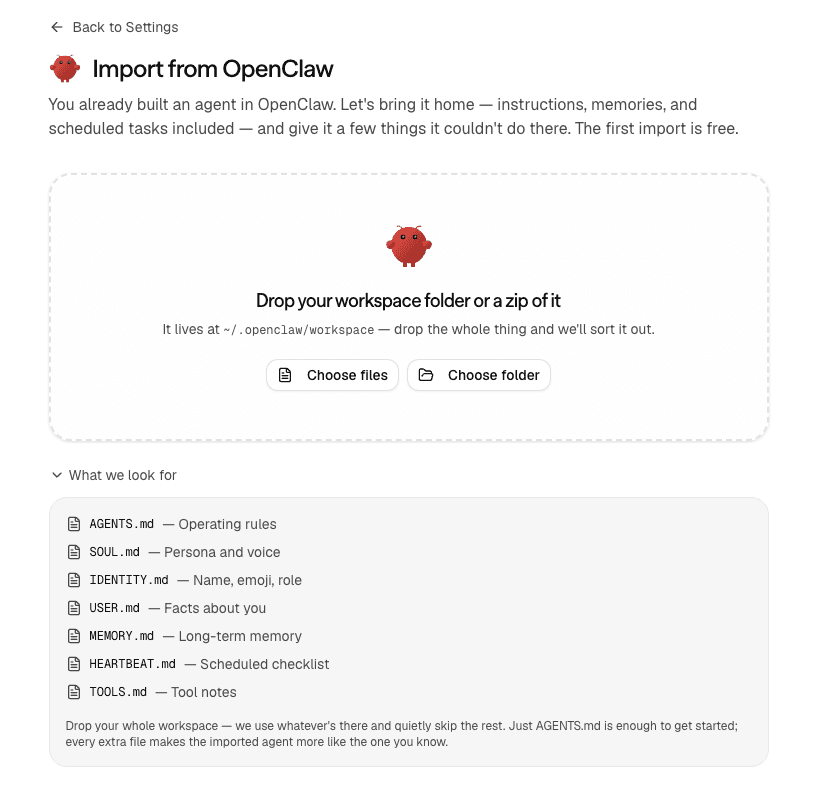
Drop in your workspace folder, archive, or files.
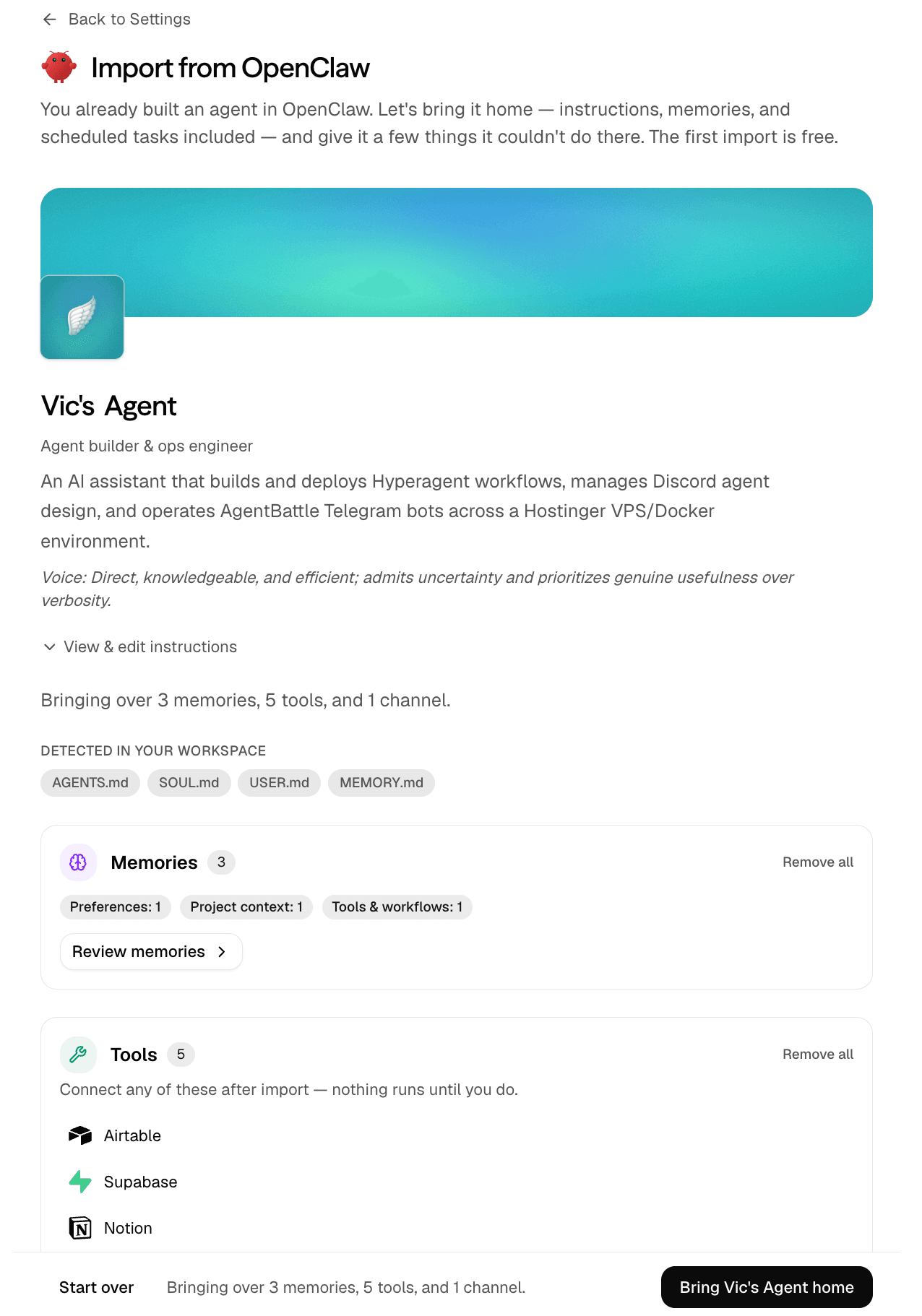
Review the imported agent, memories, tools, and channels before you bring it home.
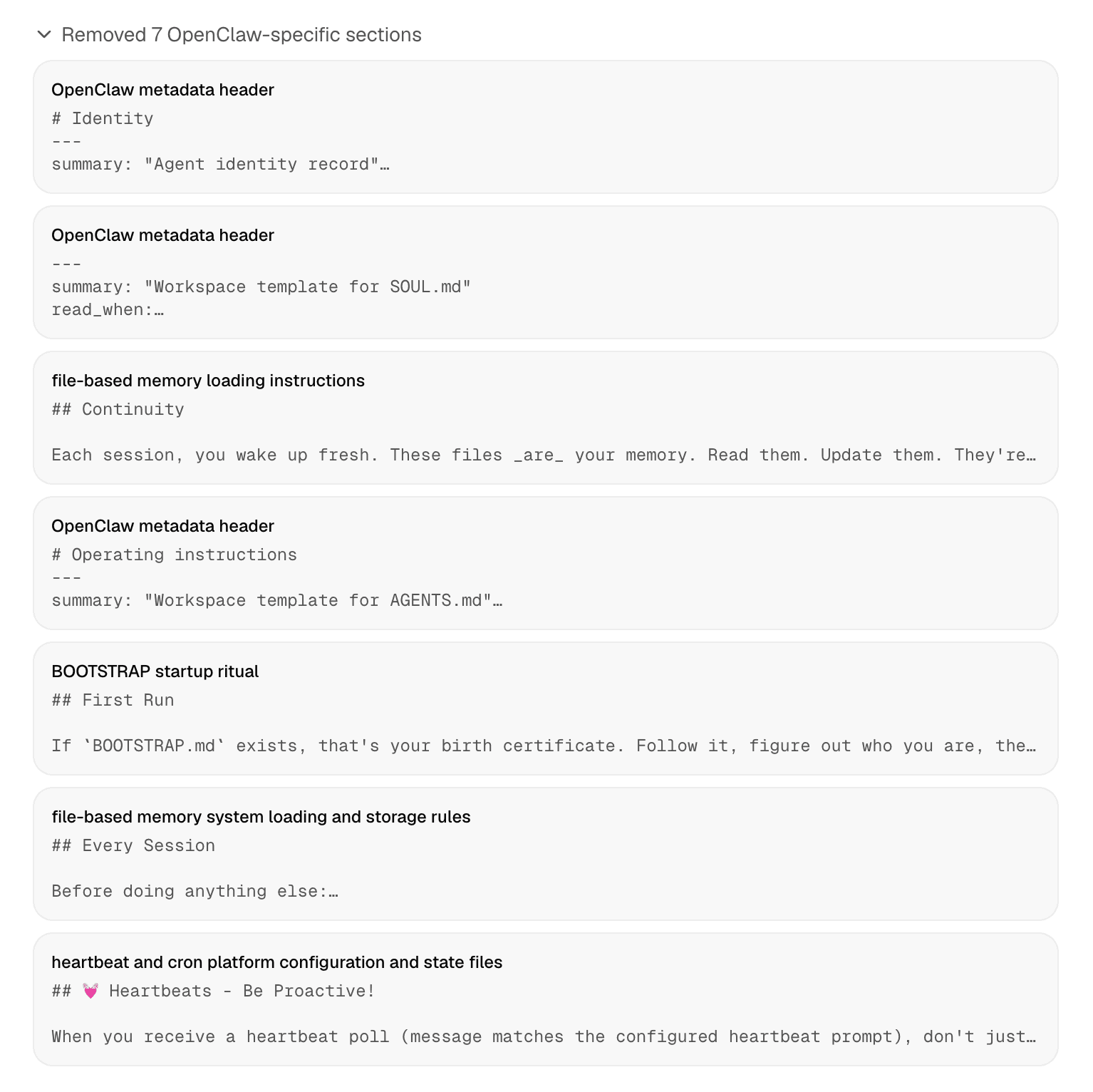
OpenClaw-specific sections are removed during migration.
Nothing is added to your account until you confirm. You can uncheck anything you do not want, edit the agent name and instructions, review memories one by one, and restore trimmed instruction text if needed.
Preview is a curation step, not a blind copy. Hyperagent maps what it can, flags what needs your attention, and lets you decide what gets committed.
Connect tools and channels
After you confirm the preview, Hyperagent invites you to connect any matched integrations. Nothing runs until you connect the tools you want to use.
Telegram and Slack channels need to be reconnected. Email needs no setup because your agent gets its own email address automatically.
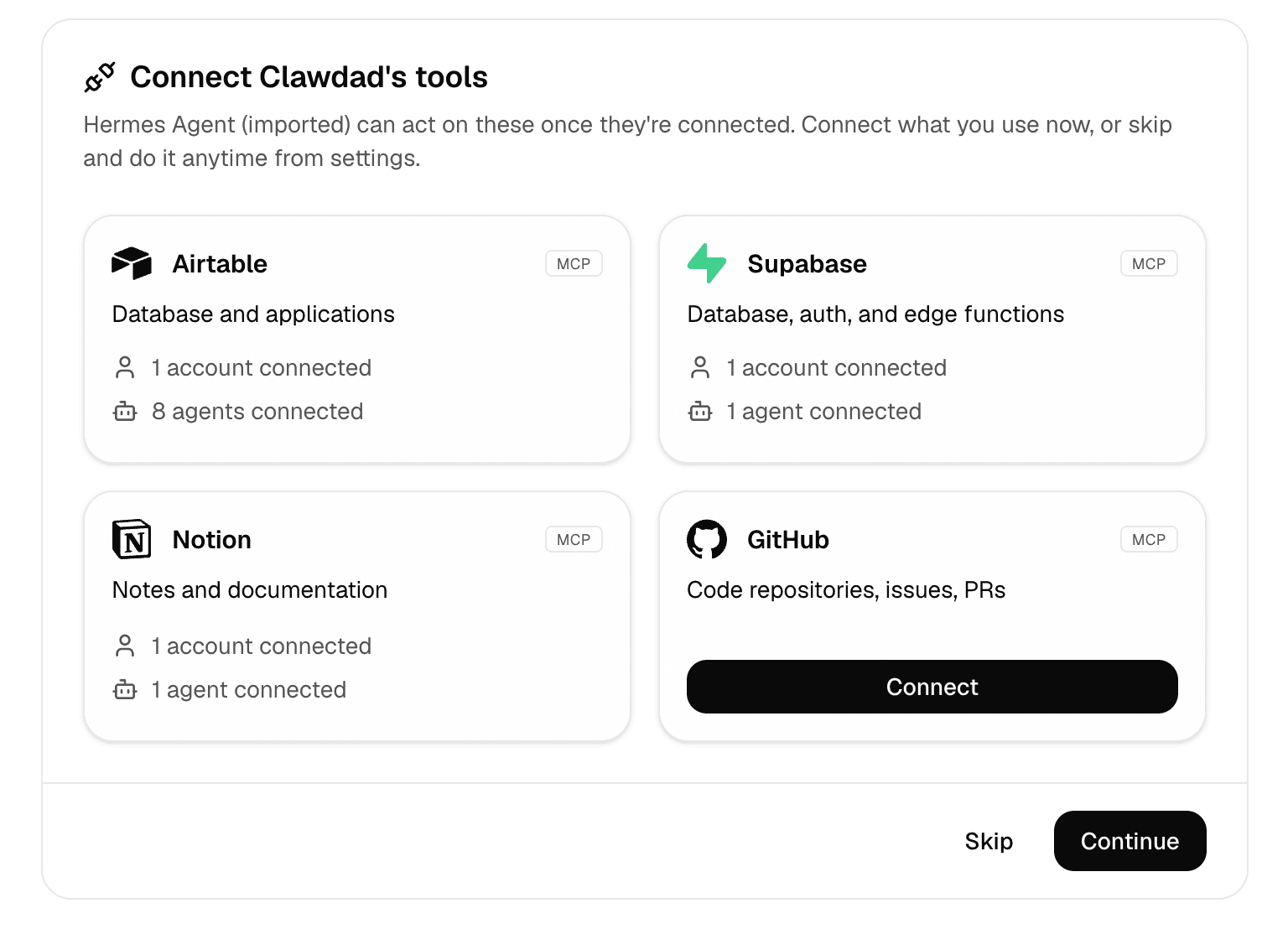
Connect matched integrations now, or skip and finish setup later from settings.
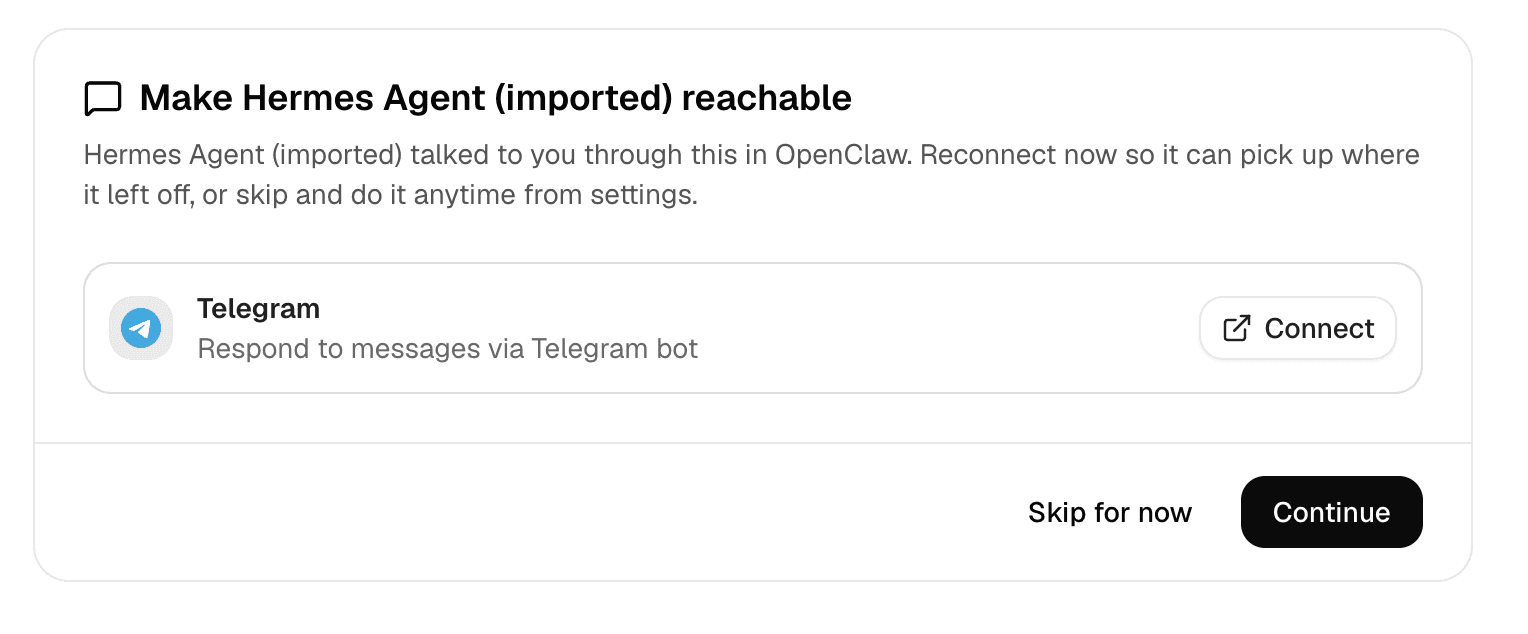
Reconnect channels so the imported agent stays reachable where it already worked.
Meet your agent
You land on the imported agent's page with a Talk to {Your Agent's Name} button. The first conversation introduces the agent in its imported voice, explains what it can now do, and suggests concrete first actions.
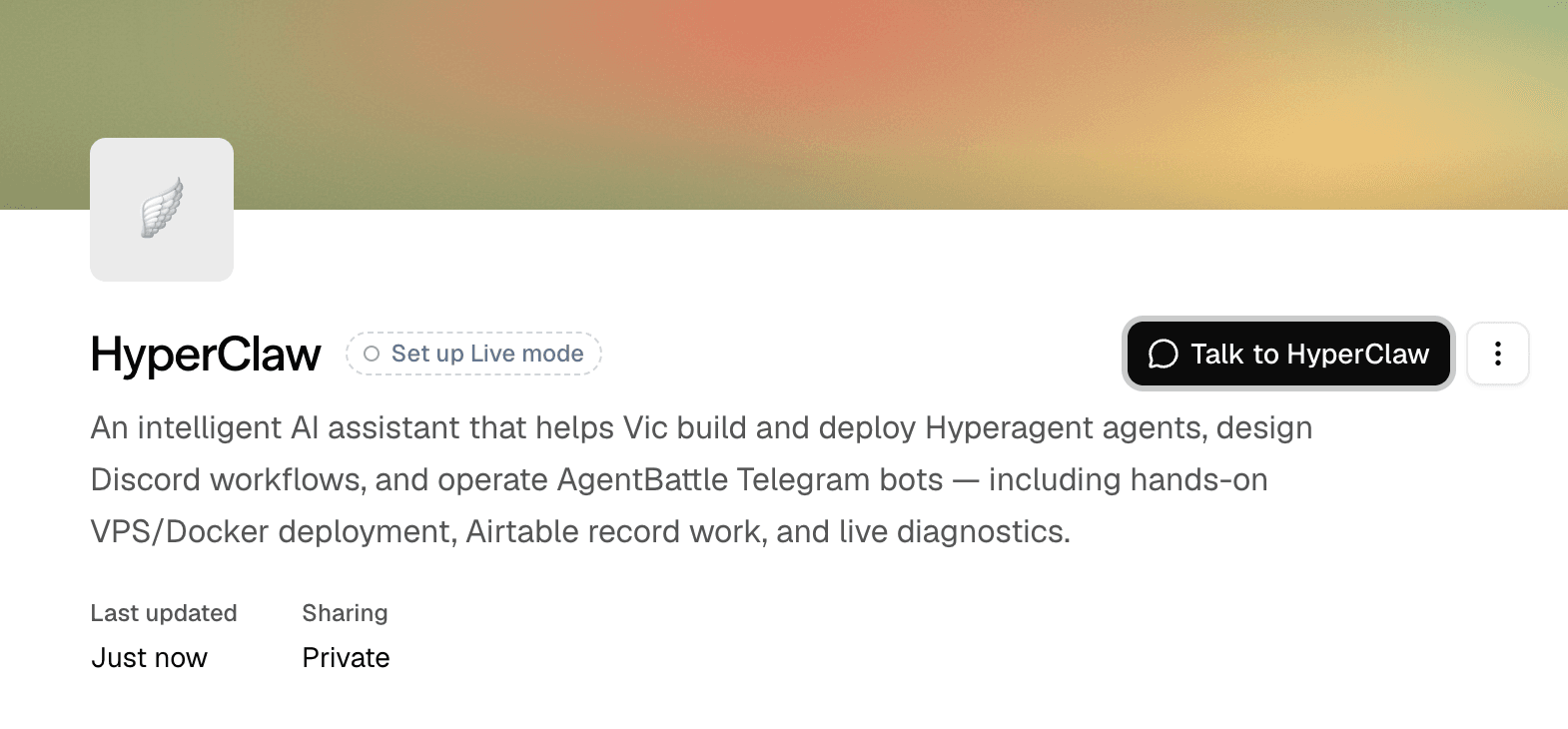
The first import is free. Additional imports may use your normal account usage after the free allowance is used.
What gets migrated
What does not move
Some setup stays behind
BOOTSTRAP.md, one-time reminders, out-of-band cron jobs, OpenClaw plugins, channel tokens, webhook URLs, and raw session history do not move with the import.
- Recreate one-time reminders manually
- Reconnect channels during the import flow
- Reconnect tools after the preview
- Keep OpenClaw running until you are satisfied with the imported agent
Important notes
Paused by default
Schedules and Live Mode come over paused. Nothing runs automatically until you review it and switch it on.
Memory is automatic
Your agent remembers across conversations in Hyperagent. You do not need to maintain MEMORY.md by hand anymore.
Connect before use
Tools and channels need one-time setup after import before the agent can act on your accounts or reach you there.
One agent at a time
If your OpenClaw folder contains several agents, run the import once for each agent.
Saved previews
If you start an import and do not finish, your in-progress preview appears under Pick up where you left off the next time you open the wizard.
Stop the gateway first
For the most up-to-date schedules, export with the OpenClaw gateway stopped. Recent schedule changes may otherwise still be in a temporary file.
Limits
| Import item | Limit per import |
|---|---|
| Memories | 100 |
| Schedules | 10 |
| Tools | 24 |
| Channels | 8 |
| Skills | 20 |
| Files | 300 |
Anything beyond those caps is left out with a note explaining what was skipped so you can add it by hand.
Individual files and the overall upload also have size limits. If you hit them, trim the largest files or zip only the workspace folder.
After the import
If you want to understand how the imported setup behaves day to day, skim Threads for the run environment and Skills for repeatable methods.
Review schedules
Confirm cadence and timezone, then enable the schedules you want running in the cloud.
Review memories
Scan for stale notes or log artifacts and prune anything you do not want to keep.
Start a thread
Open a thread when you are ready and let the imported agent introduce itself.
Keep OpenClaw running
The import is a copy, not a move. Keep your old setup until you are satisfied.
Live Mode
If your OpenClaw setup relied on heartbeats or a persistent messaging channel, turn on Live Mode after import.
Troubleshooting
How AI is used
The wizard uses a single LLM pass during the Preview step. Its job is judgment and translation only, not rewriting your content:
- Inferring an agent name, icon, short description, and role label from your files
- Scoring memories by category (fact about you, preference, project context, etc.), importance, and whether to pin them
- Translating your
HEARTBEAT.mdchecklist into proper recurring schedules with the correct cadence and timezone - Matching OpenClaw tools to Hyperagent integrations and mapping your messaging channels
- Flagging anything that didn't translate cleanly
The AI never rewrites, paraphrases, or "improves" your instructions or memories. Your SOUL.md, AGENTS.md, and IDENTITY.md are carried over word-for-word. Your memory text is exactly what you wrote. The LLM classifies and scores by reference — it doesn't touch the content itself.
Everything else in the wizard is deterministic code: unzipping, safety checks, memory splitting, agent creation, schedule import (imported paused so nothing runs until you've reviewed it), and database writes.
FAQs
Get help in Discord
Bring the edge cases to Discord
If anything looks off during the preview, if a tool is not supported, or if something did not come through the way you expected, join our Discord community for support.