Share agents with your team
Create a workspace, invite your teammates, and share an agent they can bring work to.
Give your team agents they can work with
Bring your teammates into a workspace and share an agent that can help with their work. Your team can give the same agent requests, share useful knowledge, and work together in rooms.
Everyone has a personal workspace for their own work. A team workspace is where you share agents and collaborate with teammates. Joining one does not move your personal work into it.
What you’ll learn
- Create a workspace: Give your team a place to work together.
- Add agents: Transfer ownership to the workspace or share an agent you maintain.
- Invite teammates: Choose who can use shared agents and who can maintain them.
- Check access: Confirm a teammate can join and start working with the agent.
Get your team started
Create your team’s workspace
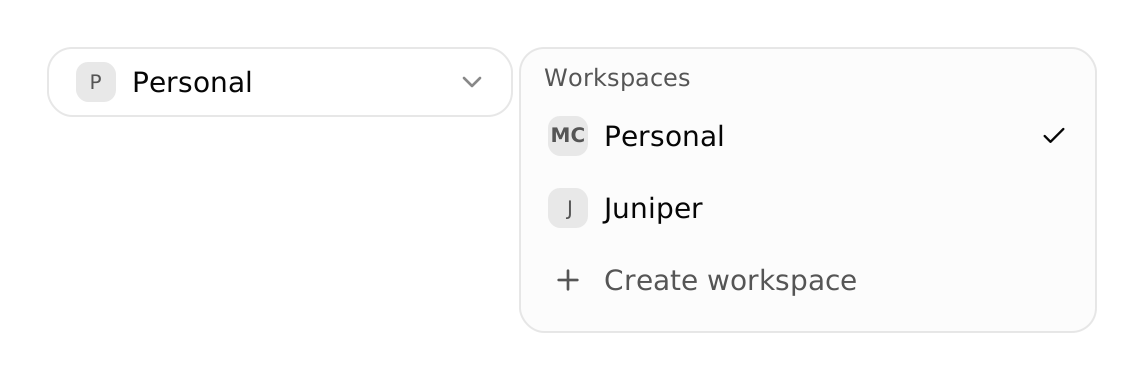
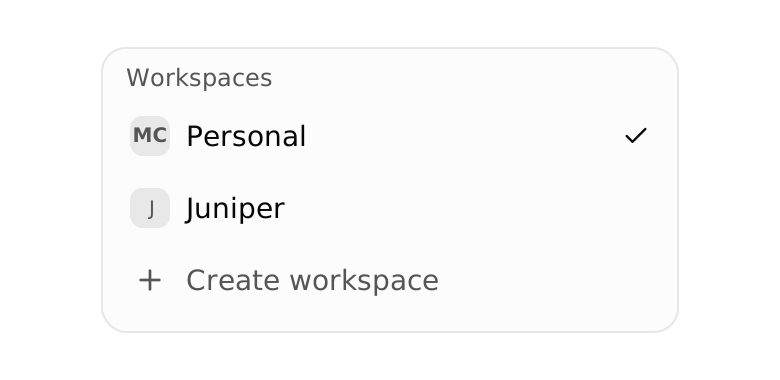
Open the workspace menu at the top of the sidebar, below the Hyperagent logo. Select Create workspace.
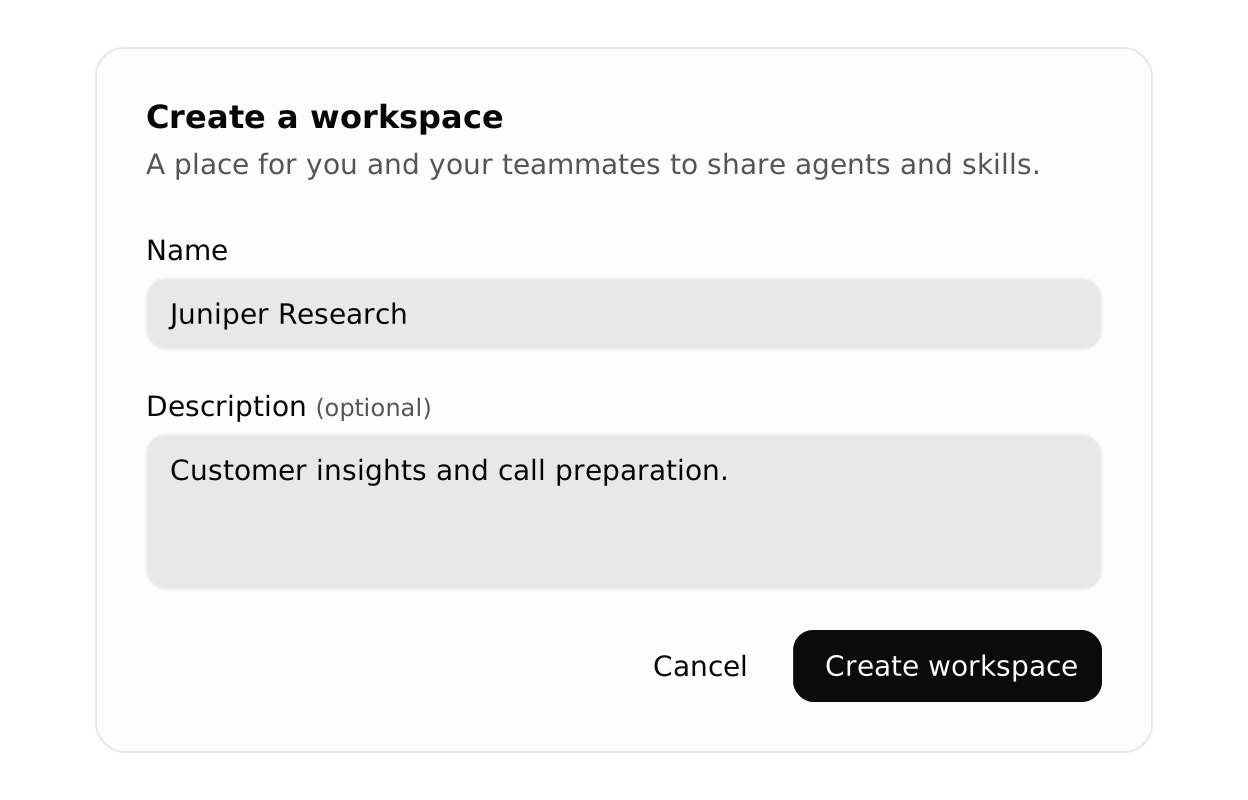
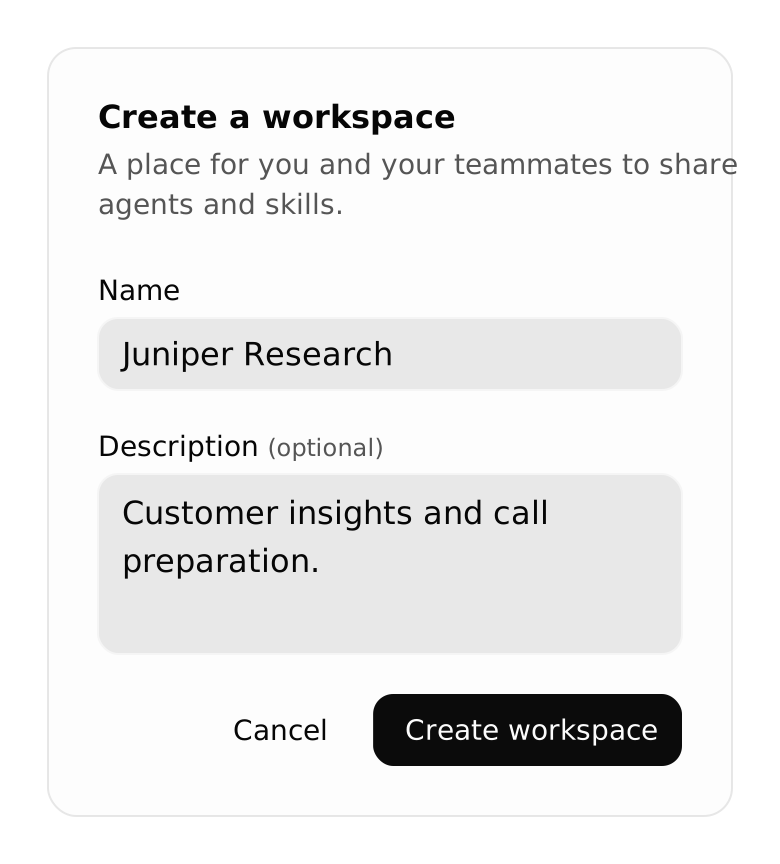
Enter a name and an optional description, then choose Create workspace. You become the first Owner.
Already have a team workspace?
Select it from the workspace menu and continue there. If you haven’t joined yet, ask a workspace Owner to invite you. Choose Personal from the same menu whenever you want to return to your own workspace.
Add agents to the workspace
Start with an agent you already use and want your teammates to work with. Choose who should maintain its setup, then open the agent’s Share… menu from your personal workspace.
Let your team maintain the agent
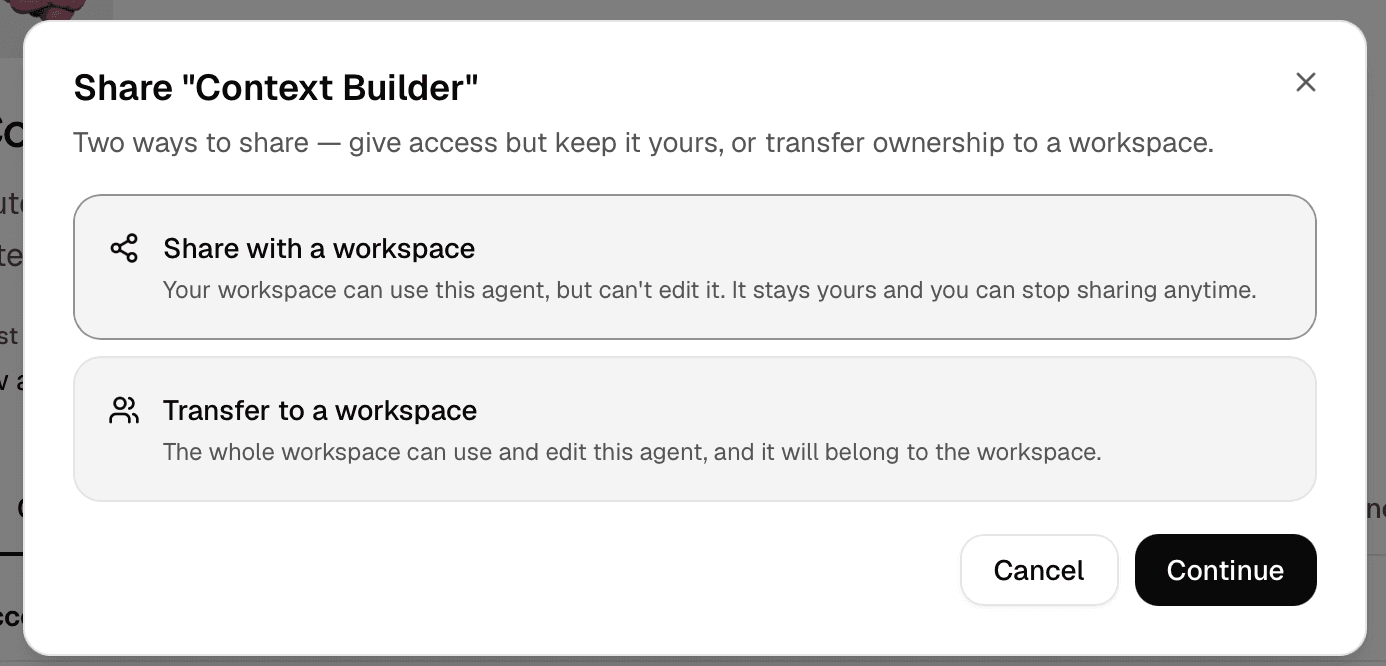
Choose Transfer to a workspace and select your team’s workspace. You need Owner or Editor access there. After the transfer, workspace Owners and Editors can maintain the agent, and Members can run it.
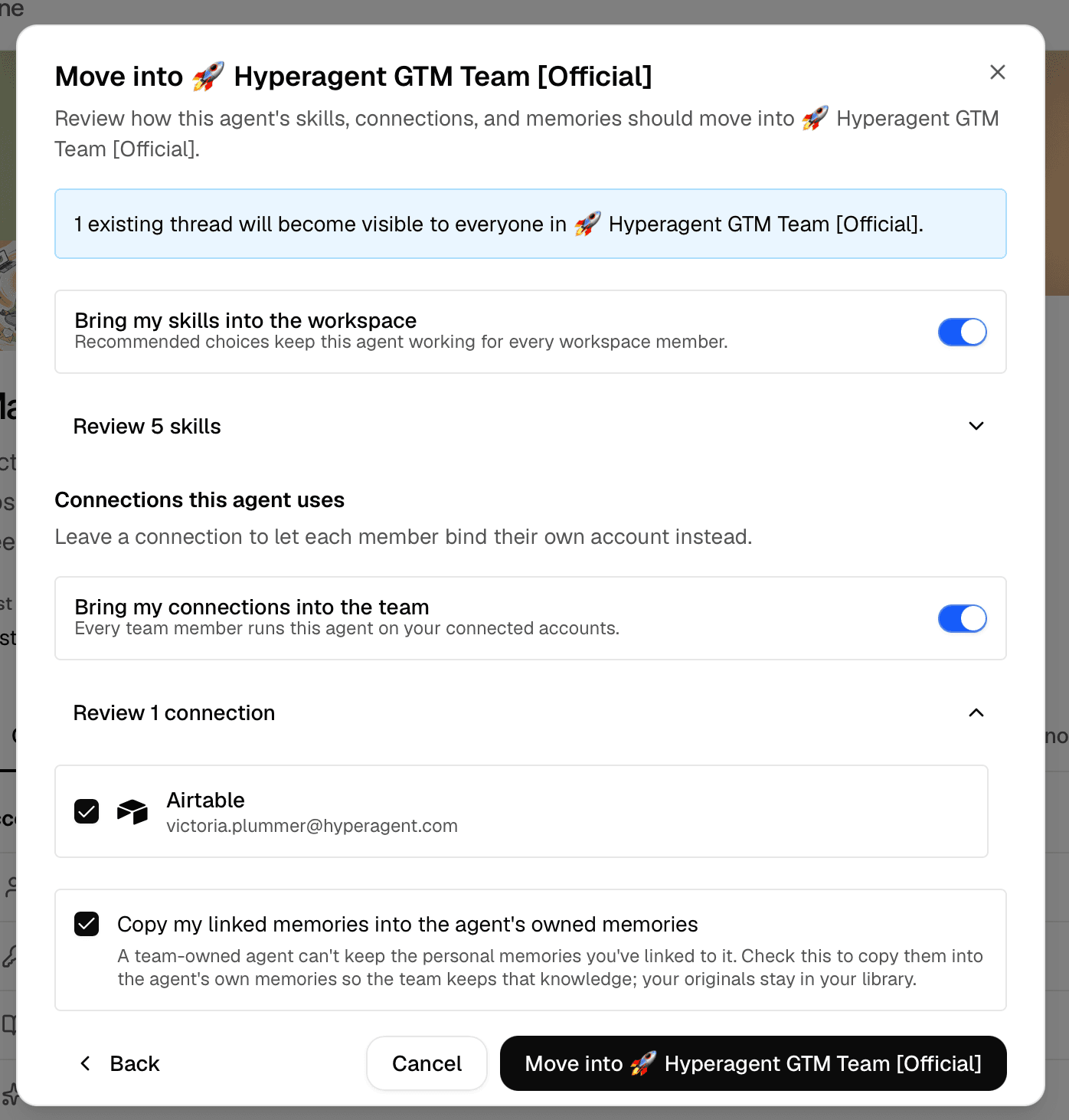
Before confirming, review:
- Threads and visibility: Check which threads move and who will be able to access them.
- Skills and source documents: Review the choices for linked resources and what will remain available.
- Connections: Check the accounts and tools the agent will need after moving.
Confirm the transfer, then check the agent’s setup in the workspace. See what moves with an agent for the details.
Keep ownership and give your team access
Choose Share with a workspace and select your team’s workspace. You continue maintaining the agent; teammates can use it without gaining edit access to its configuration.
Review what your agent can use
A shared personal agent keeps its existing knowledge access. Personal memories your agent can read may appear in replies to teammates. Check its knowledge settings before sharing.
| What your team can do | Workspace-owned | Shared with the workspace |
|---|---|---|
| Teammates can run the agent | Yes | Yes |
| Teammates with edit access can maintain the agent | Yes | No |
| Agents can delegate work to each other | Yes | No |
| The agent stays personally owned and maintained by you | No | Yes |
Choose Transfer an agent for workspace ownership, or Share an agent to keep personal ownership.
Choose what each teammate can do
Choose a role based on what each teammate needs to do.
Member
Work with the team’s agents and read shared documents and memories. Choose this for teammates who need to use the setup without changing it.
Editor
Create and maintain workspace agents, skills, memories, and documents. Choose this for teammates who will improve the shared setup.
Owner
Manage the workspace, invite and remove people, and change roles. Owners can also maintain the workspace’s agents and shared material.
| What they need to do | Member | Editor | Owner |
|---|---|---|---|
| Run agents available to the workspace | Yes | Yes | Yes |
| Edit workspace-owned agents, skills, and shared material | No | Yes | Yes |
| Manage invitations, membership, and workspace settings | No | No | Yes |
A workspace role does not give teammates edit access to a personal agent you share. See the full role comparison for more detail.
Check the role before sending
Email invitations default to Editor. Select Member if your teammate only needs to use the workspace’s agents and shared material.
Invite your teammates
Open Manage members from the workspace menu. Enter the email address your teammate will use to sign in, then choose their role before sending the invitation.
You need Owner access to manage invitations. Use the roles you chose in the previous step.
Send the invitation and check its status. A pending invitation means your teammate still needs to accept it.
Check that your teammate can get started
Ask a teammate to accept the invitation and sign in with the invited email address. Then have them:
- Switch to your workspace using the menu at the top of the sidebar.
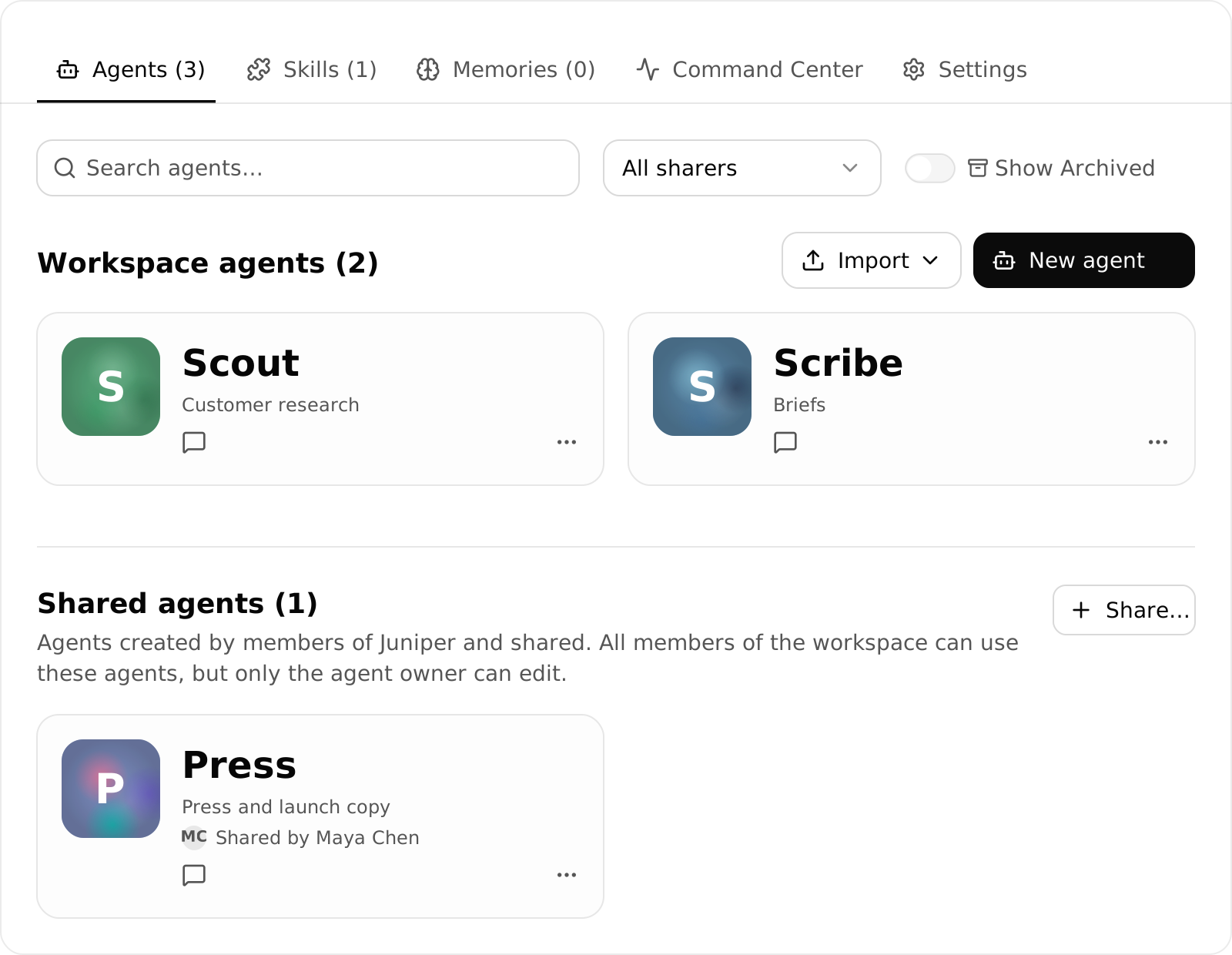
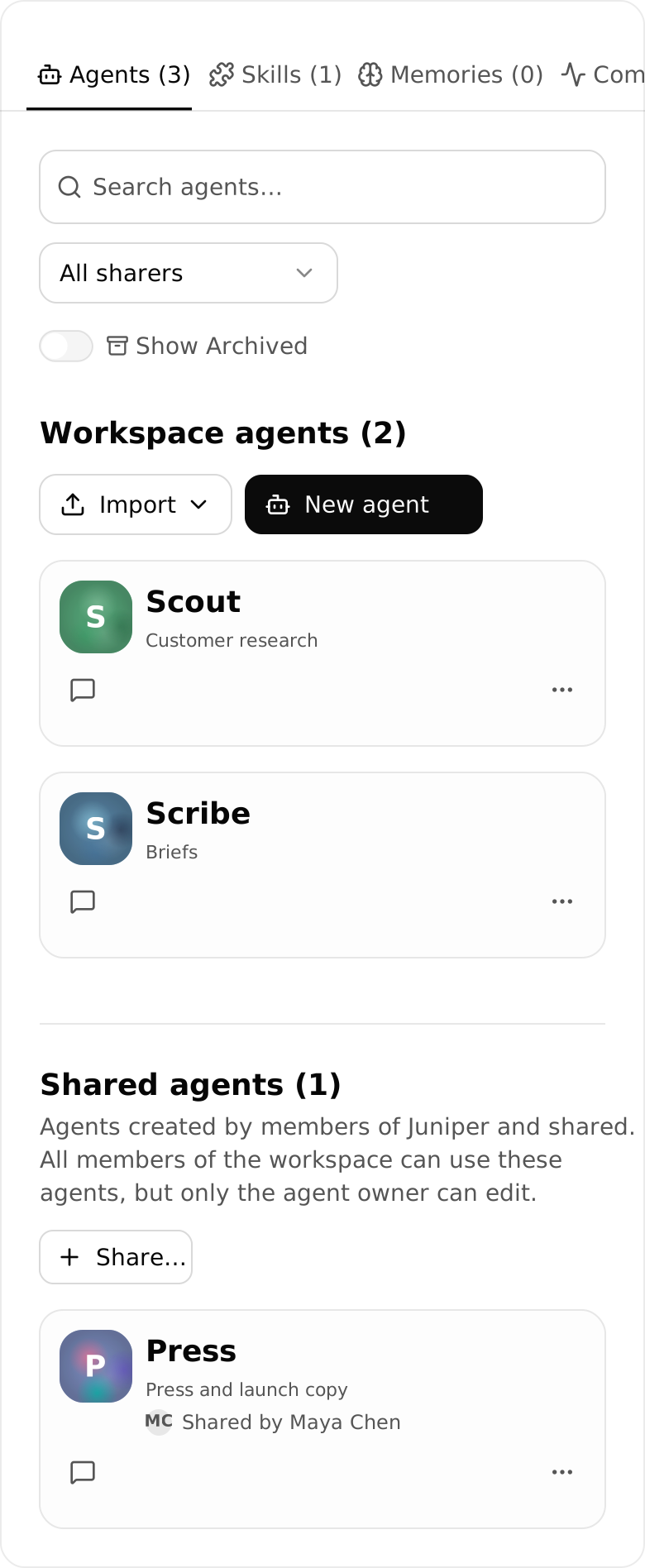
- Find the agent in the workspace’s Agents view. Transferred agents appear with workspace agents; shared personal agents appear under shared agents.
- Start a new thread with the agent and give it a real request with the relevant sources.
Check that the agent can access the sources and connections needed for that request. Workspace membership alone does not give an agent access to every resource. Resolve any missing access before relying on the agent for that job.
Bring your agent into Slack
Your team can also work with an agent where they already talk. Connect Slack and deploy the agent so teammates can mention it in channels or send it a direct message. This is a separate setup from sharing an agent in a Hyperagent workspace.