Slack
Connect Slack, deploy an agent to your workspace, and work with it in channels and DMs.
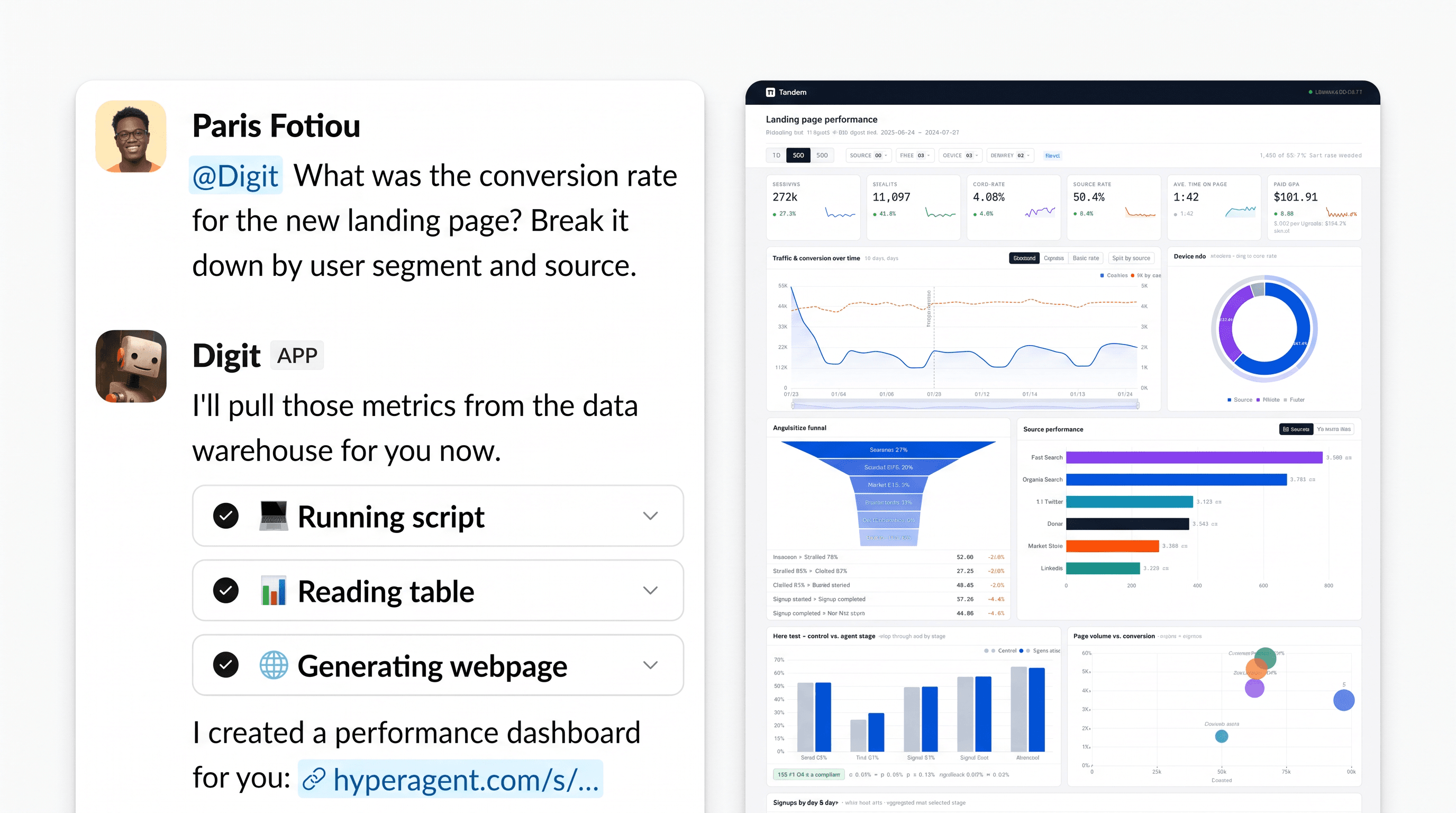
Slack is the deepest integration in Hyperagent, because it isn't only a connection. It's also a way to invoke agents. When an agent is deployed to Slack, it can read and post in your workspace's channels, and your team can hand it work without leaving Slack.
A paid Slack plan is required
The AI assistant functionality in this integration requires a Slack workspace on a paid plan. It does not work in workspaces on Slack's free plan.
Working with Slack in Hyperagent
In Hyperagent, Slack is a three-step process: connect your account, deploy an agent, and then use it day to day with your team right from slack.
Connect Slack
Link your Slack account to Hyperagent from Settings. This is the account connection. It doesn't put any agent in Slack yet.
Deploy an agent
Give a specific agent its own bot identity, channel and DM access, and a way to respond. This is what makes the agent reachable in Slack.
Use it day to day
@mention the agent, follow up in threads, and schedule updates to land in a channel. This is the ongoing work.
Connect Slack
This links your account. It does not put any agent in Slack yet.
Open Settings → Integrations
Sign in at hyperagent.com, then open Settings → Integrations.
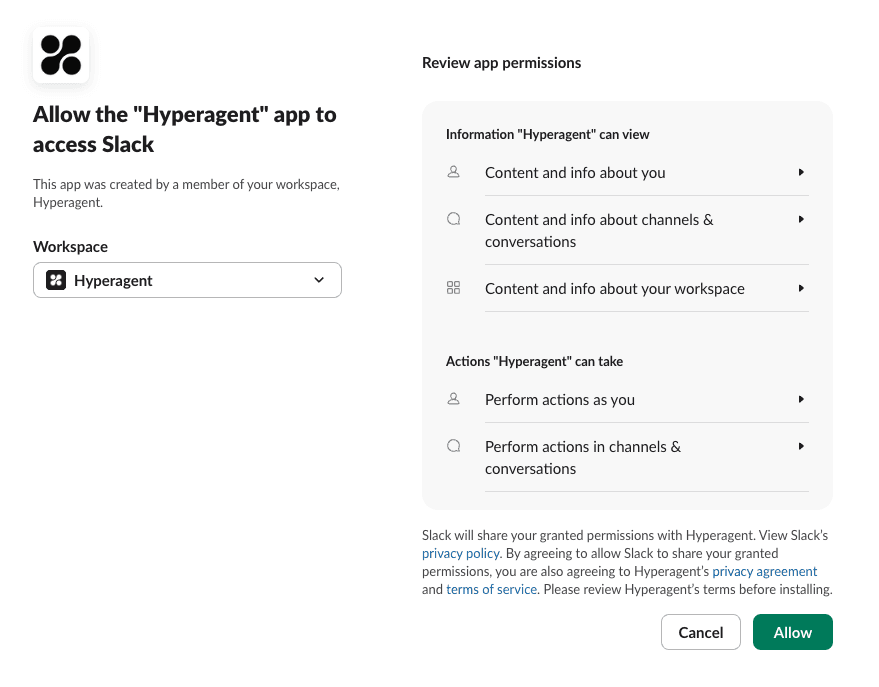
Authorize Hyperagent
Choose your workspace, review the permissions, and click Allow. If your workspace requires admin approval for apps, the request goes to your Slack admin.
Deploy an agent to Slack
Once you've connected your Slack integration to your account, you can deploy an agent to Slack. When you deploy an agent, you give it a bot identity, set which channels it's allowed to read and write from, whether it should have DM access, and a way to respond.
The following deployment configuration is what makes the agent reachable in Slack.
Bot identity
Required. The agent's own name and avatar in your workspace, and what makes it reachable in Slack at all.
User identity
Connect yourself so the agent can read and search Slack as you, only on runs you drive.
Channel access
Which channels the agent can read, and which it can post in, set separately.
DM access
Separate read and write switches for direct messages, independent of the channel settings.
Each one is a separate decision, set up in turn below.
Set the bot identity
The bot identity is the agent's face in Slack: its name and avatar, and what people @mention. An agent that should respond in Slack needs one.
Open the agent's Invocation settings
Open your agent's configuration, go to its invocation settings, and find the Slack section.

Add the agent's bot with Add to Slack
The Bot identity step shows a dedicated bot for this agent, ready to install in your workspace. Click Add to Slack, then review the permissions in the Slack window that opens and click Allow. That's the whole setup: the agent gets its own bot, and teammates can @mention it by name in any channel it's been invited to.
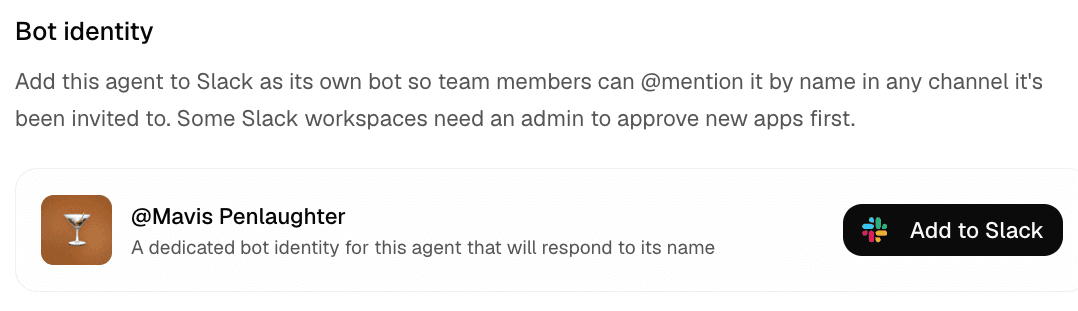
The bot takes its name and avatar from the agent itself. Changes to the agent's name, description, and logo carry over to Slack automatically, so there is nothing extra to configure in Slack.
Some workspaces require admin approval
Some Slack workspaces need an admin to approve new apps first. If that's your workspace, clicking Add to Slack sends the request to your Slack admin. If the request is declined, see Troubleshooting.
Set the bot's DM access
Decide whether the agent should be able to open and send direct messages. If you leave this off, the agent can only read and post in channels. There are two options for DM access:
- Send direct messages: The agent can open and send DMs to teammates.
- Respond when teammates DM this app: The agent can respond when a teammate sends it a direct message. This requires the first option to be enabled. Additionally, this allows all teammates in Slack to DM the agent, not just yourself.
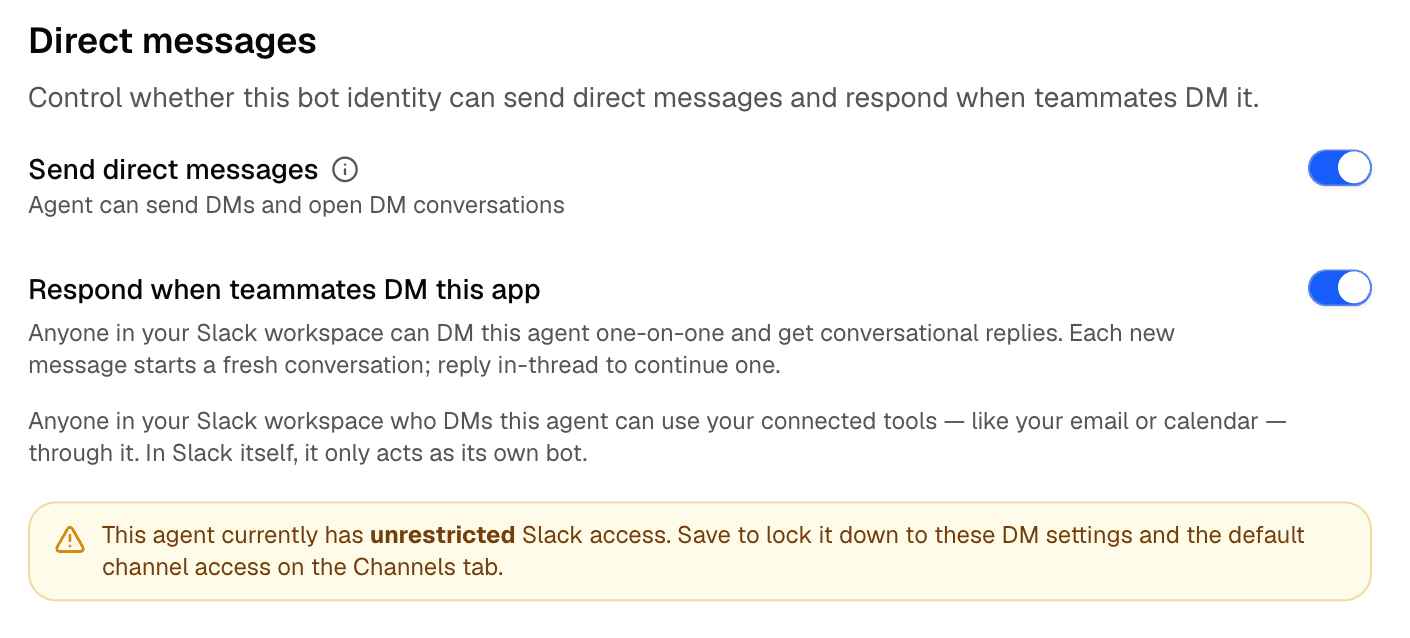
The shared @Hyperagent bot cannot respond to DMs
Responding to direct messages requires a bot identity dedicated to this agent. If the agent responds as the shared @Hyperagent bot, give it its own bot with Add to Slack to enable DM replies.
Set channels where your agent can read and post
Once you add your bot to your slack workspace, you can choose the permissions for the channels it can read and post in. There are three options for default channel access:
- No permissions: The agent cannot read or post in any channels that you do not give it specific permissions for. You can add channel-specific overrides to allow access to specific channels.
- Read only: The agent can read messages in all public channels, but cannot post.
- Read and write: The agent can read and post messages in all public channels.
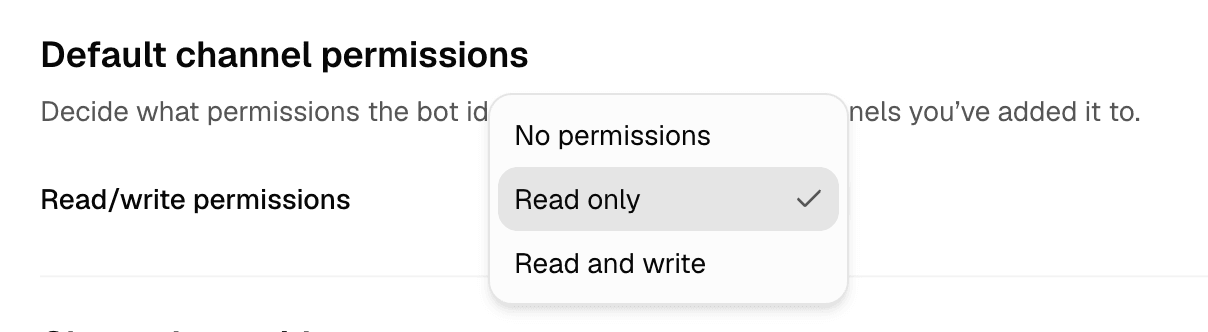
Agents cannot read private channels unless they're given specific access
Agents cannot read private channels by default. If you want the agent to read a private channel, you must add it to that channel and give it the appropriate permissions using Channel Overrides.
Set channels where your agent can be invoked
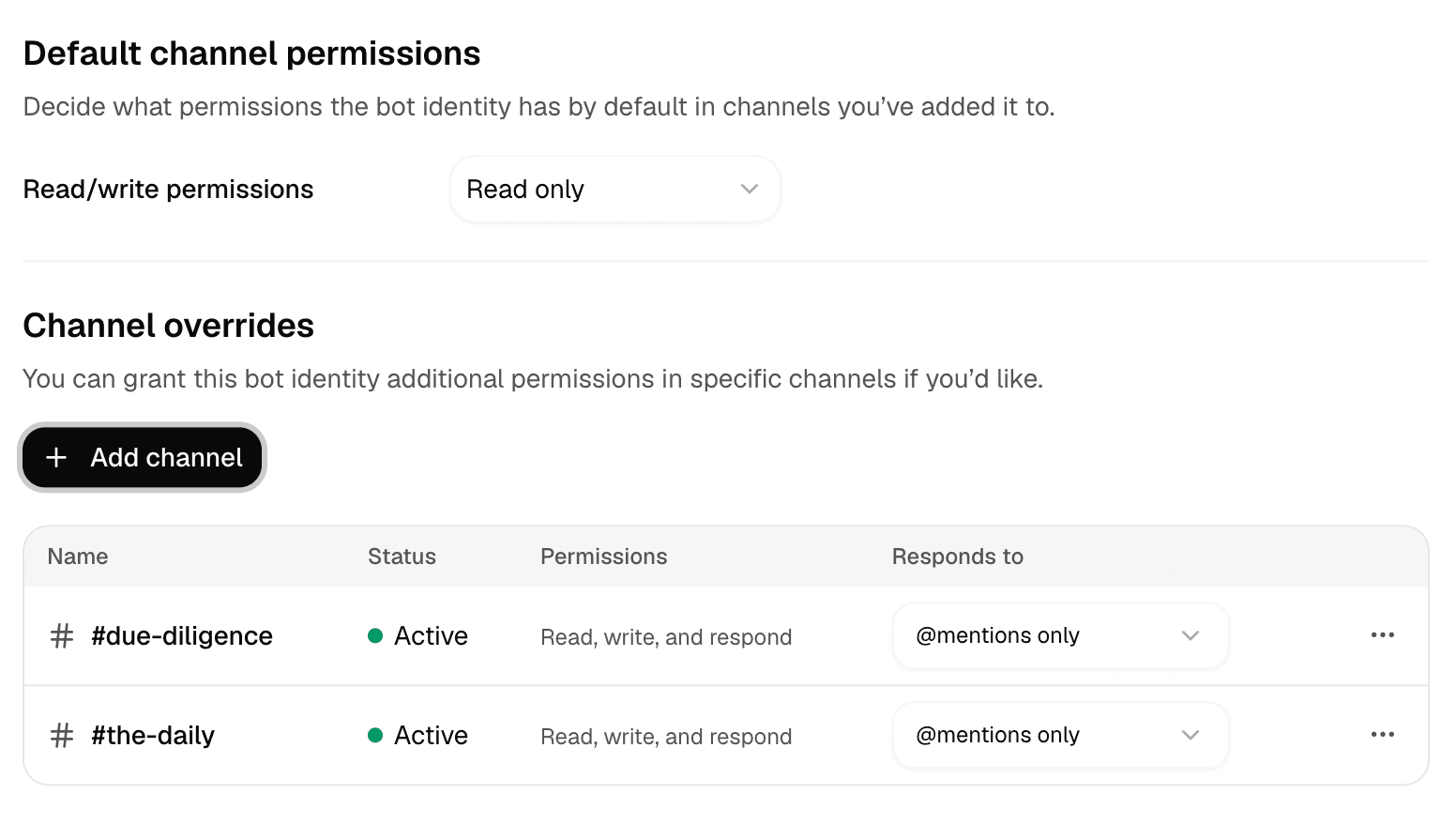
To invoke your agent in a channel, you must specifically add it to that channel, and determine how it should respond in the Channel Overrides section.
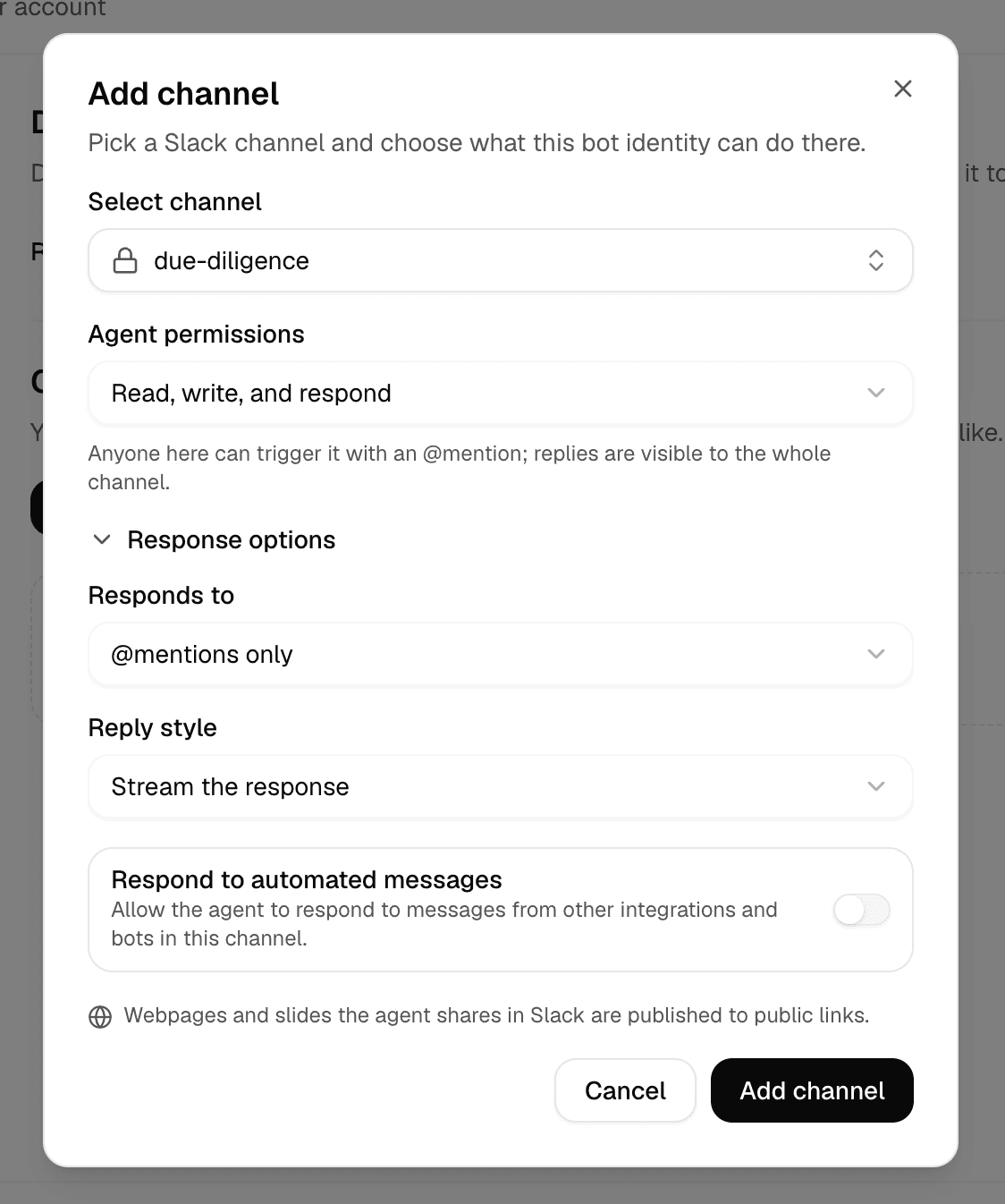
You can invoke your agent in three different ways:
- @mentions: The agent will only respond when it is mentioned in a message.
- Thread replies: The agent will respond when it is mentioned in a message, and it will also respond to messages in threads that it has already been mentioned in.
- All relevant messages in the channel: The agent will respond to any message in the channel that it deems relevant. For this invocation, you can optionally provide a Filter Prompt to help the agent determine what is relevant to respond to. Use this option with care on busy channels.
You can also set how the agent should respond, either streaming its work as it goes, posting only a final answer, or letting the agent decide whether to reply, react, or stay quiet.
Lastly, you can choose whether your agent should respond to automated messages from other apps or agents in the channel. By default, the agent will not respond to automated messages.
Setup Agent Invocation
- Select the Add channel button to add a channel to the agent's list of connected channels.
- Choose the channel you want to add from the channel picker.
- Set the agent's permissions for that channel, then set its respond mode.
Save your changes
Once you have set the bot identity, DM access, and channel access for your agent, make sure to save your changes. This will ensure that your agent is properly configured to work in Slack.
Set a user identity Optional
A user identity lets the agent read and search Slack with your access, including the channels you belong to and, optionally, your direct messages. It's owner-locked: the agent only acts as you when you're the one running it. For everyone else, the agent acts as its bot identity. The bot still does all the posting; it never posts as you.
When does the agent act as you?
The agent uses your identity only when you're verifiably the one driving the run:
- Your own chats in the Hyperagent app.
- Schedules you created yourself.
- Slack messages you send yourself, verified by your Slack workspace and user ID.
Everything else falls back to the bot identity: runs started by teammates, and runs triggered by email, webhooks, tasks, or meetings. If a run driven by someone else needs an action that strictly requires your identity, that action fails with a clear error instead of using your access.
User identities are for personal agents only
Agents in a team workspace cannot have a user identity. Moving a personal agent into a team disconnects any user identity it had; the agent keeps working through its bot identity.
Select a user identity when adding the agent to Slack
When you add a bot identity, you can also choose to bind a user identity by selecting User Identity.
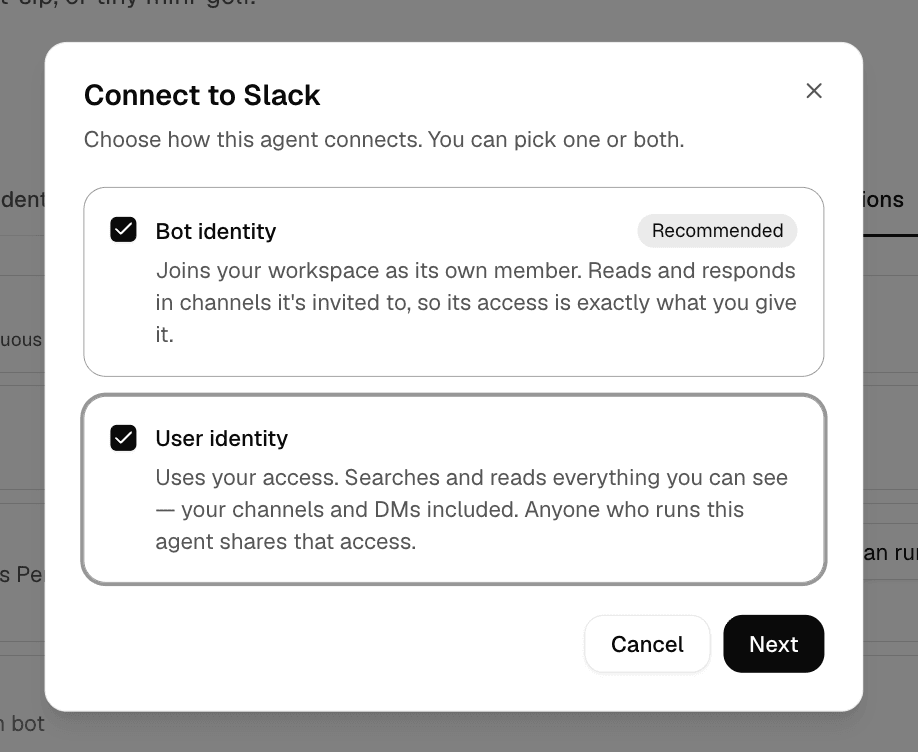
Choose the workspace and person to bind
Choose the workspace and connect yourself as the user identity. The bot identity still posts, but on runs you drive, the agent can read and search Slack as you.
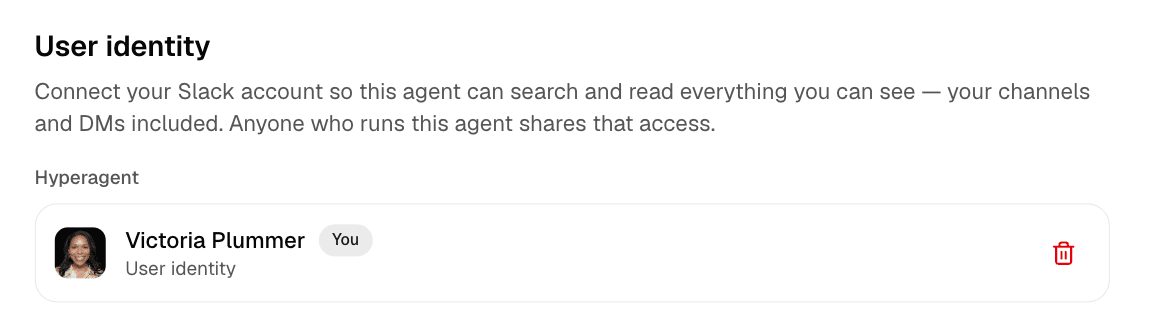
Set channel and DM access
Choose whether the agent can read all channels available to you or only specific channels. Then decide whether it can read your direct messages. Leave DM access off unless the agent's work requires that context.
These settings expand what the agent can read and search on runs you drive yourself. Posting still goes through the bot identity.
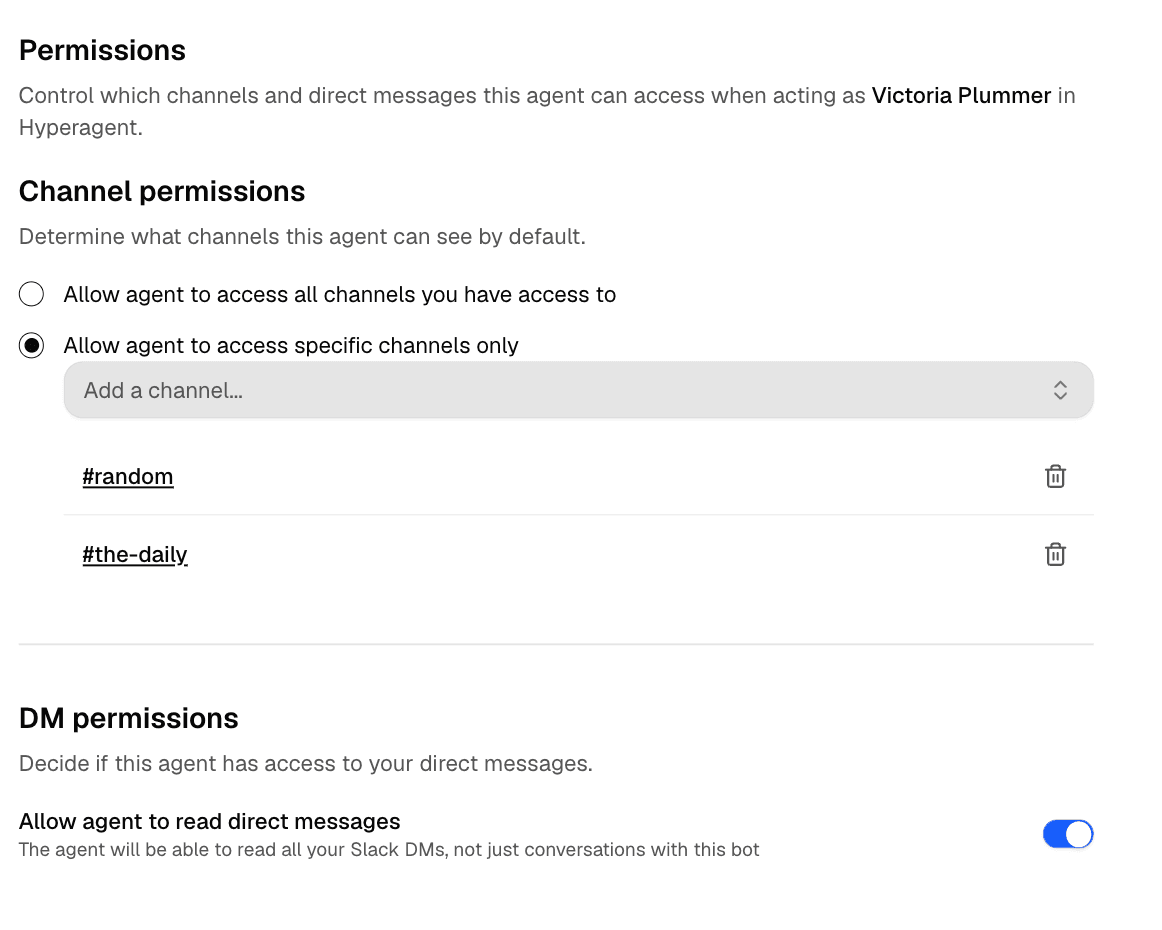
Save your changes
Once you have set the user identity, channel access, and DM access for your agent, make sure to save your changes. This will ensure that your agent is properly configured to read and search Slack as you on the runs you drive.
Interact with your agent in Slack
Once it's deployed, an agent can start work from an @mention, deliver a recurring report on a schedule, or monitor a job in Live Mode.
Agent responses are AI-generated and may be inaccurate or incomplete. Review important output before you act on it.
Invoke an agent with an @mention
In a channel where the agent is deployed, @mention its bot identity and include the request in the same message. The mention starts a run with the message and the Slack context the agent is allowed to read.
The agent does the work and posts its response from its bot identity. Follow-up messages stay together in the Slack thread, and the agent continues responding according to the channel's thread-response setting.
Artifacts shared in Slack are public
Any artifacts the agent includes in its Slack response are published to public links.
Channel response modes: Status vs verbose
When working in shared Slack channels, an agent can respond in Status mode or Verbose mode:
- Status mode (default for new channels): The agent posts a single live status message that updates in place as it works. A concise headline reflects the active task alongside quiet step indicators as tools run. Once the run finishes, the interim status transforms cleanly into the final response, keeping shared threads quiet and focused.
- Verbose mode: The agent streams its response word by word and renders individual tool cards as actions execute. This mode is helpful in private test channels where you want detailed visibility into every intermediate step.
To adjust response mode for an existing channel, open the agent's Invocations tab, select Slack, click the channel, and adjust the option under Replies Style.
Deliver Scheduled and Live runs to Slack
Scheduled and Live Mode runs use the same setup for cadence, threads, Slack delivery, replies, and unattended writes. The difference is what the agent does each time it runs:
- Scheduled runs produce a recurring deliverable on a fixed cadence, such as a Monday pipeline report or daily support summary.
- Live runs check a situation on a rolling interval and can stay quiet when nothing needs attention.
Choose the run mode and cadence
Select Scheduled for a recurring deliverable or Live for a rolling check. Set when it runs and provide the standing instructions. Live runs also let you choose a heartbeat model and leave the actions empty when the agent's defaults already describe what to monitor.
Choose the thread and Slack destination
Choose whether runs create a new thread or continue an existing one. Under Deliver result to, select the Slack DM or channel that should receive each successful result.
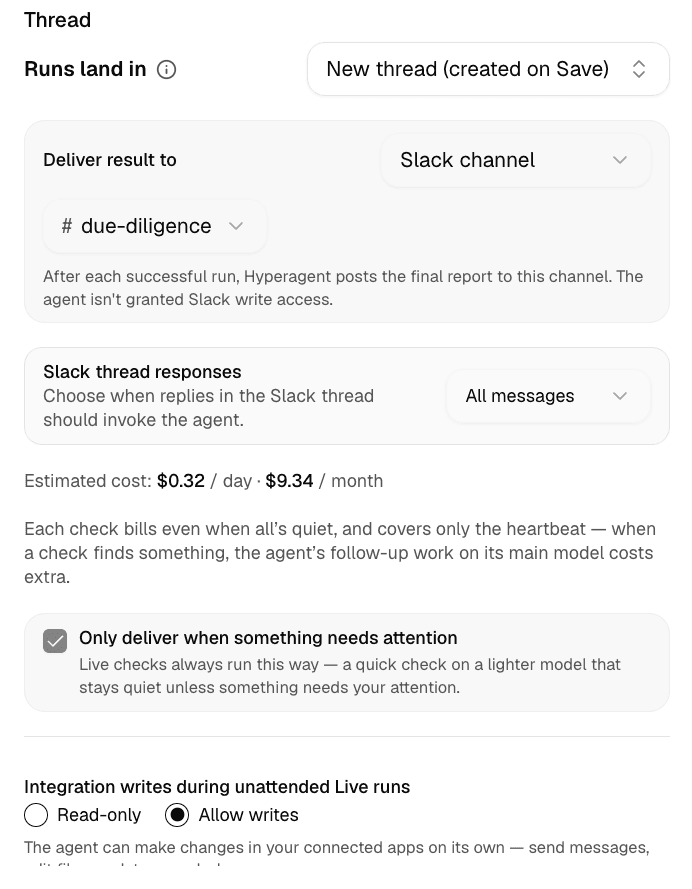
A Slack delivery destination routes the report. It does not give the agent general Slack write access.
Configure replies and notification behavior
Decide which replies in the Slack thread should invoke the agent, such as @mentions only or All messages. For a Live run, turn on Only deliver when something needs attention when routine checks should stay quiet.
A scheduled result is delivered after every successful run. A Live check still runs on every interval when attention-only delivery is enabled, but Slack receives a result only when the agent finds something that requires attention.
Set unattended write access
Choose Read-only when the agent should monitor connected apps without changing them. Choose Allow writes only when the Live run should be able to send messages, edit files, or update records on its own.
Review the estimate and enable
Review the estimated cost before enabling the run. Live heartbeat checks are billed even when everything is quiet. If a check finds work to do, the follow-up work on the agent's main model costs extra.
Disconnect an agent from Slack
Remove Slack from an individual agent when it should no longer read, respond, or deliver results in your workspace.
Remove a dedicated Slack bot without unlinking its channels individually.
Open the agent's Slack invocation settings
Open the agent's Invocations tab and click the Slack card.
Open the bot identity menu
Open the options menu on the Bot identity card for the dedicated bot.
Remove the dedicated bot from Slack
Select Remove from Slack to remove the bot identity from your workspace.
Removing the bot disconnects all its channels
Hyperagent automatically unlinks the bot from every assigned channel, pauses inbound routing, and removes the bot identity from your Slack workspace.
Remove the Slack integration from this agent to stop its Slack access and responses.
Open the agent's Integrations section
Open the agent's configuration, go to Integrations, and find its Slack card.
Remove Slack from the agent
Click the three-dot menu on the Slack card and choose Remove. The agent loses its Slack access and stops responding there.
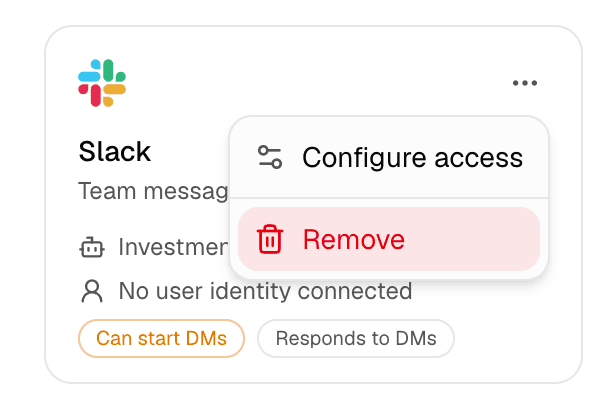
Removing Slack from one agent does not disconnect your account-level Slack integration or remove Slack from your other agents.
Troubleshooting
Still stuck? See Get support.
FAQs
Get support
Contact support
If you hit something these docs don't cover, contact support from within Hyperagent: click your name in the sidebar and choose Help → Support. Including the thread link and a screenshot helps us resolve issues faster. If you can't access the product, email support@hyperagent.com.