Manage your billing organization
Set up Shared Billing, manage the people it covers, and understand what happens to their plans and credits.
Shared Billing lets an organization cover its members' Hyperagent usage through one plan and payment method. The organization's Owner manages that plan and membership in Settings → Billing.
Choose membership deliberately: joining a billing organization changes how the person's usage is paid for, not just where they can collaborate. If you only want to cover their work inside your organization's workspaces, Workspace billing can do that without enrolling them in the billing organization.
Decide who needs billing membership
There are two reasons you might give someone access:
- They need to work with your agents: Give them workspace access. With Workspace billing enabled, the organization can pay for their work there even if they are a guest.
- The organization should cover their usage more broadly: Invite them to the billing organization. Its plan covers their usage, except work in another organization's funded workspace or work with its own shared-agent billing arrangement.
For example, an agency builder who works for several clients can join a client's workspace without joining its billing organization. The client can fund work in that workspace while the builder keeps their own billing arrangements elsewhere.
Set up Shared Billing
You need a paid web plan to enable Shared Billing. Apple-billed plans cannot enable it. If a billing organization already exists, only its Owner can enable Shared Billing for it.
The Owner's billing account moves permanently
Enabling Shared Billing moves your current plan, payment method, and credits into the organization. There is no self-serve action to move the Owner's billing account back to individual billing. Review this before enabling it.
Open billing settings
Open Settings → Billing with the account whose plan should become the organization's plan. Find the Shared Billing card.
Name the organization and enable Shared Billing
Enter an Organization name, then select Enable Shared Billing. Your existing plan and payment method move into the organization; you do not need to enter the card again.
Check the organization card
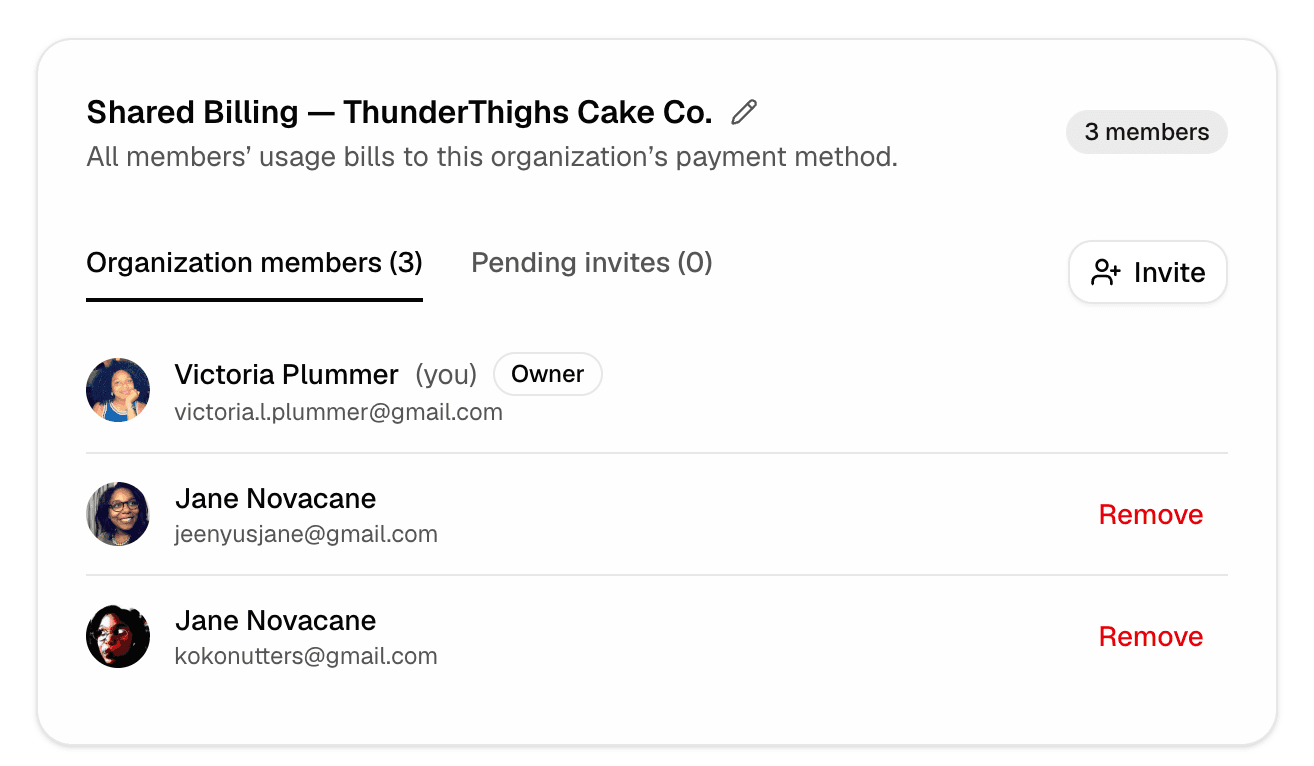
Confirm that the Shared Billing card shows your organization and its membership controls. You can now manage billing membership or enable Workspace billing to fund work in its workspaces.
Review what joining changes
Explain these consequences before sending an invitation:
- Personal subscription: Members cannot keep a separate personal plan while the organization covers them. An active personal web subscription is cancelled when they join an organization with its billing plan set up.
- Apple subscriptions: Someone with an active Apple-billed subscription must cancel it in the App Store before joining a billed organization.
- Other billing organizations: A person can belong to one billing organization at a time. Review an invitation's account changes before accepting it if they already belong to another.
- Existing credits: The Owner's credits move with the billing account when Shared Billing is enabled. A joining member's personal credits stay on their personal account, do not transfer to the organization, and cannot be spent while that account is dormant.
Members ask the organization's Owner to manage the plan, top-ups, and payment method. Workspace Owners and Editors do not gain billing-management access just through their workspace role.
Invite and manage members
Open Settings → Billing and find the organization's Shared Billing card.
Send an invitation
Select Invite, enter the person's Email, and select Send invite. They need to accept the invitation before their usage is covered through billing membership.
Check the invitation or member list
Use Pending invites to review invitations and Organization members to confirm who has joined. The Owner can revoke a pending invitation or remove a member from the same card.
Review access before removing a member
Removing a billing-organization member also removes their membership and associated access in the organization's workspaces. Arrange a handover before removing someone who maintains agents or scheduled work. If they are a workspace's last Owner, another Owner must be assigned before removal can proceed.
Members can leave the billing organization; the Owner cannot use leaving as a self-serve way to undo Shared Billing. Leaving or removal ends organization membership coverage, and future work follows the billing arrangements and access that still apply. It does not transfer the organization's credits to the departing person.
If Shared Billing was enabled by mistake, contact Support to review the account rather than turning off Workspace billing. That switch changes workspace funding; it does not reverse the billing-account move.
What's next
- Fund work in your workspaces without requiring every guest to join the billing organization.
- Review usage and invoices to understand what the organization is spending.
- Manage your plan for plan and payment-method changes.