Put your agent on a schedule
Have your agent repeat a job at the right time and deliver the result where you need it.
Have the work ready without remembering to ask
Schedule a job your agent already knows how to do. Your agent can prepare a brief, check for updates, or refresh a report regularly, then deliver the result where you need it.
Start with a saved agent and a job you’ve reviewed together. A schedule repeats one of your agent’s jobs; your agent can keep helping with other responsibilities too.
What you’ll learn
- Describe the routine
Tell Hyperagent what to run and when. - Give each run the right starting point
Include the request, sources, and skill to use. - Choose access and delivery
Decide what your agent can change and where the result arrives. - Test before relying on it
Check the work, delivery, and next scheduled time.
Set up and test the schedule
Pick a job you want to repeat
Choose a job your agent already knows how to do and that you want repeated.
For each scheduled job, decide:
- Time
- When and how often it should run.
- Job
- What your agent should do.
- Output
- What you want back, such as a brief, report, or list of findings.
- Delivery
- Where the result should arrive and whether you also want a completion notification.
Just starting out?
Work through a real task with Hyperagent first. If you need a saved agent, turn that thread into an agent. If you’re still repeating the same corrections, teach your agent how you work before scheduling the job.
Set up a schedule
- Find your agent
Open Agents in the sidebar and select the agent you want to schedule. - Open its schedules
Select Configure, then Intake. Find the Scheduled section. - Start a schedule
Choose Create schedule. If the agent already has schedules, choose Add beneath the list.
Describe the job and when to run it
- Describe the routine
In Describe your schedule, say what your agent should do and when it should run. - Generate a draft
Select Generate. Hyperagent drafts the timing and rewrites Message; it does not save the schedule. Review its wording before saving.
Example request for a weekday briefPrompt
Every weekday at 7 a.m., prepare a brief for today’s customer calls using the Daily Briefing skill. Use today’s calendar and the relevant customer records. Create a webpage with risks and questions first, and link to the sources. If there are no customer calls, say so. Flag missing information instead of guessing.
Check the timing before continuing:
- Repeat
Does the schedule run on the days and at the frequency you want? - Timezone
Select the timezone explicitly. It initially follows your browser’s timezone; mentioning another timezone only in the request is not enough.
Allow time for the work to finish
The scheduled time is when your agent starts, not when the result will be ready.
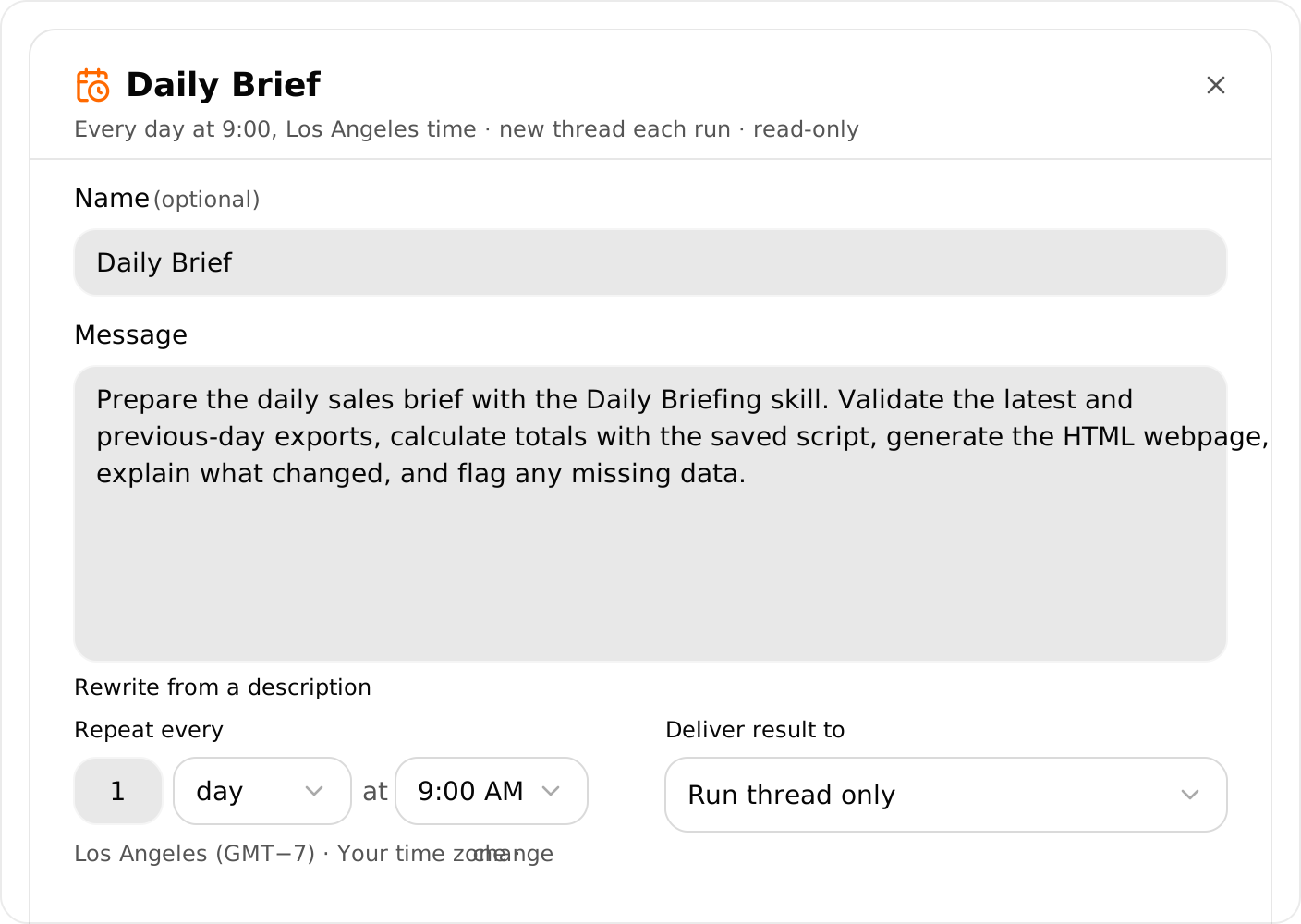
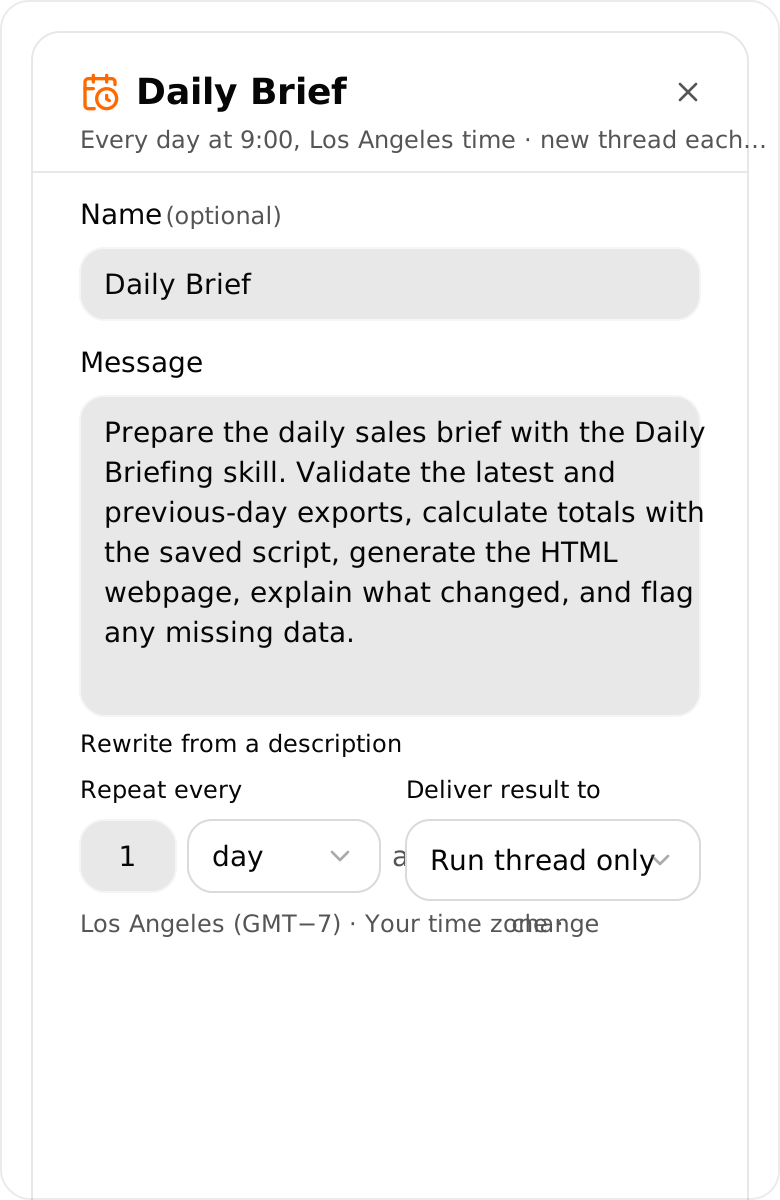
Review the schedule’s Message. This is the request your agent receives each time the schedule starts a run. It should make sense without the conversation where you first worked out the job.
The job
Is it clear what your agent should produce or check?The method
Does it name the saved skill to read, without copying the whole procedure?
The sources
Can your agent find the current information needed for each run?Missing information
Does the request explain what to flag or stop for instead of guessing?
Use your own skill and sources. Make sure the skill is saved and available to this agent, and that the required connections and source access are enabled. For the call-brief example, webpage generation must also be available. Naming them in Message does not grant access. If the request needs more work, ask your agent to help draft it in the thread, then copy the reviewed version into Message.
Choose whether each run starts fresh
Expand Advanced and use Thread to choose how scheduled runs use a conversation.
New thread each run
Use this when each occurrence should stand on its own, such as a daily brief or weekly report. Your agent uses its saved setup with the new request, without the previous thread’s conversation.
Continue existing
Use this when the next run should build on work in the same thread. Select the thread to continue.
For the daily-brief example, choose New thread each run so yesterday’s customer details do not become the conversation history for today’s brief. See Thread context for what your agent brings into a fresh thread.
Decide what your agent can change
Under Integration writes, choose Read-only, Ask, or Allow. Gathering information and preparing a result usually does not require changing records in a connected service. This setting does not give the agent access it otherwise lacks.
Read-only
Your agent can read connected services without changing their records. Use this for reporting and research that does not need external updates.
Ask before writes
A change in a connected app pauses the run for your approval. Review the request in the run’s thread or Inbox. Approving resumes that action; denying it or letting the request expire leaves it undone.
Allow writes
Your agent can use its permitted write access without waiting for you. Review the actions the job needs before choosing this setting.
For the call-brief example, Read-only is enough. See scheduled writes and approvals for the detailed behavior.
Choose where the result arrives
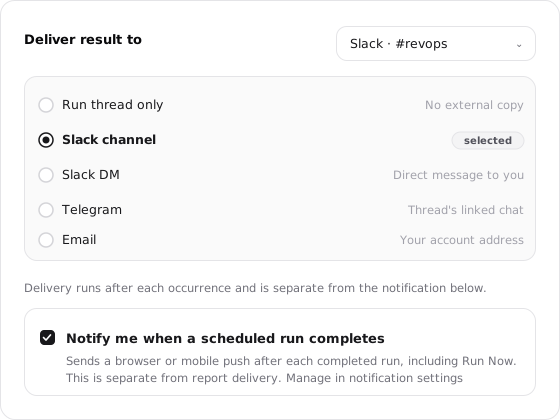
Choose a delivery destination, or keep the result in the run’s thread. Email and Slack DM deliver to you, the schedule owner. Slack channel delivery needs a configured channel. Telegram delivery requires Continue existing with a Telegram-linked thread. Check that the destination is available.
- Delivery
Where a copy of the final report goes. Choosing a destination does not grant general write access to that service. - Notify me when a run completes
Under Advanced, turn this on if you also want a completion notification. Browser and mobile notifications depend on your notification settings.
Read-only work can still deliver a report
Report delivery is separate from permission to change connected records. You can keep the job read-only and still have its finished result delivered to an available destination.
Select Save, then open the saved schedule and check its status and Next time.
Saving starts the schedule
New schedules are active by default. Pause yours if you want to finish testing before recurring runs begin.
Run it now and check the result
Save any changes, open the saved schedule, select Run now, then confirm Run Now. This starts a real run with the schedule’s permissions and delivery settings, so you can check the whole process before relying on it regularly.
- Sources
Did your agent use current information and the right records? - Work
Did your agent follow the skill and identify anything missing? - Delivery
Can you open the result where you expected it? - Timing
Does the next scheduled run match what you intended?
Your next scheduled run stays in place
Run Now starts an immediate run without moving the next scheduled time. The schedule’s write permissions, delivery settings, and completion notifications still apply.
If something needs changing, ask your agent to help improve the request or skill, review and save those changes, then test again. A completed run is only useful if the result meets your needs. If you paused the schedule for testing, resume it when the work and delivery are correct.
Keep track of scheduled work
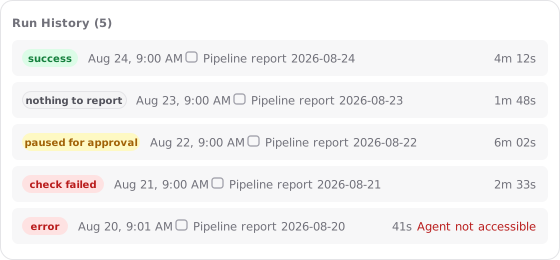
Select the saved schedule to open its details. Run history appears below Message; open a run’s thread to inspect the work, read the result, or investigate a problem. Update or pause the schedule when the job changes.