Automate a room
Let external events and recurring schedules start work in a room, so results arrive where the team already works.
A room doesn't have to wait for someone to type. A webhook lets an outside system post into the room when something happens. A schedule gives an agent recurring work there. Both deliver into the same conversation the team already reads, with the same agents and the same write access.
Room webhooks
A room webhook turns an external event into a room message. A deployment result, a form submission, or an alert can arrive in the room where the team planned the work, and the room's agents can respond to it.
Set up a room webhook
Choose the room and agent
Join the room and add the agent you want to associate with the endpoint. You need edit access to that agent, and it must belong to the same workspace as the room.
Open Webhooks
Open the room actions menu, select Webhooks, then select Add.
Describe the incoming work
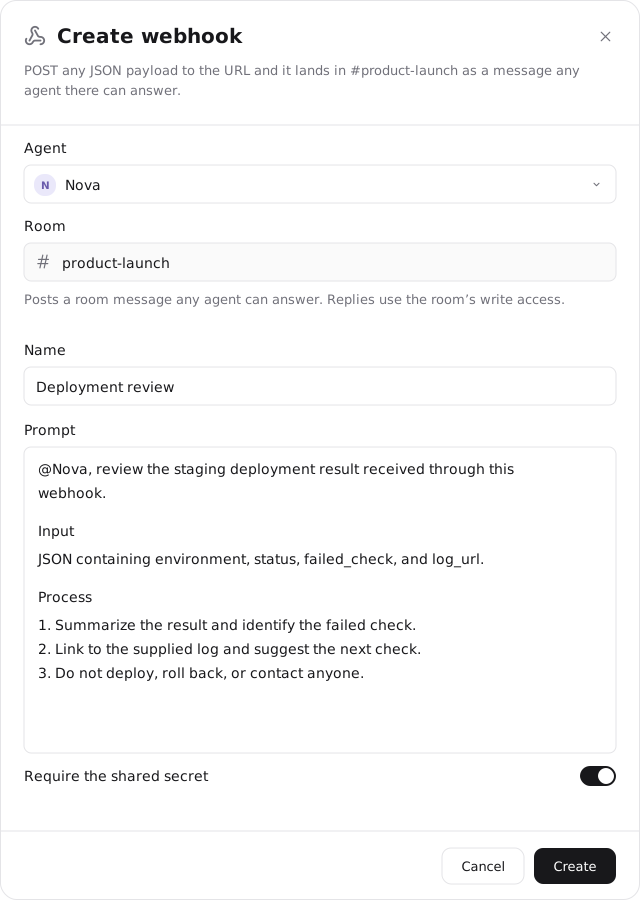
Choose Agent, optionally enter a Name, and write a Prompt that explains what to do with each incoming event. The Room destination is already set.
The associated agent isn't necessarily the only responder. The webhook posts a room message that any eligible agent can answer. @mention an agent in the prompt when you want a particular specialist to handle it.
Protect the endpoint
Leave Require the shared secret enabled, then select Create. Store the endpoint URL and the secret, which is shown once, in your sender's secure configuration. Only the endpoint's owner can add or rotate the secret later.
Send a test event
Configure the sender to make an HTTP POST request to the endpoint URL, with the secret in the X-Hyperagent-Webhook-Secret header. The Copy curl example action on the endpoint gives you a ready-made request.
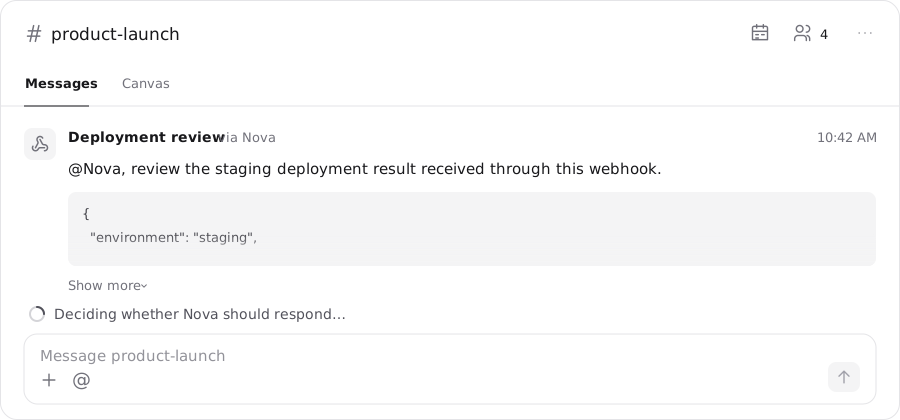
When it works, the event appears in the room as a message from the webhook: your prompt first, then the payload, with the room deciding which agent should respond.
The Webhooks panel groups endpoints by agent. Pause or resume an endpoint with its switch, and open Run history to see what each delivery did.
Room schedules
A room schedule gives an agent recurring work in the room. Use it for a regular briefing, a weekly review, or a check that should speak up only when something needs attention.
Morning briefings
Review recent room progress and post the next priorities, blockers, and decisions.
Status rollups
Review open work and bring the team a weekly summary.
Health checks
Check a system or metric regularly and post only when the findings need attention.
Set up a room schedule
Choose an agent for the recurring task
Join the room and make sure the agent is already a member. You need edit access to the agent, and it must belong to the room's workspace.
Open Schedules
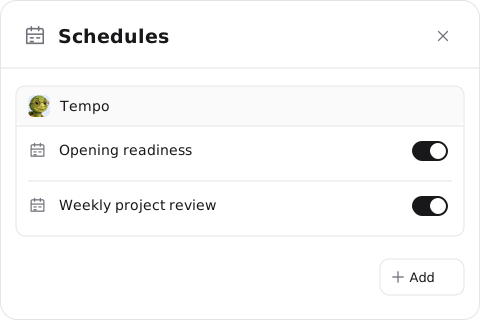
Select the calendar control in the room header, then select Add.
Write the briefing
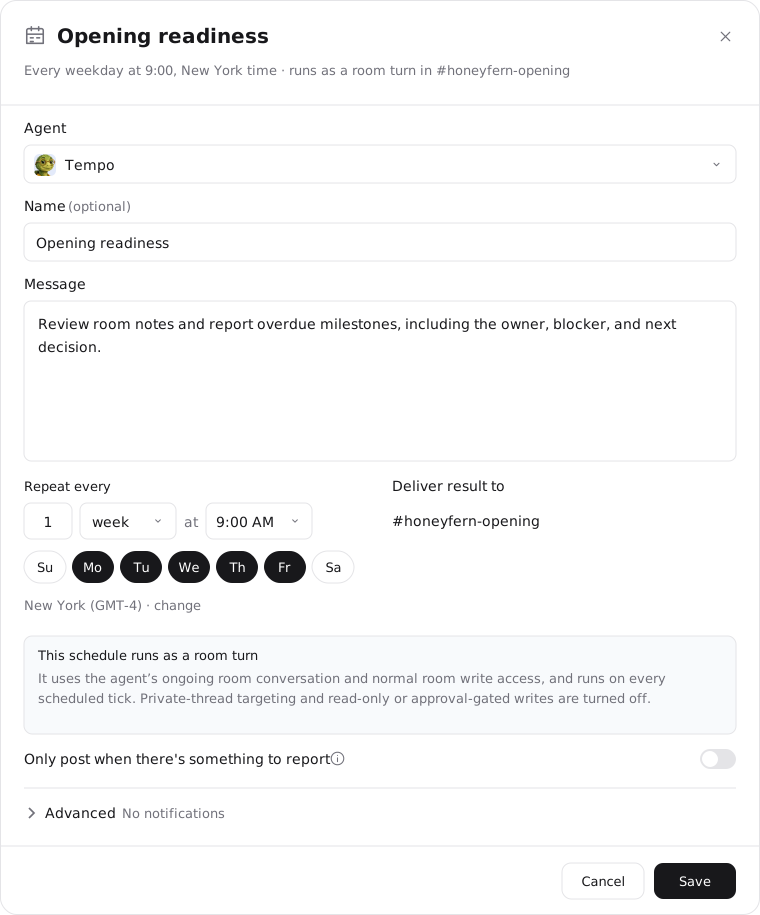
Choose Agent, enter an optional Name, and write the Message that describes what the agent should do on each run.
For example: "Review the room notes and report overdue milestones. Name the owner, the blocker, and the next decision needed."
Set the timing
Choose the cadence, time, and time zone. Deliver result to is fixed to this room.
Choose when it should post
For monitoring, turn on Only post when there's something to report. Leave it off for a regular briefing. Turn on Notify me when a run completes if you want to be told each time. Select Save.
Quiet checks still run
A schedule with quiet posting on still runs on every tick and uses credits. A run that finds nothing stays silent in the room and shows in run history as nothing to report.
Scheduled turns run in the room, using the agent's ongoing room conversation and the room's normal write access. Pause or resume a schedule from the panel with its switch. Schedules are visible to every workspace member, so the team can see what runs where.