Inbox
Review questions, approvals, mentions, and failing schedules from your agents in the current workspace.
When several agents work at once, the next useful step is often yours: answer a question, approve an action, or check a schedule that failed. Inbox brings those items together so you do not have to open every agent's conversation to find what is waiting on you.
Inbox is for decisions, not just notifications
An Inbox item tells you what needs attention and where to act. Reading the item is not the same as approving it, answering it, or fixing the underlying problem.
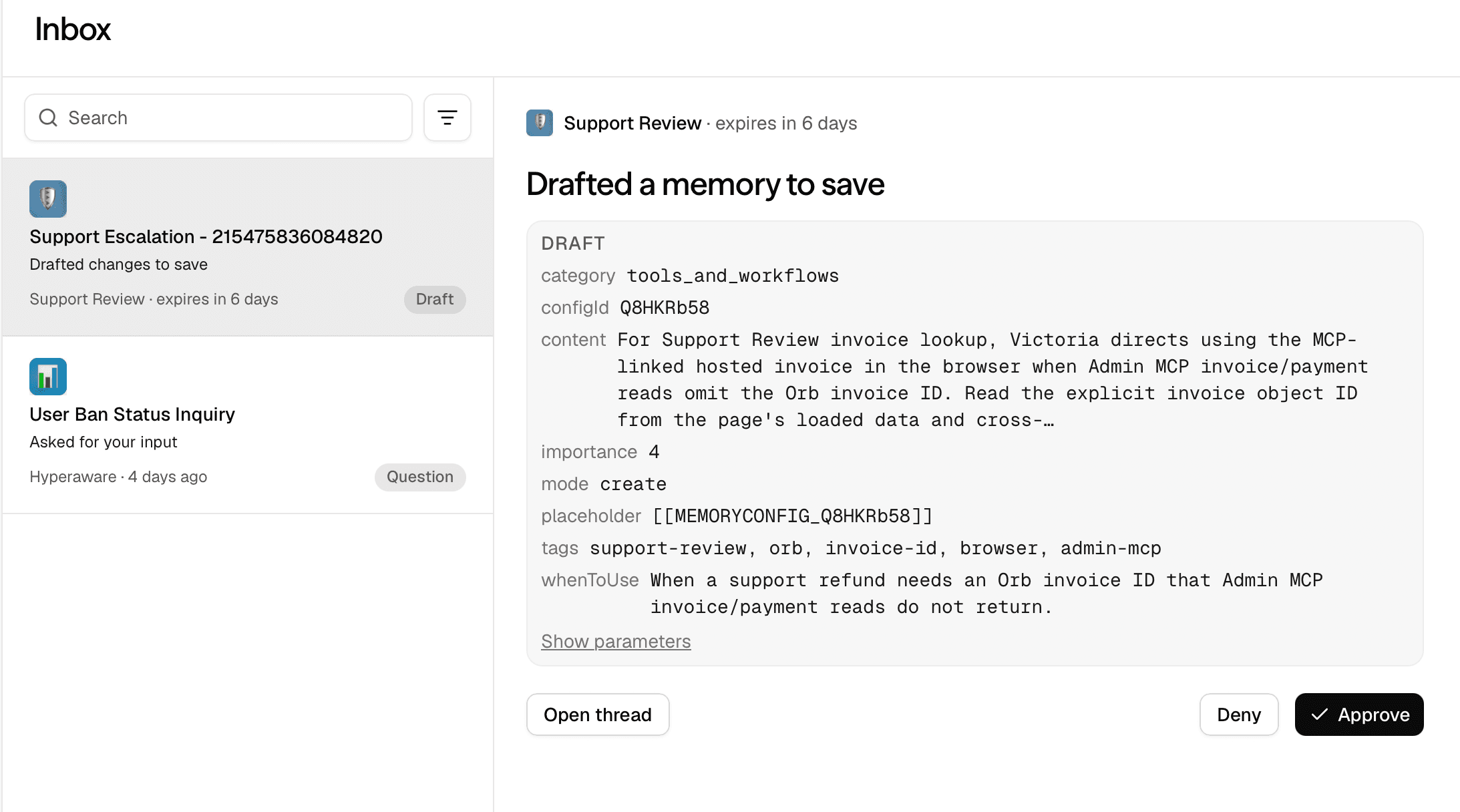
Open Inbox from the workspace sidebar. It shows your attention items in that workspace, rather than every member's private requests. Choose Personal to review your personal work separately.
What appears in the Inbox
Different items need different responses. Check the item type before deciding whether to act in Inbox or open its source.
The examples below are product-faithful SVG illustrations with sample content, not screenshots of live requests. Select an image to enlarge it.
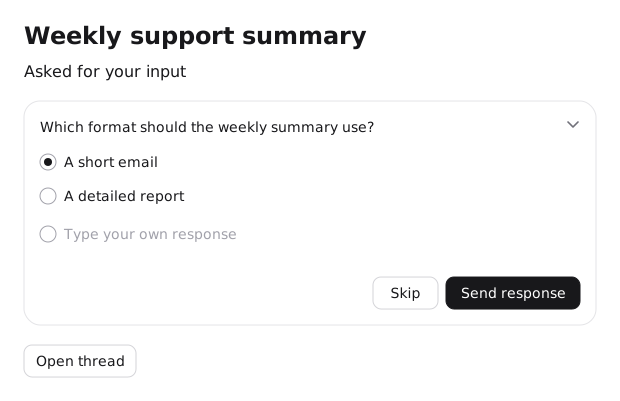
Questions appear when an agent needs an answer to continue. Read the question and use the available answer controls, or open the conversation when you need more context.
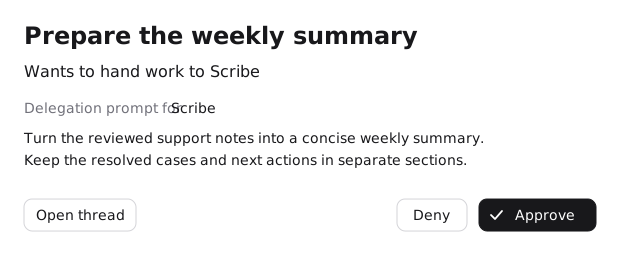
Approvals ask you to review a proposed action or access request. Inspect the request before approving or denying it. Some items open the originating conversation for the full review.
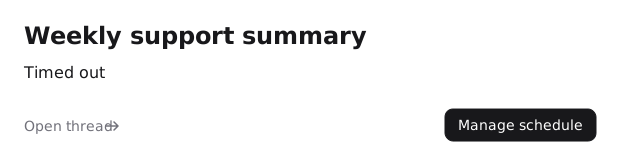
A failing schedule needs investigation rather than approval. Open its management or run details to understand the failure and decide what to change.
Approvals can cover different kinds of work, including external writes, network access, tool access, or delegation. The available controls follow the request. A skill installation, for example, takes you to the conversation to review the proposed installation rather than installing it merely because you opened the Inbox row.
Review an item
Choose the workspace
Open the workspace containing the work, then select Inbox. Check the workspace name if an expected item is missing.
Find the agent or request
Scan the list, search, or filter by agent. On desktop, selecting a request opens its detail pane. On mobile, it opens the detail view. Mentions take you to their Channel.
Read before deciding
Review the question, proposed action, or failure. Open the source conversation if the item does not include enough context for a decision. Do not approve an action simply to clear the list.
Take the matching action
Answer a question, approve or deny a request, or manage the failing schedule using the controls offered. The underlying request determines what happens next; a failure still needs fixing even after you read it.