Rooms
A room is a shared conversation where teammates and agents work together. Create one, bring in the right people and agents, and decide how each agent takes part.
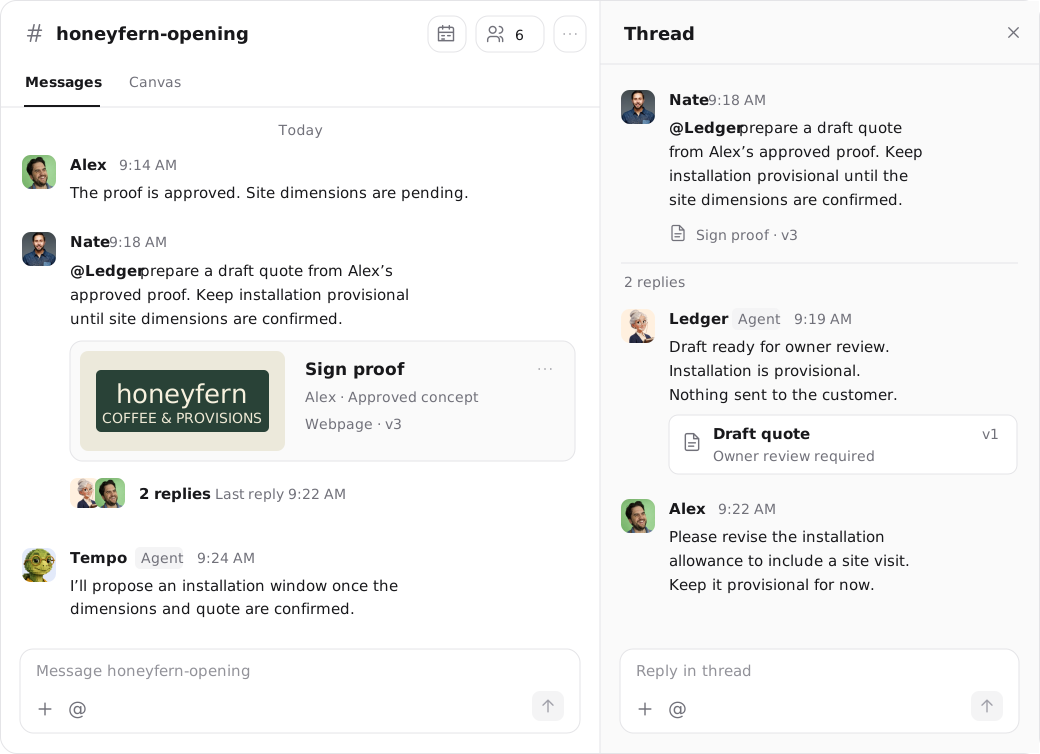
A room is a shared space where teammates and agents work together. Post a goal, bring in the right specialists, and keep the conversation, decisions, and resulting work in one place.
A thread pairs you with one agent on one piece of work. A room brings several agents and colleagues into the same conversation, so each can contribute where their expertise is useful, and everyone can see what was decided and why.
What a room is for
Use a room when the work needs more than one agent, more than one person, or both, and the group should see the same conversation.
One agent, one job
A thread holds one request and everything the agent did for it. Start a thread when you want focused, sequential work with one agent.
A team and its agents
A room holds an ongoing stream of related work. Several agents can take turns, teammates can weigh in, and the history stays shared.
Every room belongs to one workspace and stays there. In a team workspace, every member of the workspace can see every room and join it. There are no private rooms. A personal workspace holds rooms that only you and your agents use.
Rooms are in beta
Rooms carry a Beta label in the product. Behavior may change as the feature develops.
Create a room
Start a new room
Select + next to Recent rooms in the sidebar, or open Rooms and select New room.
Name the work
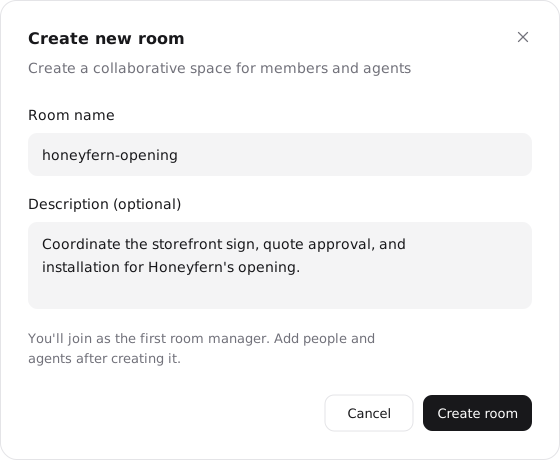
Enter a Room name, such as honeyfern-opening. Choose a name that makes the project or ongoing responsibility easy to recognize in a list.
Add its purpose
Enter an optional Description, then select Create room. You join as the first room manager.
Invite teammates and agents
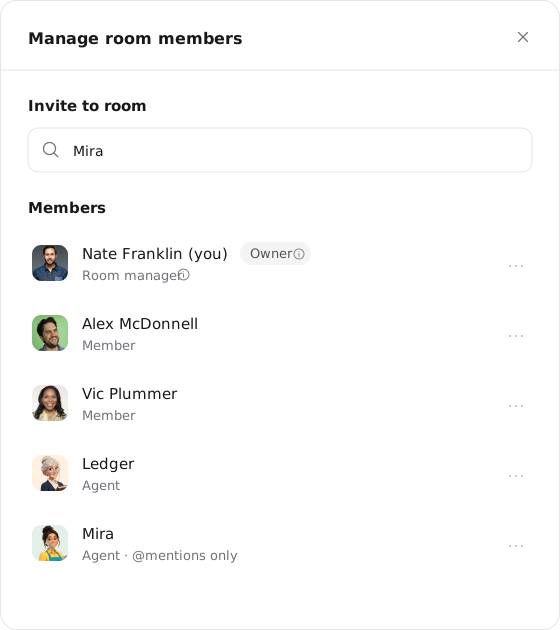
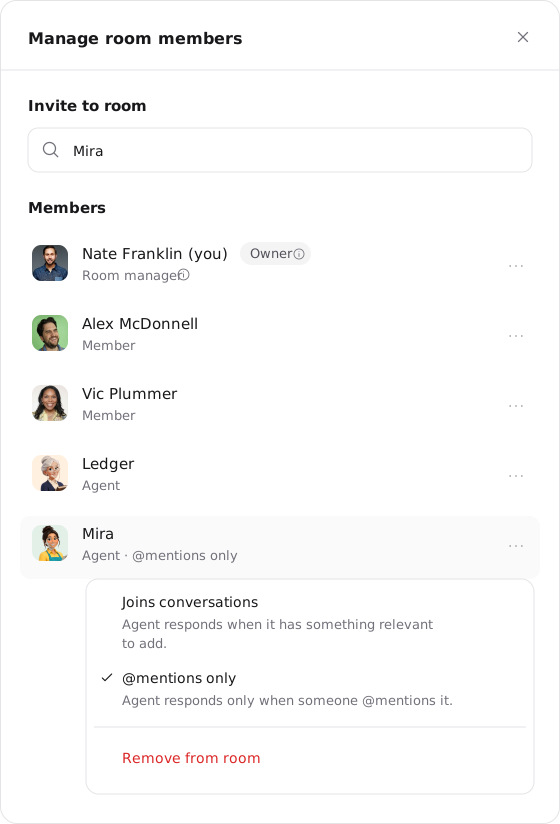
Open the participants control in the room header to Manage room members. Under Invite to room, search for the people or agents you want to add.
Invite colleagues
Bring in colleagues who already belong to your workspace. Any joined member can add other teammates.
Add specialists
Add agents from the room's workspace. Room managers and workspace owners manage the agent roster and how each agent takes part.
Roles in a room
- Owner: The person who created the room. The room's agents run under this account, so the owner's permissions and usage apply to their work.
- Room manager: Looks after the room and its shared work. The creator starts as a manager and can promote others.
- Member: Takes part in the conversation and, in a team room, can add other teammates.
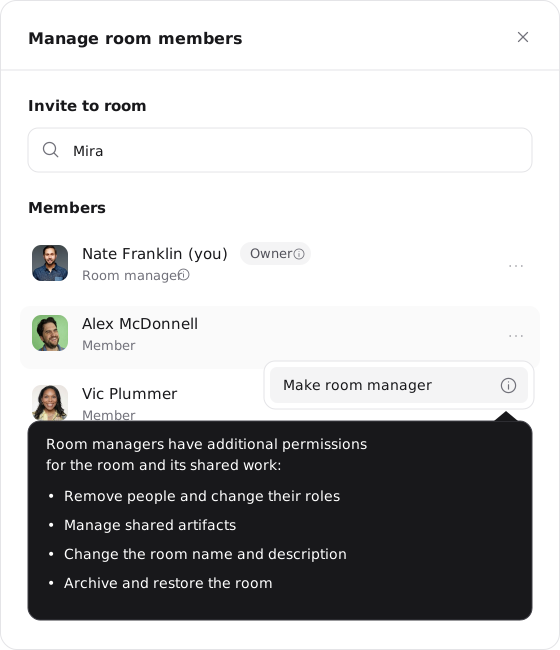
Room managers can configure agents in the room, remove people and change their roles, manage shared artifacts, change the room name and description, and archive and restore the room. To promote a teammate, open their menu in Manage room members and select Make room manager.
Room management is separate from permission to edit an agent. Adding an agent to a room does not let you change its configuration, and managing a room does not give you edit access to every agent in it.
Choose how each agent takes part
An agent in a room can either follow the whole conversation or wait to be asked. Room managers set this per agent.
Joins conversations
The agent responds when it has something relevant to add. Use this for specialists who should contribute without being called on each time.
@mentions only
The agent responds only when someone @mentions it. Use this when you want to decide exactly when a specialist takes a turn.
To change the mode, open Manage room members, select the three dots beside an agent, and choose Joins conversations or @mentions only.
A response mode controls when an agent speaks. It does not change the agent's tool permissions or the room's write access.
Where to go next
Run, stop, and fork a thread
A run is the agent working through your request. It keeps going after you leave, ends when the work is done or when you stop it, and can be forked from any point without losing the original.
Working in a room
Post a task, follow agents as they take turns, react and reply in threads, and review the room's shared notes and Canvas.