Find and reuse an agent's files
Find a past output, choose what the agent should refer to again, and check it in a fresh task.
Keep the right material for the next task
Use an agent's Library to find earlier work and manage useful references. A file appearing in a task does not automatically save it for future use.
What you’ll learn
- Find earlier work: Choose between saved references and outputs from tasks.
- Save a useful reference: Add the material your agent should use again.
- Check reuse: Test the reference in fresh work and remove it when it becomes outdated.
Find a file
Open the agent and choose Library. The two collections answer different questions:
| Collection | What you will find |
|---|---|
| Saved for this agent | Files added for the agent to refer to across tasks. |
| From tasks | Files shared or created in the agent's tasks that you have access to. |
Choose a collection, then use Search files… to narrow the results. Open a card to preview the file. Follow an available source-thread link to check the request and discussion behind it.
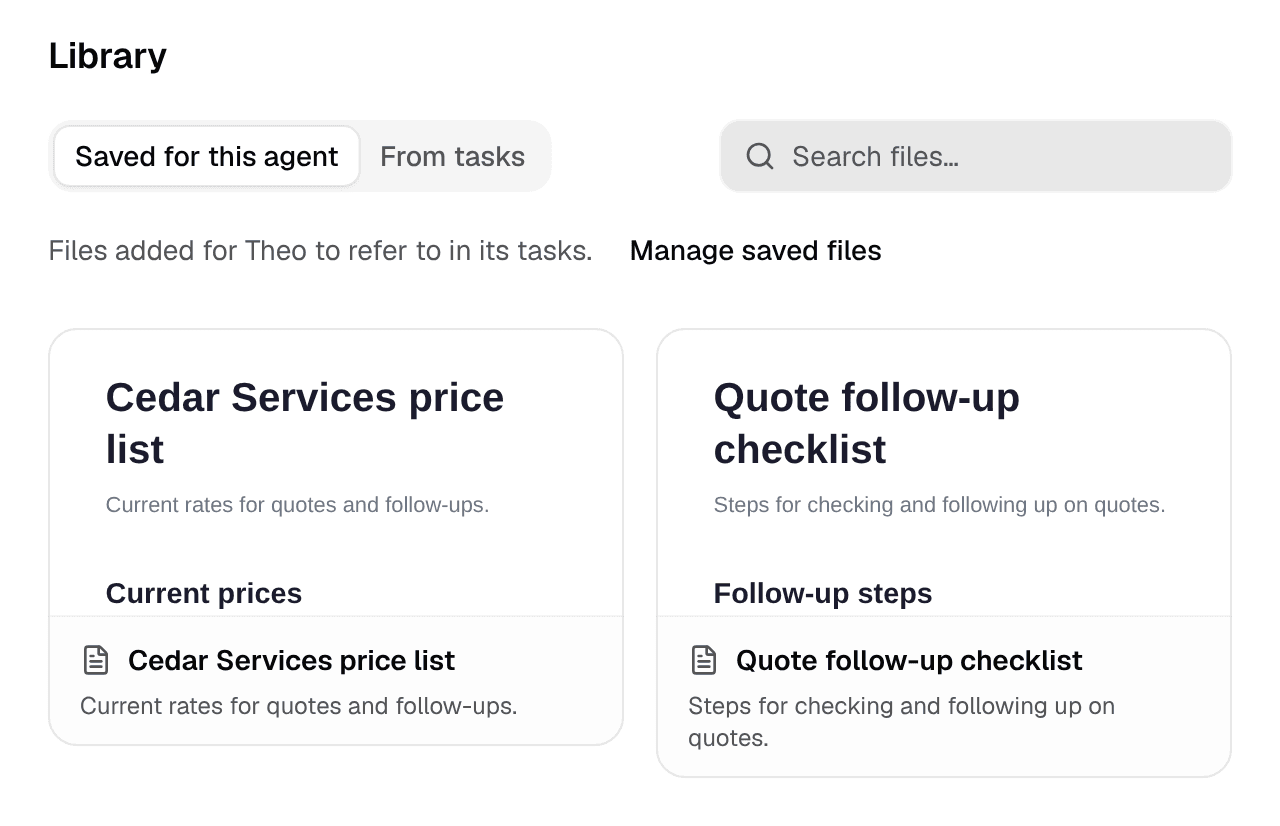
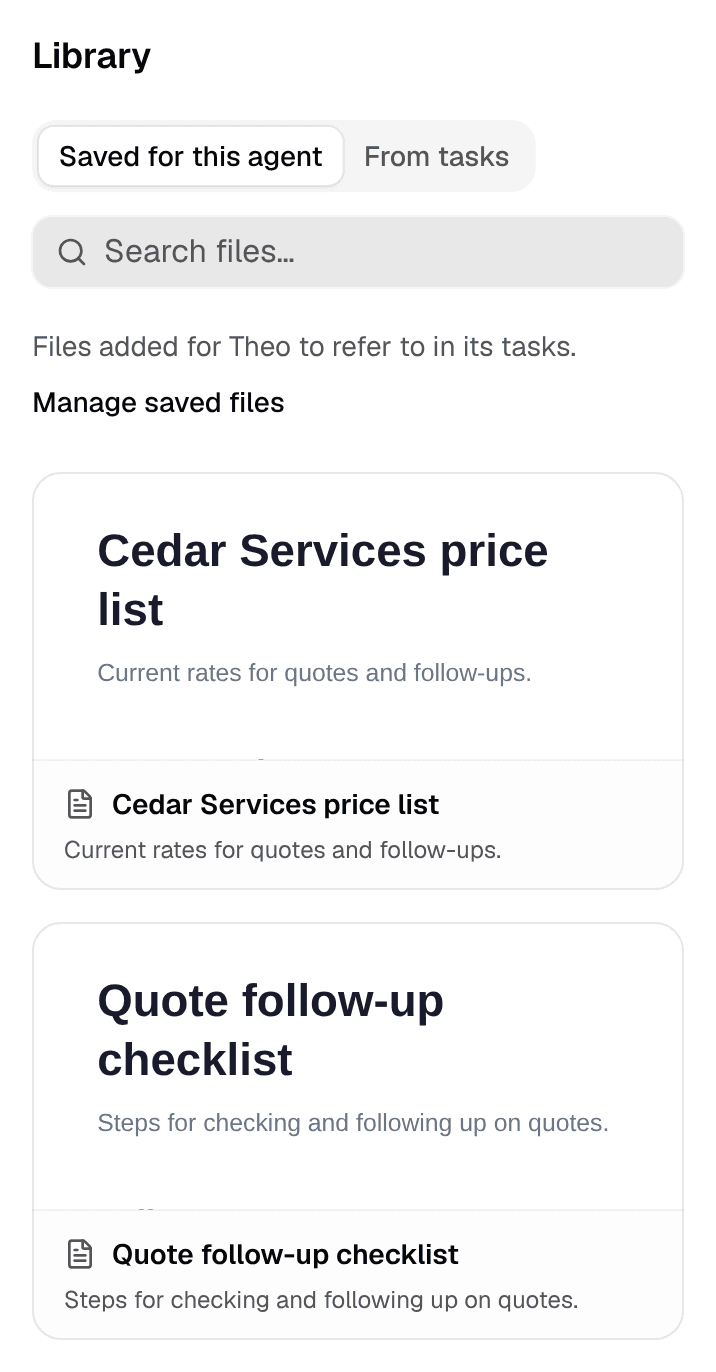
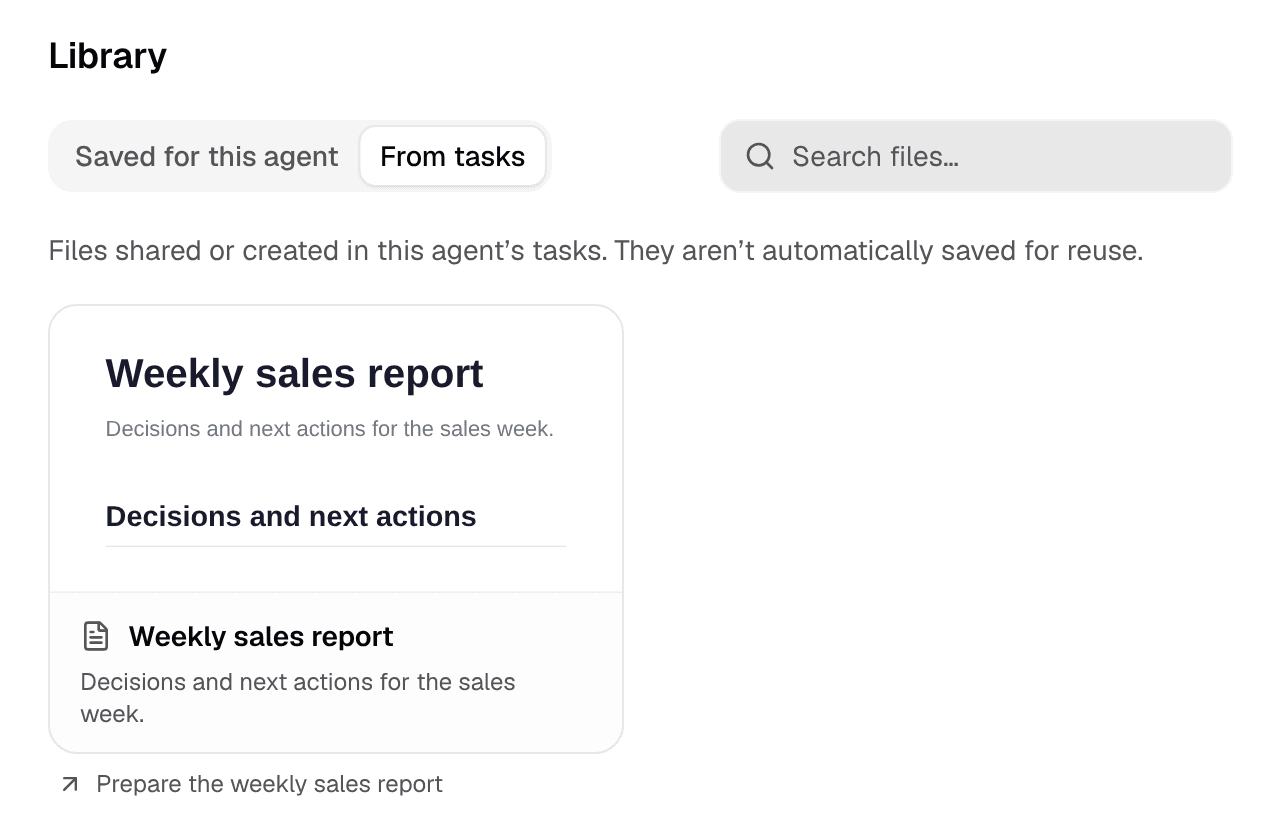
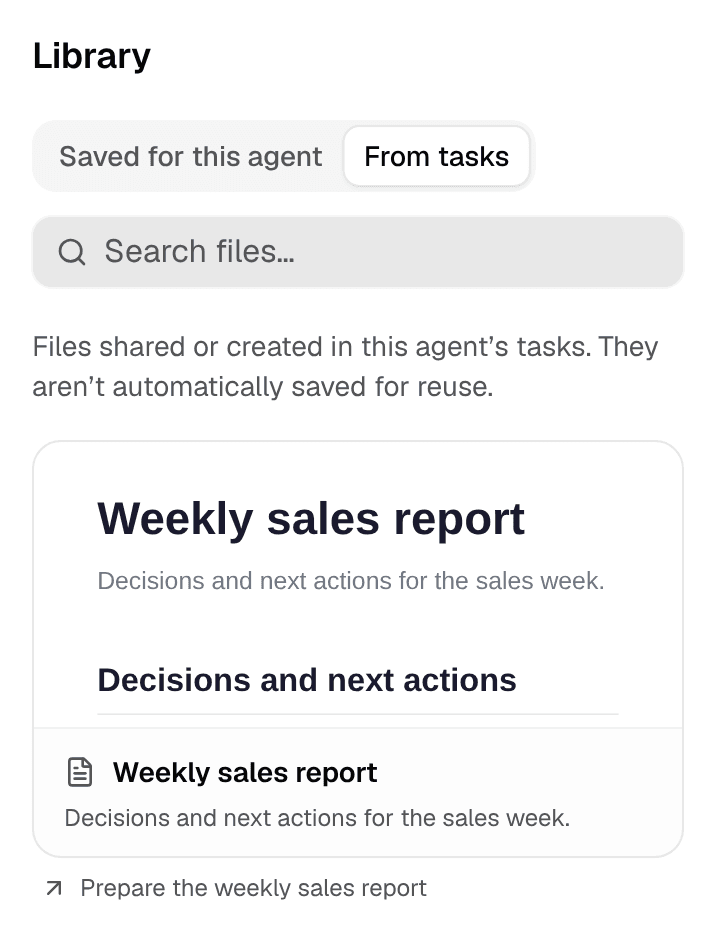
A file can belong to both collections. Its appearance in Saved for this agent does not prove that the agent read it in a particular run. A locked source-thread link also does not grant access to that conversation.
Save a useful reference
Use an agent you can configure. Review the material before adding it: a current price list may belong in the agent's references, while a one-off quote may only be useful for its original task.
Open the saved-file controls
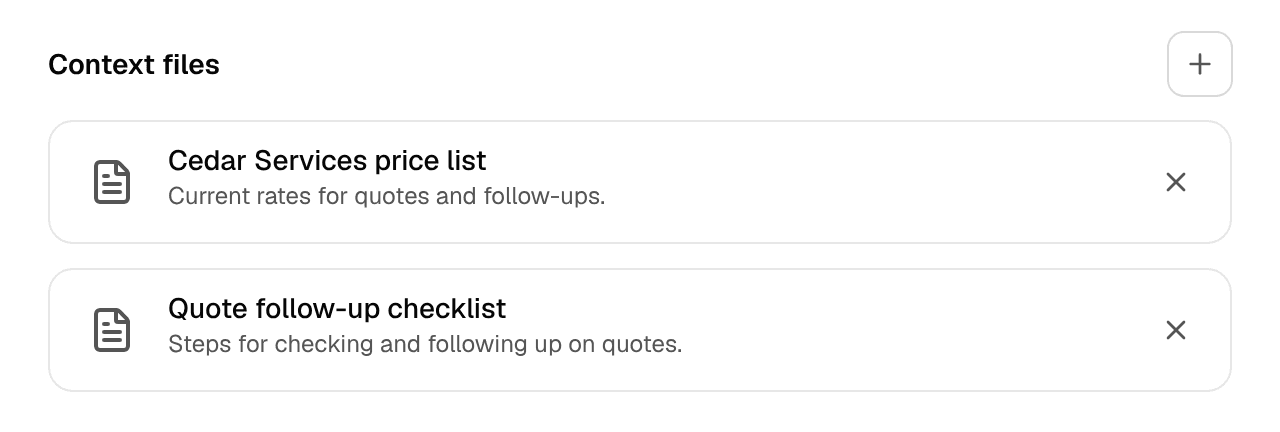
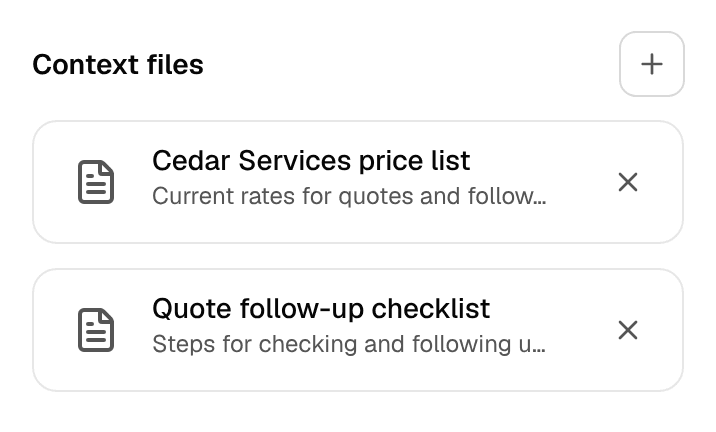
In Library → Saved for this agent, select Manage saved files. This opens Knowledge → Context files.
If that management link is absent, look for Context files in the agent's Knowledge settings. If you cannot edit the agent, ask someone who manages it to review the reference with you.
Add the material the agent needs
Select Add context files. In Add Context Files, choose an existing item from Documents or Tables, or use Upload to add a file when that option is available.
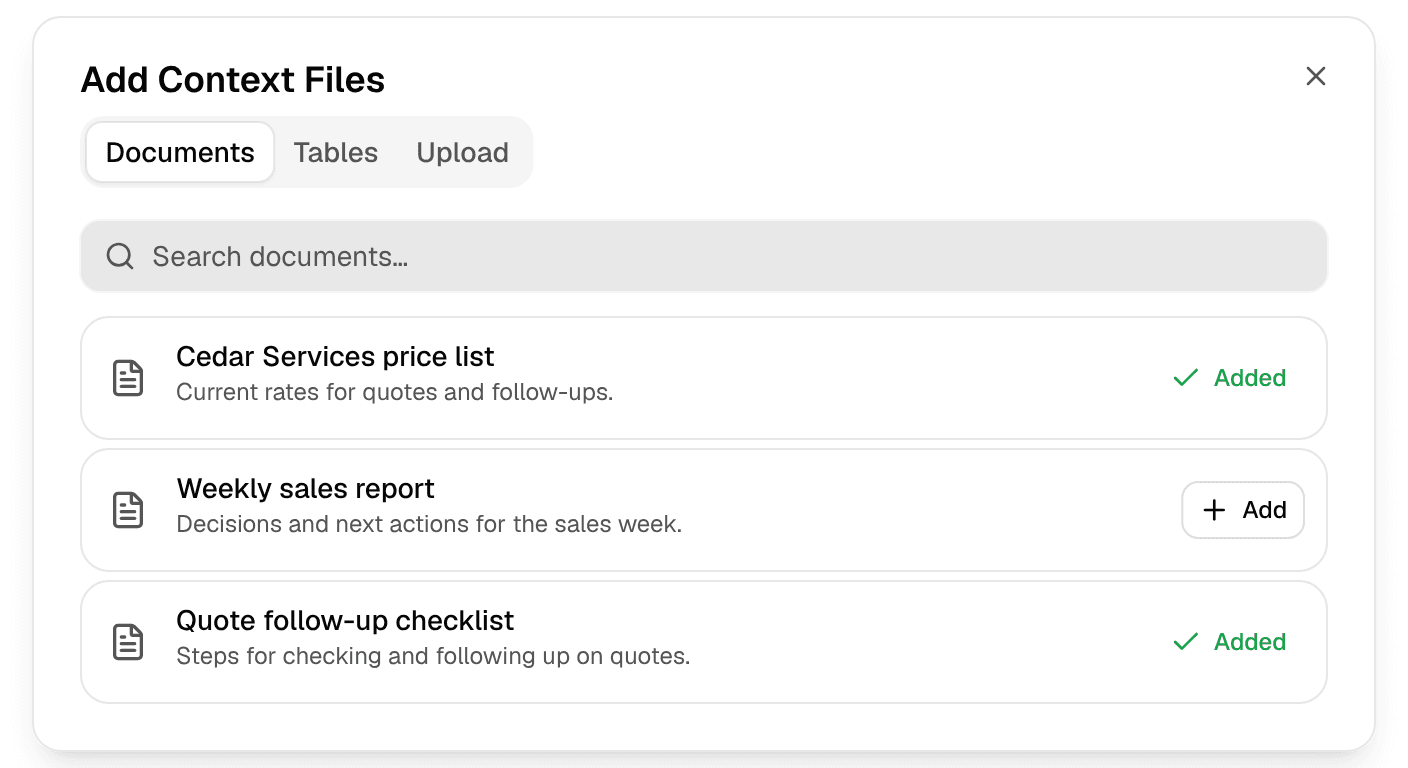
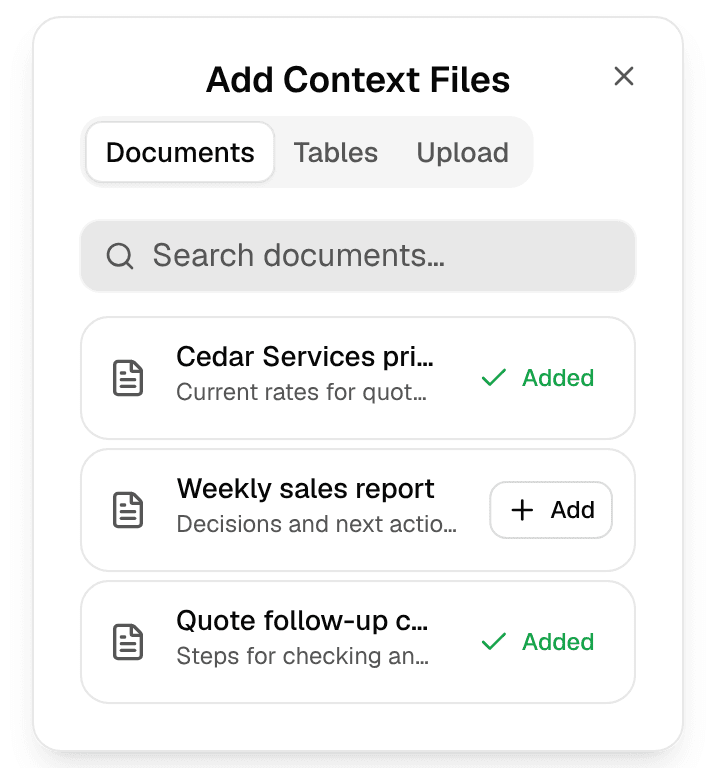
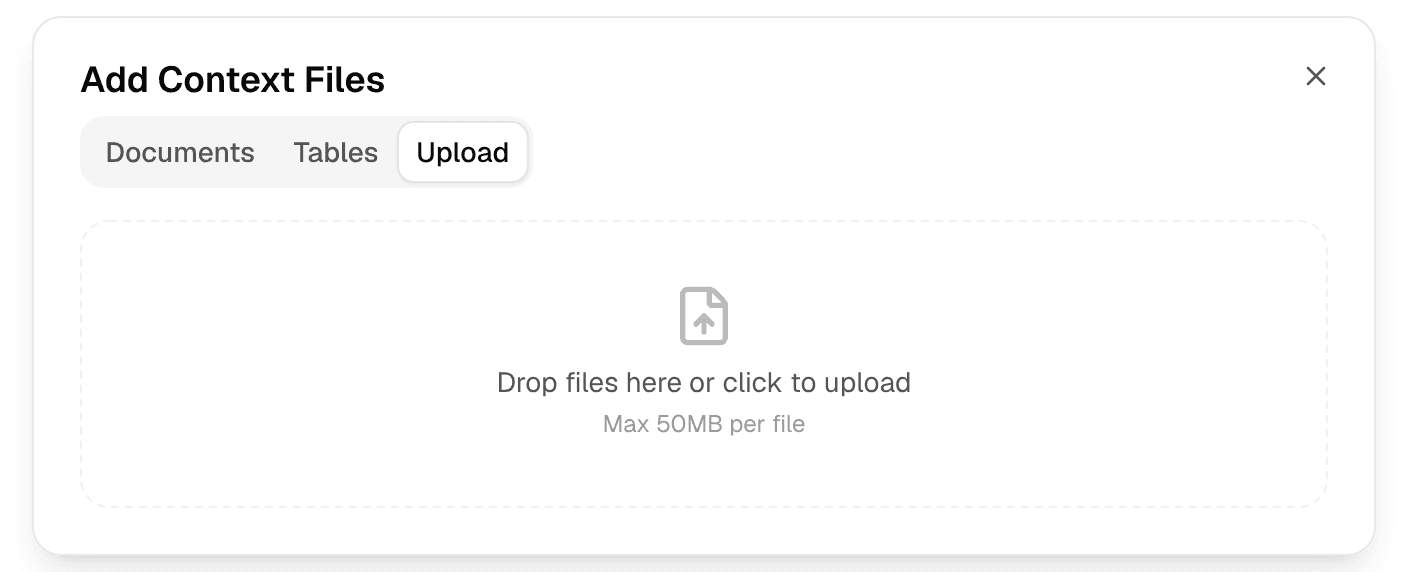
Review the selected items and wait for the agent's save to finish. Return to Library → Saved for this agent and confirm the reference appears.
Linked tables can be read and changed by the agent. Choose them deliberately; attaching a table is more than giving the agent a read-only document.
Check the reference in a fresh task
Start a new task with the same agent. Ask a question that needs the reference and ask the agent to identify the source it used. Check the answer against the file.
Saving a reference gives the agent access to it. It does not guarantee that every task will load or use it. If the answer misses the material, ask the agent to consult that specific reference and check its knowledge settings.
Remove an outdated reference
Return to Knowledge → Context files and remove the item from the agent's references. Check Saved for this agent again after the change saves.
Removing that reference does not permanently delete the original file or erase earlier task outputs. Review the underlying file separately if it should no longer be available elsewhere.
If a file is missing
Check the selected workspace, agent and collection. Clear the search or choose Load more if there are more results. From tasks follows your access to the underlying work, so an empty collection does not prove the agent has never produced a file.
For a file needed only once, attach it or mention a supported document or table in that task instead of adding a standing reference.