Manage browser logins
Save website access for yourself or a shared agent, check who can use it, and remove it when the work is finished.
Keep the right account ready for the next job
Save website access once, then check that your agent can use it in a fresh request. Choose where that access belongs before signing in, especially when teammates run the same agent.
Signed-in sites save a site's cookies so the browser can stay signed in. Stored logins save a username and password the agent can fill later. You can use either or both; saving cookies does not save the password you typed.
Save a signed-in session
Choose a personal profile or an agent
- For yourself: open your profile menu and choose Settings → Security. Under Browser access, turn on Persistent sessions for Your browser profile, then choose Manage.
- For a shared agent: open the agent's Model & tools, find Browser, turn on Stay signed in, and choose Manage stored logins. You need permission to edit the agent. Save access intended for everyone authorized to run it.

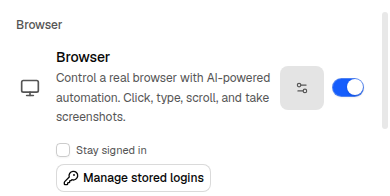
Your personal profile is for your own conversations without a named agent. Configure the named agent's browser access for scheduled or externally triggered work. Authorized runs of a shared workspace agent can reuse its saved access; run-only sharing links do not grant its saved sessions or the author's stored logins.
For access needed in just one conversation, use separate signed-in sites in its thread settings instead.
Sign in and check the saved result
In Signed-in sites, enter the website and choose Sign in to a site. Complete sign-in and any two-factor challenge in the browser that opens. Wait until you reach the signed-in page, then choose Done — I signed in.
If the agent's dialog only shows Stored logins, keep Stay signed in enabled and sign in during a browser handoff.
Check the saved result. No sign-in saved means the session closed without confirming a saved login; open a new sign-in session and finish signing in before choosing Done. If Hyperagent says it could not confirm the cookies, follow the prompt to try Done again.
The site list can lag behind a save. Check access with a fresh request rather than treating the list as proof that the session still works. If the controls are unavailable in the mobile app, open Hyperagent in your web browser.
Try fresh work with the intended account
Start a new conversation with the same agent or personal profile. Ask it to open a page you can safely review, such as an inventory report, and check that it reaches the correct account.
If the site asks you to sign in again, refresh the session using Sign in again where available. Site expiry, two-factor authentication, and challenge pages can still require your help. Use browser handoff to complete those steps.
Save a username and password
In the same Browser access dialog, find Stored logins and choose Add. Enter Name, Sign-in site, Username, and Password, then choose Save login. Enter the password in this form rather than a chat message.
Leave Fills without asking off if you want an approval before each fill. Turning it on allows fills on the saved site without another card. A different HTTPS site still requires approval.
Stored logins belong to the person who added them. Only that person can edit or delete them. In a personal conversation, a login that asks for approval can be filled only when you saved it. In a team-owned conversation, an authorized member can approve an agent's stored login. Saved values stay hidden in the manager.
Review your team's browser access
Workspace Owners can open Workspace settings → Shared browser logins to inspect shared-agent browser profiles. This excludes private conversation sessions and agents that have stored passwords but no cookie profile.
If the section is missing, check the selected workspace and your role. Ask a workspace Owner to review shared access. Manage an agent's stored passwords through that agent; each saver remains responsible for their own credentials.
Remove saved browser access
Choose the action for the access you want to remove, and read its confirmation:
| Action | Effect |
|---|---|
| Delete login on a stored login | Removes that saved credential. Existing signed-in cookies remain. |
| Sign out everywhere on a profile or shared-agent row | Clears that profile's cookies; stored passwords remain. For your personal profile, it also turns persistence off. |
| Delete stored logins and cookies in the manager | Clears cookies and deletes your stored logins in that profile. Teammates' stored passwords remain theirs to delete. |
| Sign out of this conversation | Clears that conversation's separate cookies. |
To remove both ways of signing in, clear the cookies and remove the stored password. A remaining password can let the agent sign in again.
You can clear your own conversation-linked sign-ins from Settings → Security → Browser access even if the conversation is locked. This does not restore access to its messages. If the profile is Still in use, finish the active browser session and try again.