Browser
Use a live browser to navigate sites, complete forms, work behind logins, hand control to a person, and capture evidence.
Some work ends with an answer. Other work has to happen on a site: compare inventory behind filters, upload a file, complete a form, verify a published page, or work inside a signed-in account. The Browser tool gives the agent a live browser for that work.
The agent drives; you can step in
Watch the live session from the browser panel and take control at any point. When a login, two-factor prompt, CAPTCHA, or judgment call needs you, the agent hands over the same session and continues from the state you leave behind.
What the agent can do in the browser
Act on a page
Navigate, click, type, scroll, fill forms, and upload files from the thread. It can also run a page script when a widget resists ordinary clicks.
Read a page
Observe what's on screen, extract comparable structured data across pages, and pull text or HTML directly.
Capture evidence
Take screenshots and keep the good ones as thread assets. Hyperagent records every session, and the agent can save that recording as a video you can watch, download, and share.
Hand it to you
Take control of the live session for a login, challenge page, or judgment call, then hand it back without losing progress.
Choose the right web surface
| Surface | Use it for | What it can reach |
|---|---|---|
| Search | Finding and reading public information. | Search results and public pages; no signed-in interaction. |
| Browser | Forms, filters, uploads, logins, visual checks, and other live site work. | Public internet sites and the session's saved login state. |
| Workspace Chrome | Testing local files, generated HTML, or a development server before shipping. | Files and servers inside the thread's private workspace. |
Start with Search when the job is read-only. Use Browser when the agent needs to operate the site or when the page only works in a real browser. Use workspace Chrome for local development that is not yet reachable on the public internet.
Navigates a site
When the agent needs the browser, it opens a session: one live browser it drives for the length of a job. You can watch that session from the browser panel while the thread is open, and take it over yourself at any point without waiting for an invitation.
Sessions are time-bounded rather than permanent. Hyperagent releases a session that sits idle, and every session ends after about an hour. That keeps a long-running job from holding a browser open forever; when the agent needs the site again, it re-opens the page and carries on. A session ending loses nothing about the task, only the live browser itself.
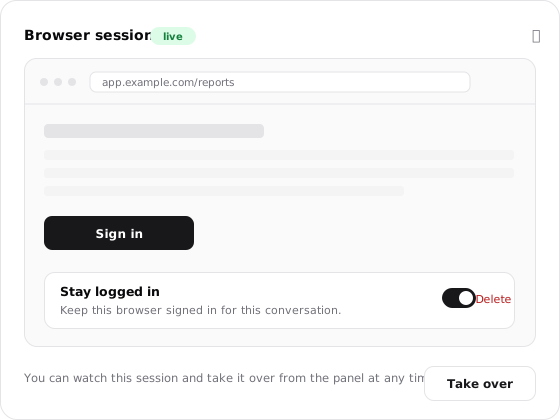
Browser Handoff
For a first-time login, two-factor prompt, CAPTCHA, or any step that needs your judgment, the agent hands you the live session. Complete the step in the browser panel, then return control. The agent continues from the signed-in state you left behind.
Handoff keeps the session alive past the agent's turn so it waits for you instead of timing out mid-step. Inside Hyperagent, use the browser panel directly. From an external channel, open the thread in Hyperagent first; only the account owner can enter the session.
Session Recordings
Hyperagent records every session automatically. Ask the agent to save the recording and it becomes an MP4 thread asset you can watch, download, and share. Saving it finalizes the recording and closes the active session, so this should be the final browser step in a job.
Screenshots work differently. The agent can inspect a screenshot privately, then save the useful frames as visible thread assets. That keeps failed or irrelevant captures out of the conversation.
Setting up your browser to navigate without you
When agents run on schedules, watch live data feeds, or execute unattended tasks, they cannot stop to ask you to type a password or solve a challenge. Hyperagent provides two distinct mechanisms for unattended site access:
- Persistent Sessions: saving cookies and session state)
- Saved Logins: storing usernames and passwords in an encrypted vault for automated autofill).
Persistent Sessions
Persistent sessions preserve the cookies, tokens, and storage state your browser accumulates during a session, keeping the browser signed in across separate runs.
Where to configure
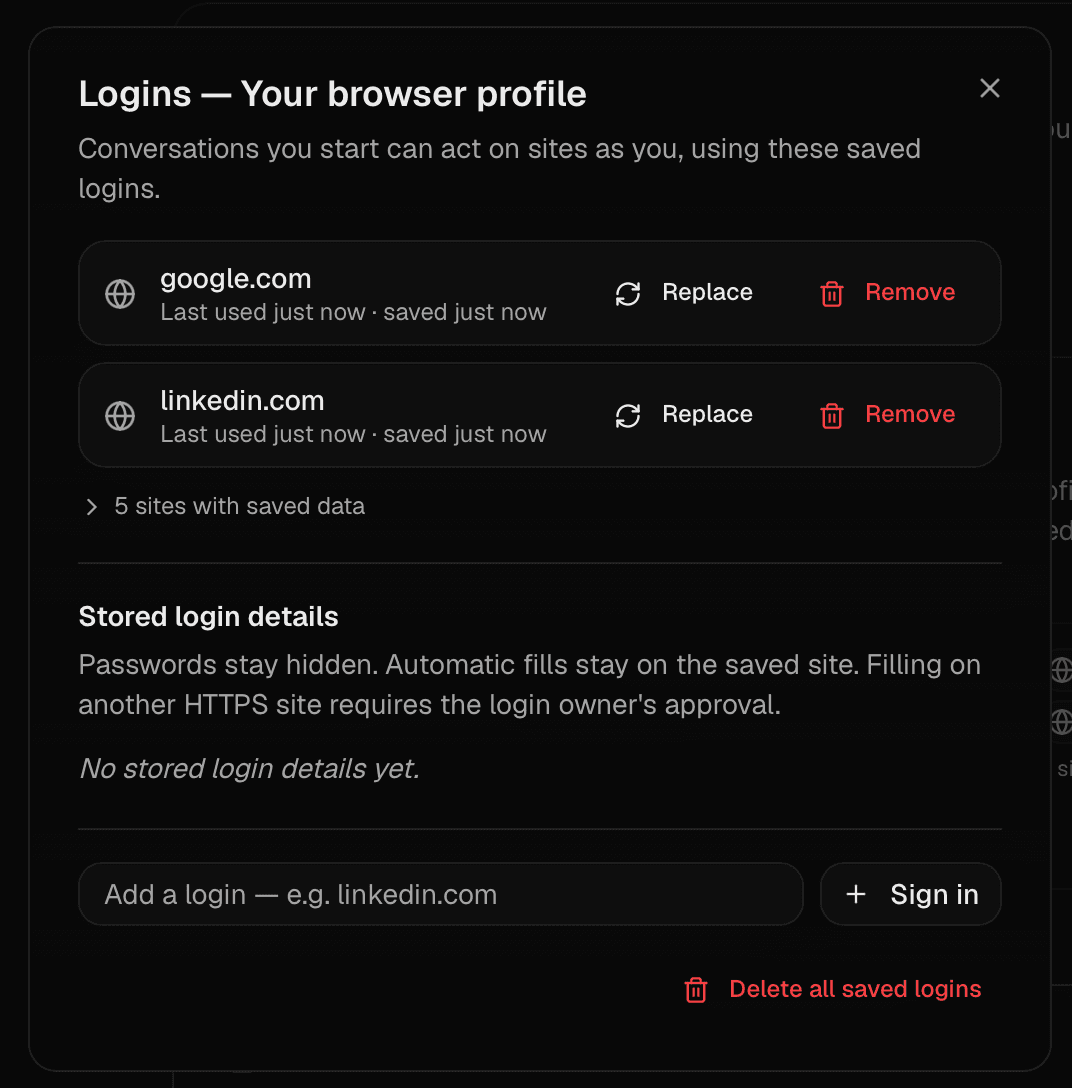
Go to Settings → Security and open Your browser profile. Add a site and click Sign in to save its login cookies. Your browser profile keeps you signed in across browser sessions in the threads you start.
From Security, you can also manage logins saved for individual threads and agents you manage. Review or remove a site's saved login, replace it by signing in again, or clear all saved logins for a profile.
To save logins just for one thread, open the thread configuration pane. Under Signed-in sites, turn on Keep signed-in sites separate, then click Sign in to a site.
Sign-ins from this thread's browser stay saved for that conversation, separate from your browser profile. Use this for logins you don't need to reuse across other threads. Click Sign out to clear them.

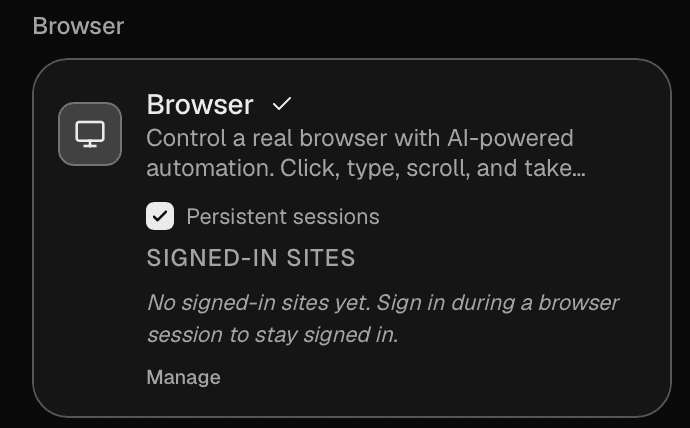
Open the agent's configuration and go to Capabilities. Scroll to Tools, find Browser, and enable Persistent sessions.
Sign in to a site during a browser session to keep the agent signed in across authorized runs. Click Manage under Signed-in sites to manage and configure the agent's saved logins.
What to know and limitations
- Site session expiry: Persistent sessions store cookies, so they remain subject to each site's own session lifetime. If a vendor site expires sessions after 7 days, the agent will face a login wall once the cookie expires.
- Magic links and SMS 2FA: Sites that require an emailed magic link or SMS code on every new IP visit cannot stay signed in with cookies alone.
- Strict teammate isolation: Teammates running a shared agent always receive a clean browser. An agent's persistent cookies attach only to runs authorized by the owner who created them.
- Inactivity expiry: Stored session state expires automatically after about thirty days of inactivity.
Saved Logins
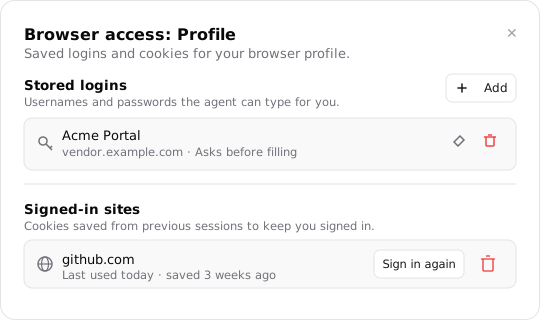
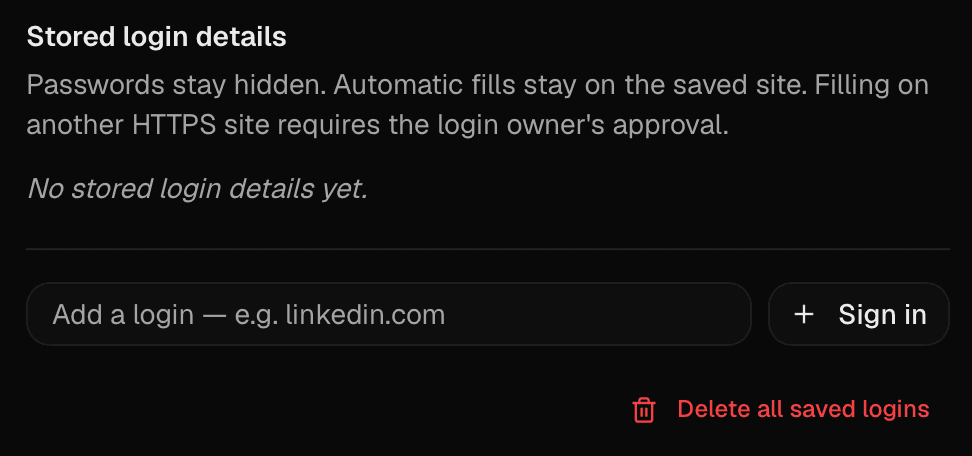
Saved Logins store encrypted usernames and passwords directly in Hyperagent. When an agent reaches a sign-in wall during an automated run, it uses the FillCredential action to type your stored credentials into the form.
Where to manage
- Manage credentials under Settings → Browser Logins (or through the Browser access dialog on an agent).
- Click Add to store a login with its name, sign-in site URL, username, and password.
- Choose whether the credential requires an approval card before each fill or fills automatically on authorized domains.
What to know and limitations
- Encrypted vault: Passwords never enter conversation transcripts, tool call arguments, execution logs, or model prompts. The runtime types the secret directly into the page.
- In-thread timeline verification: When an agent prepares to fill a credential, an approval card renders on the timeline displaying the target destination. You can verify the domain before any login occurs.
- Domain mismatch protection: If an agent visits an unexpected URL or is steered by prompt injection, the domain mismatch is highlighted immediately, refusing to type the password.
- Surgical revocation: You can edit, rotate, or delete stored credentials at any time in Settings. Deleting a credential revokes access immediately without wiping your browser cookies.
FAQs
Browser cannot open localhost servers or file:// paths from the thread workspace. For local rendering and testing, use the sandbox's headless Chrome; Data and code explains how the sandbox connects to the rest of Hyperagent.
Research
How an agent finds things out: web search with a Standard or Exa provider, cited research reports, lookalike discovery, verified datasets, and search across your own threads.
Code and files
Analyze data, update many files, work with websites and repositories, and produce finished outputs using a private computer.