Webpages and slides
Publish reports, dashboards, and presentations as versioned artifacts with public URLs, plus early-alpha interactive HyperApps.
A chat reply gets scrolled past. These tools end a job with something you can put in front of people: a designed report at a URL you send to an exec, a dashboard your team bookmarks, a deck you present from any screen. You describe the outcome; the agent designs it, builds it, and hands you the link, no designer or developer in the loop.
From request to a link you can send, in one ask
Whoever you send it to needs nothing but the URL: no Hyperagent account, no attachment, no export. When you want changes, ask, and the same link updates in place with every earlier version kept. Everything published also lands in the thread and your Library.
What the agent can publish
Webpages
Reports, dashboards, and one-pagers as styled pages with a public URL anyone can open.
Slides
Presentations with real navigation: arrow keys, on-screen buttons, a slide counter, touch swipe.
HyperApps
Early-alpha interactive apps with custom UI and their own persistent state.
Publish webpages, slides, and apps
Ask for a report, dashboard, one-pager, or presentation and the agent designs and builds the finished result. You can then publish it at a public URL you can send to anyone.
HyperApps are in early alpha
Beyond static pages, an early-alpha tool called HyperApps builds interactive apps with custom UI, their own persistent state, and direct access to tools, all through conversation. It is off by default and experimental. For finished, shareable deliverables today, webpages and slides are the dependable path.
The agent can revise and republish the same artifact. Each publish creates a new version, so work refined over several turns keeps its history.
The agent checks its own work
After publishing a webpage, the agent can check the finished result itself. A health check loads the public page in a real browser and reports console errors or failed requests, catching a broken chart or missing script before you send the link.
The agent can also open the published URL with the live Browser tool to verify the page's layout and behavior. Publishing makes that check possible because the browser runs apart from the thread's sandbox and needs a public URL it can reach.
Your controls on the page
The page opens in a panel with its title and controls along the top: zoom, Edit, Publish, and a menu with Reload, Fullscreen, Dock to right, Open in new tab, and Download HTML.
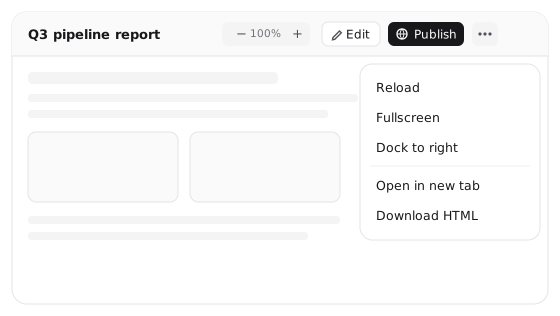
Edit lets you change the page yourself
You can work directly with generated webpages and slides, which is helpful when you make small changes, or simple code changes like colors, fonts, or layout. To edit a page:
- Select the artifact in the activity pane.
- Select Edit to work on the page directly.
- Use Preview to select and update text in place.
- Select Code in the status bar to edit the underlying HTML.
- Select Save to record the changes as a new version, or Cancel to discard them.
Restore versions from earlier edits
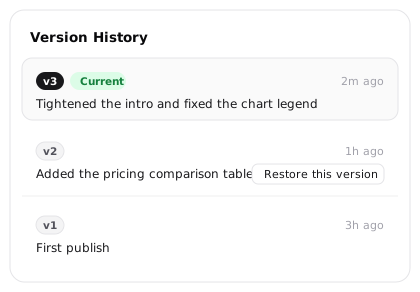
Because webpages, slides, and HyperApps are versioned, revising one never costs you the last good copy, whether the agent republished or you selected Save in the editor. Once an artifact has more than one version, a version chip appears on it; opening it shows the Version History popover, a list of every version with its change note and time.
Any earlier version has a Restore this version control, and restoring first saves your current version to history, so the restore itself is reversible. This is the same version machinery documents use. Generated media is not versioned; to keep an earlier image or clip, save it before regenerating.
Publish to share your work
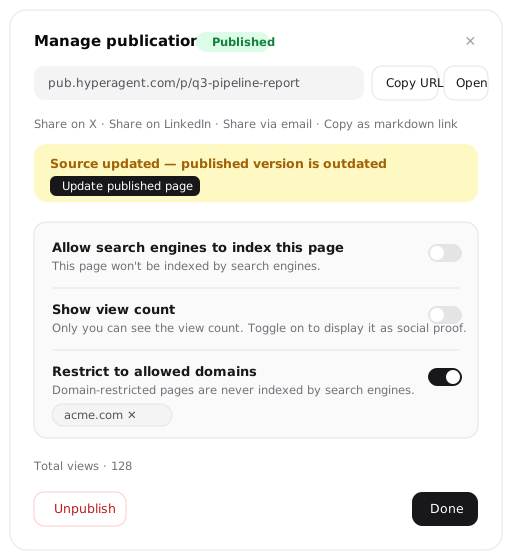
Publish an artifact to share it with others. To publish an artifact, select the artifact's name and choose Publish. From here you can control your page's publish settings. Control the following options:
- Allow your page to be accessed by search engines A published page is not indexed by default; Allow search engines to index this page is your explicit opt-in.
- Restrict to allowed domains limits who can open the page, and a domain-restricted page is never indexed regardless of the toggle above.
- Show view count displays the page's views to visitors as social proof; until you turn it on, only you see the number.
Choose when to publish updates
The published copy doesn't update until you explicitly publish a new version. When the source has changed since you published, the dialog flags Source updated and one click on Update published page ships the current version. Unpublish takes the page down without deleting the artifact.