Set up team knowledge
Start daily dreaming, inspect the first pages, and check that your agent can use the knowledge in a fresh request.
Use Autowiki when you want customer history, project decisions and operating rules available beyond the original conversation. Start daily dreaming, review a page you know, and check that your agent can use it in a fresh request.
Check the knowledge, then put it to work
Start dreaming, review a page about work you know, and ask your agent a question that needs that history. Check both the source page and the resulting answer.
Before you start
Choose the workspace
Use Personal for your own wiki, or a shared workspace for the team's knowledge. Keep the source work and the wiki in the same workspace.
Use Owner access
An Owner starts daily dreaming. Owners and Editors can correct pages afterward, while Members can read them.
Have useful material
Have recent threads, saved memories or documents about the customers, projects and processes you want your agent to remember.
For shared work, check how workspace roles and agent knowledge access work. The action lookup helps you find the role needed for a specific task.
Start the first dream
Open the intended Autowiki
Select Learning in the sidebar, then choose Autowiki. Check the workspace name before you continue: use Personal for your own knowledge or the intended shared workspace for team knowledge. You can also open Autowiki in Personal directly.
An empty wiki shows Start your Autowiki. If pages already exist, continue with reviewing a page.
Choose the recent activity window
Under Start from the last, choose 7 days, 14 days or 30 days. Include the period containing the decisions and changes you need.
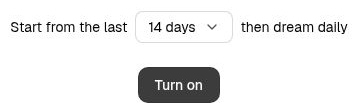
Turn on dreaming
Select Turn on. History opens so you can follow the first build, starting with saved memories and then the recent activity you selected.
The first build takes time, depending on the size of your workspace. You can leave Autowiki and come back later while dreaming continues. Pages appear as dreaming writes them. Open a page when it is available and review its content before using it for your next task.
Review a page and its sources
Open a page you recognize
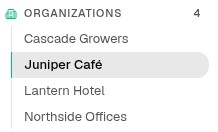
Open Pages and choose a customer, project or process you know. Use Search pages to find it by title or summary. The highlighted entry is the page currently open.
Check Sources
Read the page as a working reference:
- Current facts: check the terms, owner and status.
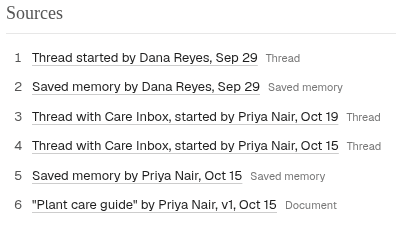
- Sources: compare important statements with the linked threads, saved memories or documents.
- Open items: check what is unresolved and what should happen next.
- Related pages: open linked policies or projects when you need their context.
Under Sources, open the material you can access and compare it with the page's claims.
Review the page's versions
Open the page's History and select a version. Use Changes to compare it with the previous version, or Whole page to read its saved text. Select Show more for older versions.
Correct a page
Owners and Editors can correct the current page. Open an archived page and select Restore before editing it.
Open the current page
Check its title, current text and Sources so you know which statement needs correction.
Edit the text
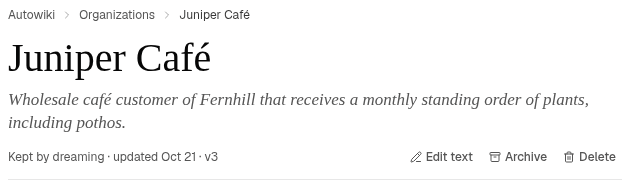
Select Edit text. Correct the statement and keep the context that explains when the rule applies.
Save the correction
Select Save. Check the updated text and the current version in History, including the editor and date.

Check the wiki in a fresh request
Start a fresh thread with the agent that should use this knowledge. Ask a real question that needs the maintained history, without pasting the answer into the prompt.
Use the wiki for the next jobPrompt
Check which page the agent opened. Compare the answer with that page's current facts, unresolved items and Sources. Have the agent check your CRM or another current source when the task also needs live information.

Look for a page-backed answer
The useful result is an answer that uses the right page and agrees with its current content. Keep the page reference with the answer so you can inspect it later.
Manage daily dreaming
Open the dreaming status control in the Autowiki header to see its status and available actions.
- Catch up between daily updates: while daily dreaming is on, Owners and Editors can select Dream now to process recent activity.
- Pause future updates: an Owner can select Turn off and confirm. The existing pages stay available to you and your agents.
- Resume daily updates: an Owner can select Turn on… in the status control. Choose the activity window in the setup card and select Turn on.
- Stop the first build: select Stop on its progress card and confirm. Pages already written remain.
Use Stop to end the current first build and Turn off to pause future daily work.
Archive or remove knowledge
Choose the action that fits what you need:
Archive a page
Owners and Editors can select Archive on an open page. The page leaves normal use and keeps its history.
Restore a page
Select Show archived, open the page and choose Restore to bring it back into use.
Delete a page
An Owner can select Delete and confirm. This permanently removes that page and all its versions. Original sources remain.
Wipe removes all wiki pages and history
Wipe dreamed memory… removes all wiki pages and history, including pages people edited, and turns daily dreaming off. This cannot be undone. Original threads, saved memories and documents remain.
To remove the whole wiki, an Owner or Editor can open the dreaming status control and select Wipe dreamed memory… after active work ends. Review the confirmation before selecting Wipe.