Follow your agent’s progress
Check a web thread’s status, inspect the work behind an update, and find its settings, learning, and files.
Know what is happening before you follow up
In a web thread, use its status and updates to follow the work. Open the recorded activity when you want more detail, then check the answer and files before deciding what to do next.
These steps use the current web thread layout. Open a conversation from Threads or your agent’s page. You need access to that conversation; changing settings or reviewing learning can require more access than reading it.
What you’ll learn
- Check progress: Distinguish work in progress from a finished response.
- Inspect recorded work: Read the steps attached to an update or answer.
- Find the controls: Open settings, learning, usage and files for the conversation.
Follow work in a thread
Check whether the agent is still working
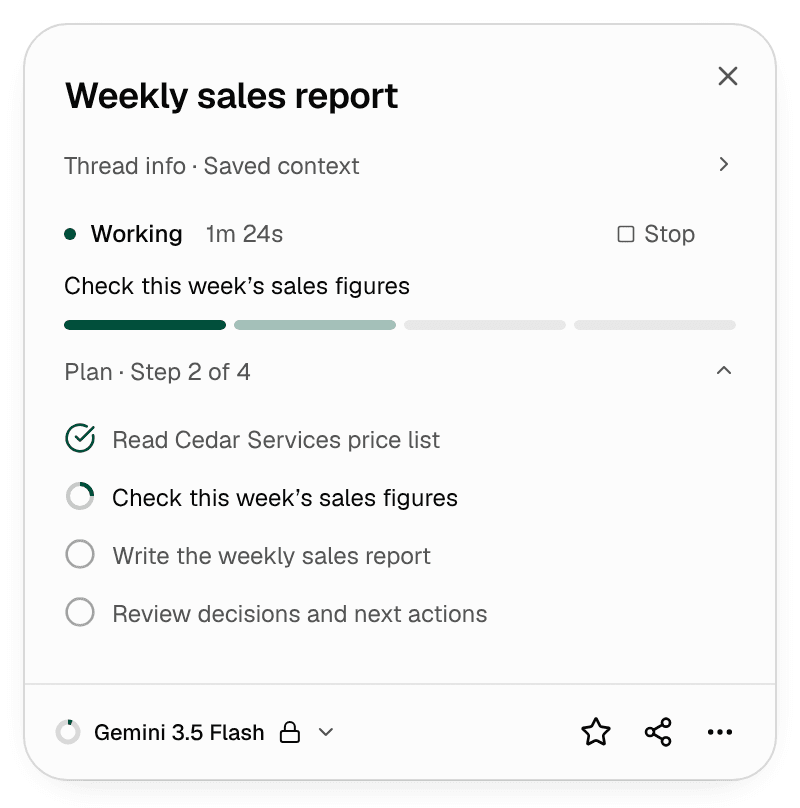
Select the thread name at the top of the conversation. Its tooltip is Progress and settings. The details show the current run’s status and, when the agent has made a plan, its steps. Expand Plan to see them.
| What you see | What it tells you |
|---|---|
| 👀 on your message | Your message was handed to the named agent for a response. It does not mean the work is finished or an action has been approved. |
| A short progress message | The agent has an update while it works. Read the final answer for the result, limits, and next steps. |
| A running status | Work is still in progress. Expand the plan, when present, to see its current steps. |
| A question or approval request | Read the request and use its response controls if you want the work to continue. |
An agent does not send an update for every action. A quiet conversation alone does not tell you whether the run has stopped; check its status.
Inspect the work behind an update
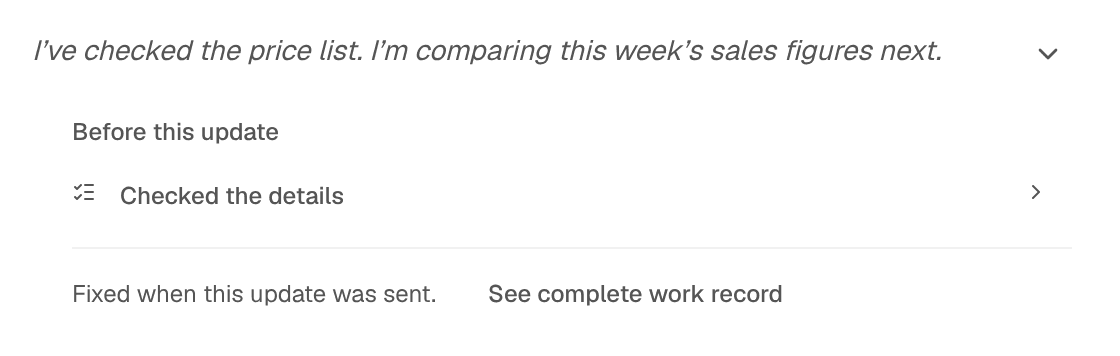
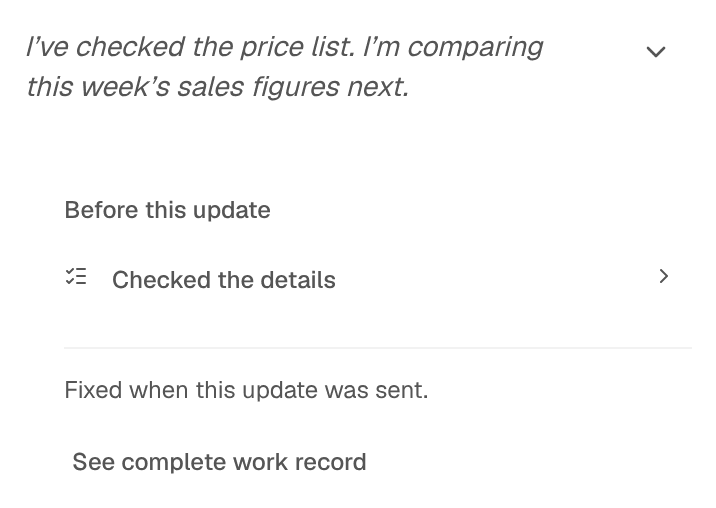
When a saved progress message has a chevron, select the message or its chevron to Inspect work before this update. Open individual steps to see the available details. Select the chevron again to Hide work before this update.
The Before this update section contains the work attached when that update was sent. Later actions do not become part of that earlier update.
For work attached to an answer, open Activity or the short activity heading above it. A heading describes the work attempted; check the answer and outputs to judge the result.
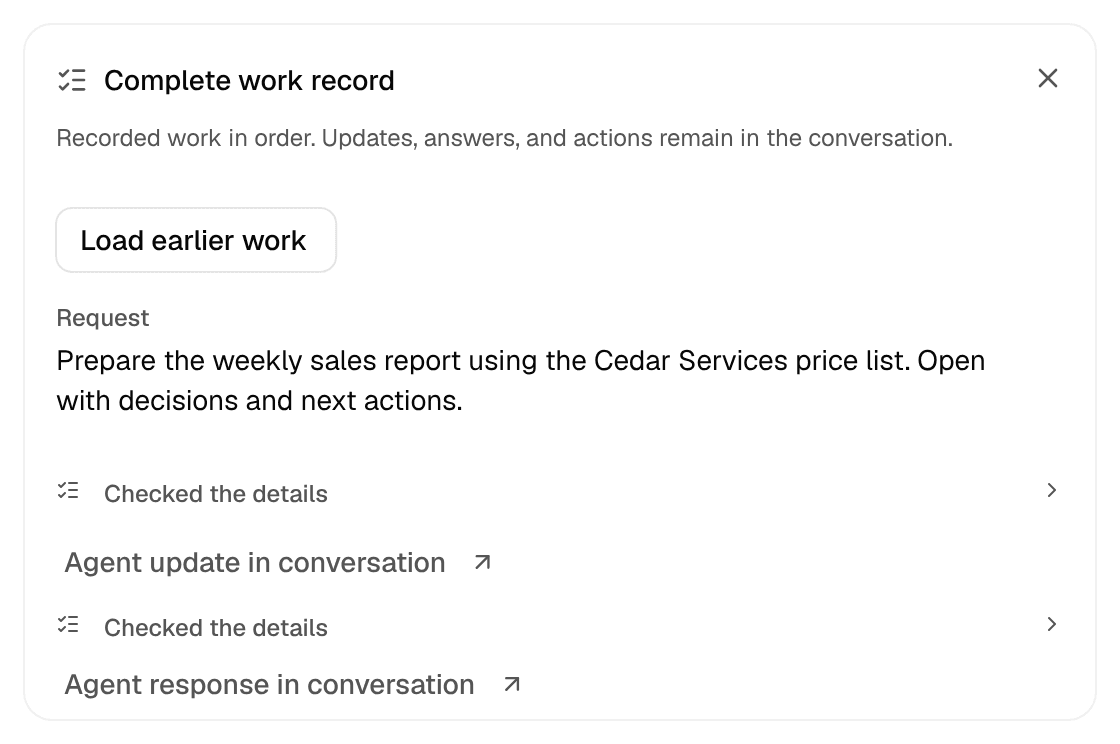
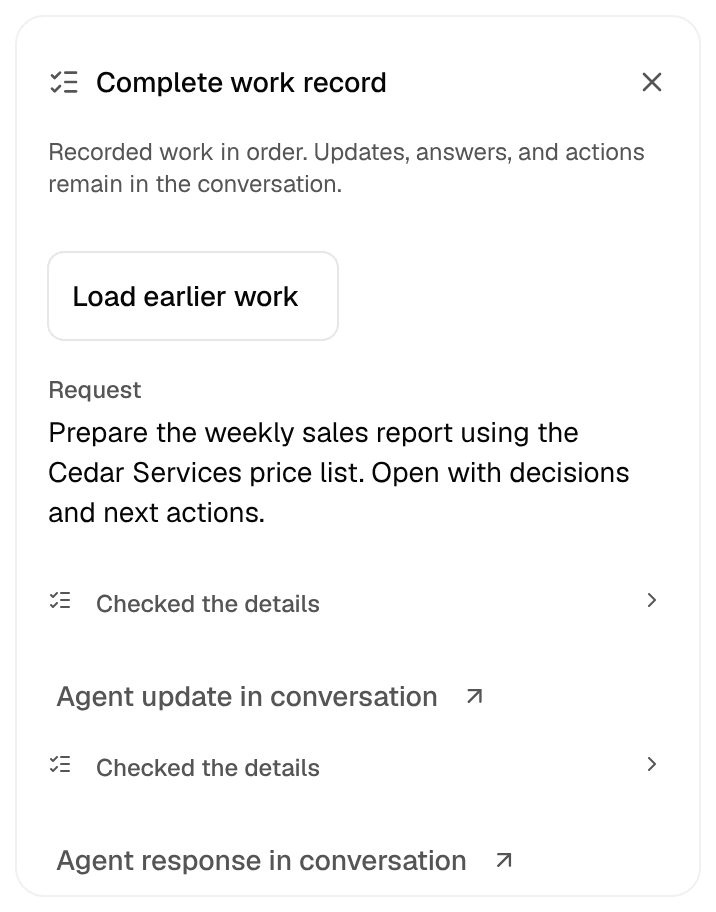
If See complete work record is available, use it to read recorded work in order. Choose Load earlier work if you need older entries, then close the record to return to the conversation. The record shows the details available to you; opening it does not grant extra access.
Review the result and choose the next action
When the response finishes, read the answer and open the relevant files. Check the facts, sources, and requested outcome. A finished response can still report a failed step or work that needs your input.
- Give a correction: Send a follow-up explaining what should change and how you will judge the result.
- Answer a question or approval request: Use the request’s controls. A reaction is not a substitute for an approval decision.
- Stop active work: Open the thread name and choose Stop when that control is available. Follow any confirmation shown for background work.
Find settings, learning, and files
In the current web layout, start from the thread you want to inspect or change.
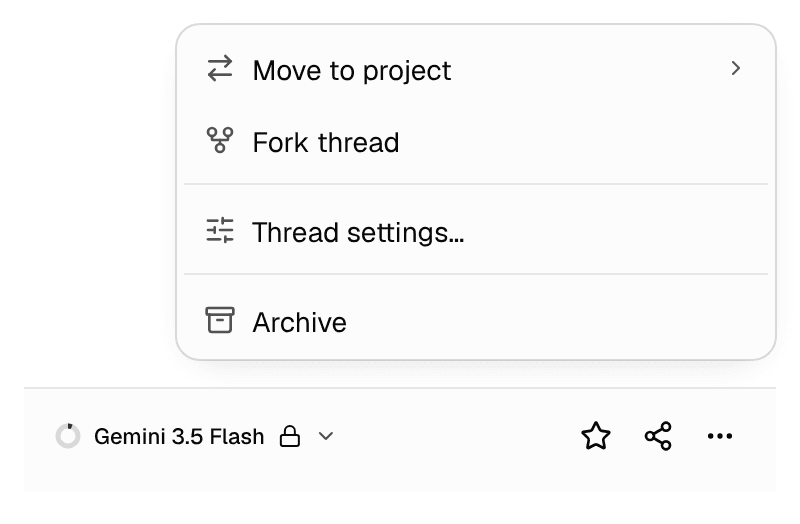
| You want to… | Open… |
|---|---|
| Change this conversation’s settings | Select the thread name, then More thread actions (three dots), Thread settings…, and Configuration. |
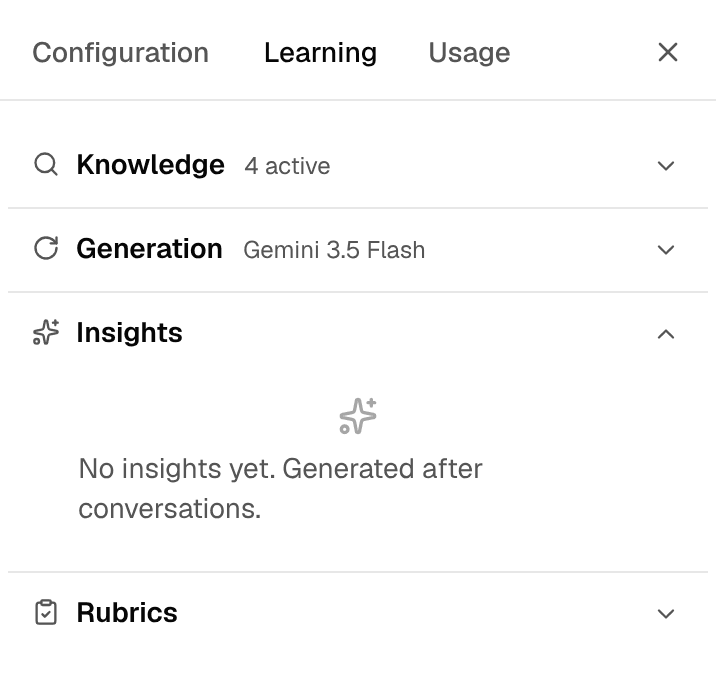
| Review learning from this conversation | Open Thread settings…, then Learning. Review each proposal before deciding whether to save it. |
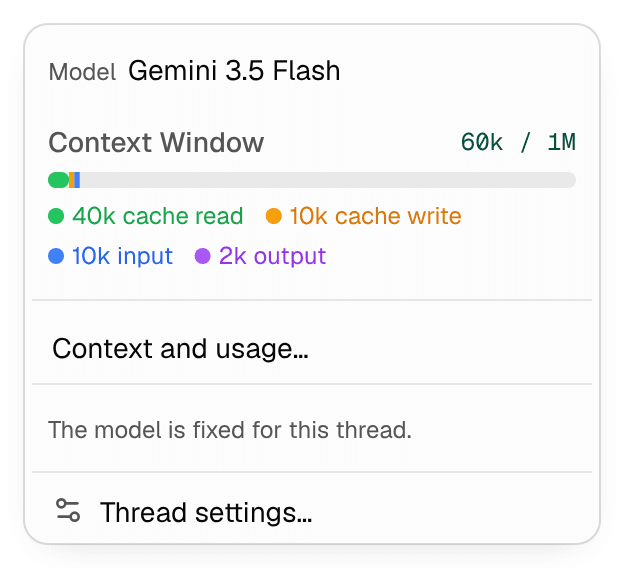
| Check context and usage | Select the thread name, then the model control at the bottom. Choose Context and usage…, then View detailed usage for the breakdown. |
| Open the agent’s saved files | Select the agent’s portrait at the top, then Agent library. |
| Open a file produced in this thread | Select its card in the conversation. On a phone browser, Canvas also opens the thread’s files. |
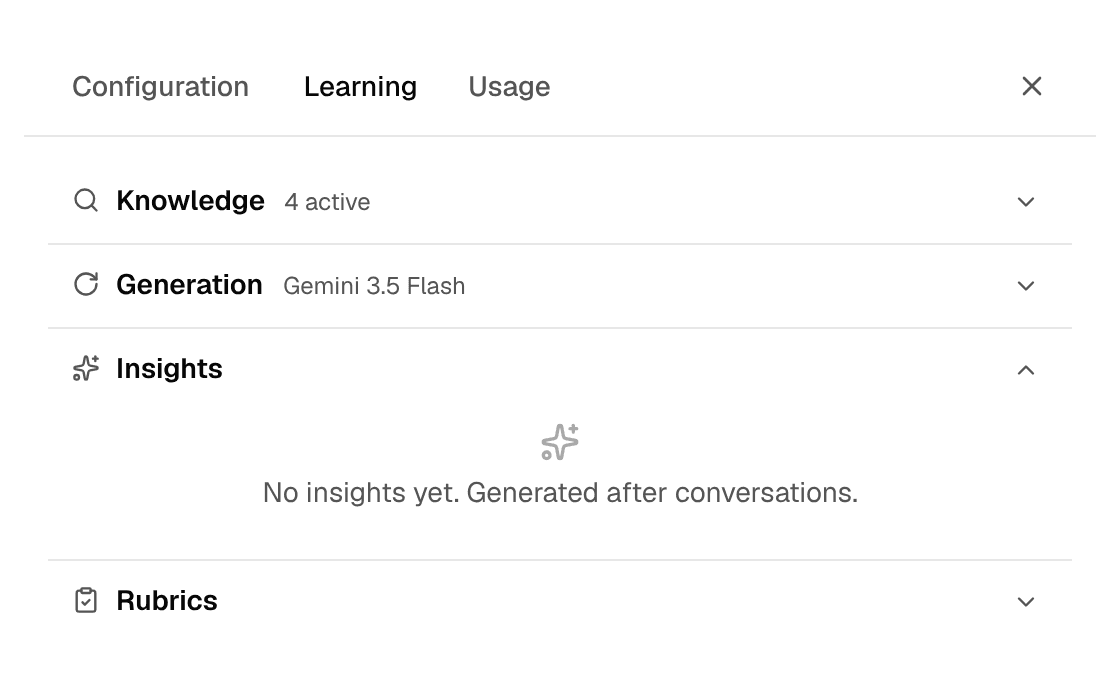
If your controls differ: An older header has an Open thread details control for its settings panel. Use the controls available in your conversation. Some settings and learning actions are unavailable in read-only views. A missing update, chevron, or menu alone does not establish why it is absent.