Manage an agent's automations
Find scheduled work, inspect its history, and check why a result did not arrive.
When a report is missing, first find the automation and inspect its last run. Starting another request immediately can duplicate work that is still running or has already finished but could not deliver its result.
You need access to the saved agent. Editing, pausing and resuming also require permission to manage the relevant automation. A listed automation does not by itself grant those permissions.
Find the automation
Open the agent's Automations tab
Open the saved agent, then select Automations. Its overview brings together schedules, event-triggered work and periodic Live mode checks.
Live mode has its own section. On means future checks are enabled, not that the agent is working continuously. Expand Details to inspect its next check and latest recorded activity. Guidance & settings opens the saved setup.
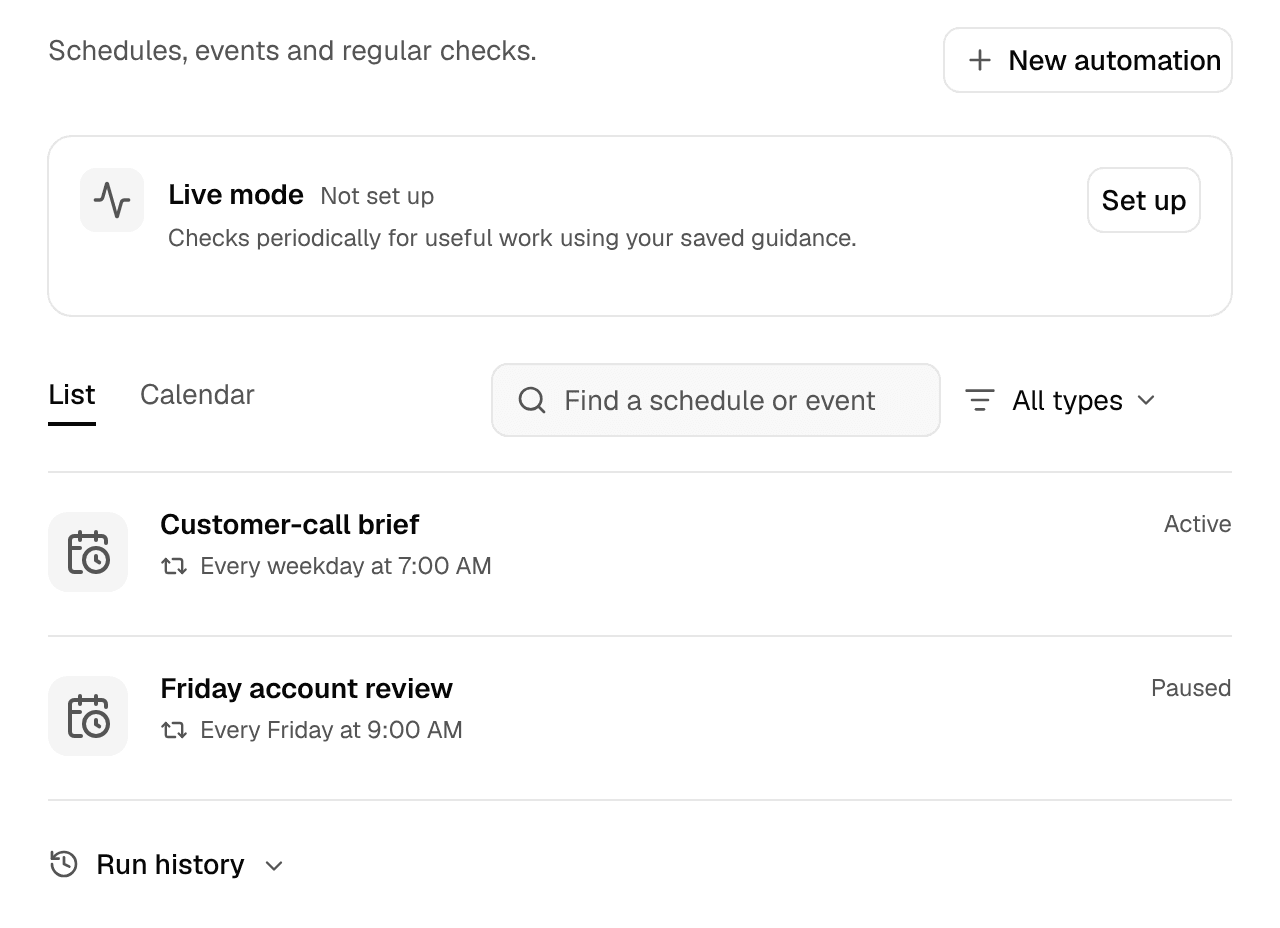
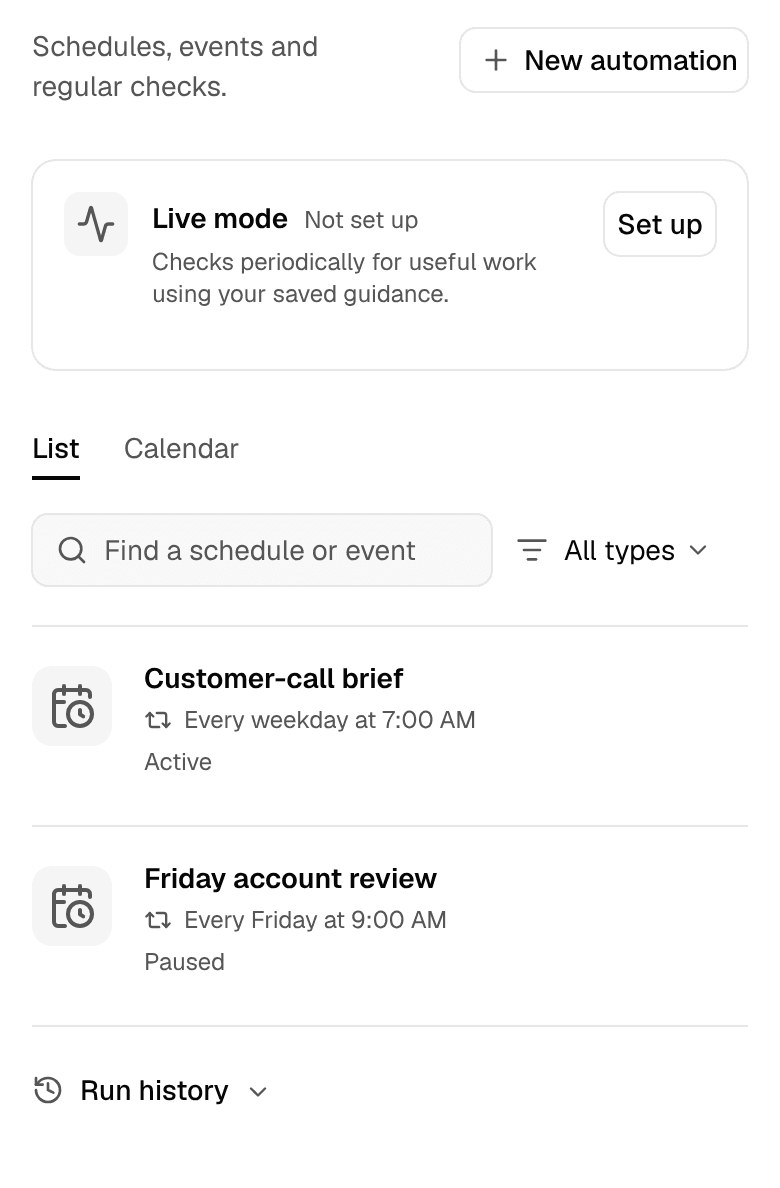
Search the list or check the calendar
- Choose List to find a named job or paused work.
- Enter part of its name or timing in Find a schedule or event.
- Use All types to filter to Run once, Repeat or On an event.
Use Calendar to review planned schedule starts. A calendar entry is a plan, not evidence that a run started or finished. Event triggers and paused schedules belong in List.
If an expected automation is missing, clear the search and type filter before assuming it was deleted. A loading error means that part of the overview could not be read; use its Retry action rather than treating the empty area as a complete inventory.
Open the saved job before changing it
Select the automation's name to inspect its details. Check the request, timing and timezone, destination, and whether future runs are enabled. Read any warning before resuming or changing it.
Check a daily customer-call briefExample
- Timing: Is the morning recurrence in the right timezone?
- Sources: Does the request use today's calendar and the right customer records?
- Result: Does the thread contain the brief you expected?
A correct next-run time does not prove the instructions are right.
Use the matching setup instructions when the job needs changing:
- Schedules define a one-time or repeating request.
- Live Mode checks periodically for work that needs attention.
- Webhooks start work when an external event arrives.
Pausing future occurrences and stopping an already-running task are separate actions. Check the current run before assuming a paused automation has stopped all work.
Check what actually happened
Expand Run history in the overview. Use History for to choose the relevant automation, inspect its recorded occurrence, then open its thread to review the work and result. History is the record of activity; Calendar shows planned starts.
Check these outcomes separately:
- The run started. Look for its recorded occurrence and status. If it did not start, inspect the saved timing, enabled state and any account or access warning.
- The work finished. Read the thread for the result, an unanswered question, an approval or an error. A started run may still need attention.
- The result arrived. Check its delivery destination and any delivery warning. A completed task can retain its result in Hyperagent even when the external report was not delivered.
For automatic Messages delivery, an inactive chat can pause reports while the work remains available in its web thread. Follow the recorded warning to resume delivery. If you opted out of direct texts, text the agent again before expecting ordinary direct messages to resume.
After correcting the cause, test the affected job and destination. Run now starts real work with the saved schedule's access and delivery settings. It is not a read-only preview, and manual runs can count toward plan scheduling limits. Avoid repeatedly starting it while another occurrence is active.
Add another routine
Select New automation and choose the kind of work you need. Schedule opens time-based setup; Live mode opens periodic checks. Event choices open their own connection and trigger setup.
To build and test a recurring job from work you have already done, follow Put your agent on a schedule. Save reusable methods with the agent, then check a real result before relying on the routine.