Schedules
Put an agent on a recurrence: define the work, control its threads and write access, deliver the result, and review every run.
You have a report that should exist every Monday at 7 AM, whether or not you remembered to ask for it. A schedule is how you hand that job over: the agent receives the schedule's message, works in a thread, and delivers the result where you chose, with nobody watching.
Schedules turn a request into a routine
Brief the job once, choose when it should run, and decide where the result belongs. The agent repeats that work with fresh information on every occurrence.
How schedules work
A recurrence starts the run
Set a schedule in plain language or with the recurrence controls. Hyperagent keeps the timing in your timezone and calculates each next occurrence.
The message defines the job
The agent receives the schedule's message as its instructions. Template variables can add the current date, time, weekday, or run count.
Threads and write access set the boundaries
Choose whether runs start fresh or continue together, then decide whether the agent may only read, ask before changes, or write unattended.
Delivery and history close the loop
Hyperagent delivers the finished result after the run and records its status, duration, thread, and errors in Run History.
Create and configure a schedule
On the agent's Invocations tab, open the Scheduled card and select Create schedule.
Describe the routine
Enter timing and work together—for example, Every Monday at 9 AM, check my inbox and summarize unread emails. Select Generate to draft the complete schedule, or Skip to open the form directly.
Confirm the recurrence
Review the generated timing, timezone, and next occurrence. Every generated field remains editable.
Brief the work and choose its thread
Write instructions that can stand on their own, then decide whether each occurrence starts fresh or continues in an existing thread.
Set guardrails and delivery
Choose the write level, quiet-delivery behavior, completion notification, and destination before saving.
Schedule configuration options
Name the job for future you
Optional. Use a name that identifies the outcome when you're scanning several schedules—for example, Weekly pipeline report.
The name doesn't change what the agent does; it keeps the schedule list understandable.
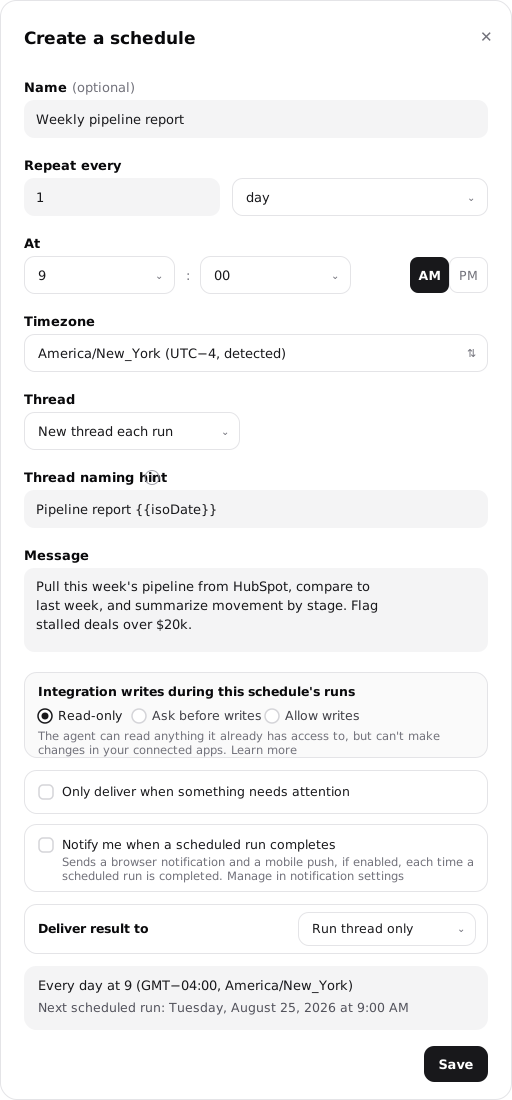
Choose when the work runs
Run every N minutes, hours, days, weeks, or months at a time in an editable timezone. Weekly schedules add weekday choices; monthly schedules can use a date or a slot such as Last Friday.
- Standard schedules keep at least 5 minutes between runs.
- The preview shows the exact next occurrence.
- Hyperagent stores the result as an RRULE with its timezone.
See recurrence options and timezone behavior.
Start clean or continue the same work
- New thread each run: A clean thread with the agent's instructions, skills, and memories but no history from earlier runs.
- Continue existing: Append every occurrence to one existing thread that belongs to this agent.
In new-thread mode, use the naming hint to keep threads findable. It supports template variables such as {{isoDate}}.
Compare both thread strategies.
The message is the complete briefing
Write instructions for a capable person who can't ask follow-up questions. Include the sources to inspect, the expected format, and what a good result should contain.
Use {{date}}, {{time}}, {{dayOfWeek}}, {{isoDate}}, and {{runCount}} to add occurrence-specific context at runtime.
See every variable and what it resolves to.
Choose what the agent may change unattended
- Read-only: The default. Read connected systems without changing them.
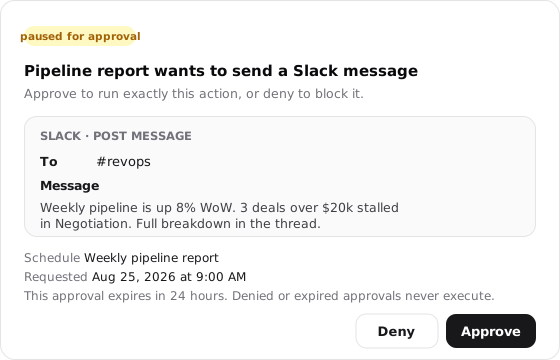
- Ask before writes: Stop at the first attempted change and show exactly what would be sent.
- Allow writes: Use the agent's normal integration access without waiting for approval.
Review approval behavior before enabling writes.
Control when the schedule interrupts you
Only deliver when something needs attention keeps all-clear runs quiet and sends only findings.
Notify when complete sends a browser or mobile push after each completed run. It is separate from report delivery and also applies to Run Now.
Compare standard, alert, and Live behavior.
Choose where the result lands
Keep the result in its thread or deliver it to a Slack channel, Slack DM, Telegram chat, or email.
Hyperagent delivers after the run finishes. Delivery is separate from integration write access, so a read-only run can still post its report externally.
See destination requirements and in-flight behavior.
Confirm the schedule before saving
The preview restates the recurrence in plain language and shows the exact next run time.
If the sentence doesn't match what you intended, adjust the timing or timezone before saving.
Live Mode has its own setup
Live Mode uses a rolling monitoring interval and is configured from its own control on the agent, not from the schedule builder.
Choose a model for scheduled runs
Standard schedules include an optional Model picker under Advanced settings. Leave it at the default to use the agent's model, or choose a dedicated model for this schedule's work—for example, a lightweight model for routine summaries.

Set the timing and recurrence
Set the recurrence
Describe the timing in plain language—Every weekday at 8:30 or The last Friday of the month—and let Generate build it, or configure the recurrence manually. Both paths produce the same schedule.
| You want | You configure |
|---|---|
| A daily brief | Daily and a time |
| Weekdays only | Weekly, the five weekday choices, and a time |
| Every other week | Weekly, every 2 weeks |
| A monthly report | Monthly, then a date or a slot such as First Monday or Last Friday |
| High-frequency checks | Hourly or Minutely, keeping at least 5 minutes between occurrences |
Hyperagent stores every schedule as a standard recurrence rule, or RRULE, with an IANA timezone. If you already have an RRULE, the API accepts it directly.
Template variables
The message and new-thread naming hint support variables resolved in the schedule's timezone at runtime:
| Variable | Resolves to |
|---|---|
{{date}} | The occurrence's date |
{{time}} | The occurrence's time |
{{dayOfWeek}} | The weekday name |
{{isoDate}} | The date in ISO format |
{{runCount}} | How many times this schedule has run |
A naming hint such as Weekly pipeline report {{isoDate}} keeps months of run threads sortable.
Timezones and clock changes
Daily and coarser schedules preserve local wall-clock time through daylight-saving changes, so a 7 AM report stays at 7 AM. Sub-daily schedules measure elapsed time instead, so Every 4 hours remains four hours apart even when the clock changes.
Choose how scheduled runs work
Choose a thread strategy
New thread each run
Every occurrence gets a clean thread carrying the agent's instructions, skills, and memories but no history from earlier runs. Use it for work that should stand on its own.
Continue existing
Every occurrence is appended to one existing thread, so the agent can read what earlier runs left there. The thread must belong to this agent.
Use the optional Thread naming hint to derive each new thread's title from runtime variables or the work itself. Leave it empty to use the default name.
Choose standard, alert, or Live behavior
| Behavior | How you configure it | What you receive |
|---|---|---|
| Standard | The schedule default | Every run reports. Use it when the output should exist every time, such as a Monday report. |
| Alert | Enable Only deliver when something needs attention | The agent explicitly reports a status after each run; all-clear runs stay quiet and only findings are delivered. |
| Live | Configure Live Mode | Rolling monitoring with a 30-minute minimum, alert-style silence, and an automatic pause after repeated consecutive failures. |
Standard schedules keep at least five minutes between occurrences. Live Mode keeps at least thirty.
How scheduled runs start
One run at a time
If the previous run is still working when the next scheduled time arrives, the new run waits. A schedule never runs two jobs at once.
Waits until the thread is free
When a schedule continues an existing thread, it waits while someone is actively using that thread and starts when they're finished.
Missed runs don't pile up
The schedule keeps moving while paused, blocked by billing, or waiting on another run. It starts at the next scheduled time without creating a backlog.
Automated run concurrency limits
Hyperagent enforces per-account concurrency slot limits across all automated background runs (schedules, webhooks, and inbound email). If multiple schedules fire at the same minute or an external burst arrives, runs queue cleanly and execute in order, releasing execution slots immediately as each run finishes. This prevents runaway parallel compute spikes while ensuring every scheduled task completes predictably.
Run Now and completion
Run Now starts an immediate occurrence without moving the recurrence. The next scheduled time remains unchanged. Use it to test the message, thread behavior, write controls, delivery, and completion notification end to end.
When a fixed-span recurrence has no future occurrences, the schedule marks itself Completed instead of remaining active indefinitely.
Control writes and delivery
Integration writes and approvals
Scheduled runs work without you present and may act on content nobody reviewed first. Standard schedules therefore default to read-only.
Read-only
Read connected apps normally without changing them. Most reporting and monitoring jobs don't need more access.
Ask before writes
Stop at the first attempted change and create an approval with an exact preview of what would be sent.
Allow writes
Use the agent's normal integration access unattended. Reserve this for schedules you've observed and trust.
Approving a pending write executes exactly the previewed action and nothing more. Denied or expired approvals can never execute. A run waiting for approval doesn't block the recurrence; later occurrences follow the normal schedule instead of stacking behind it.
Deliver results
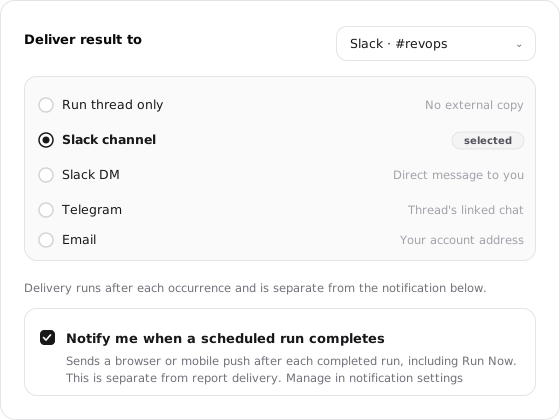
Hyperagent delivers after the run finishes, separately from the agent's integration permissions. A read-only schedule can therefore send its completed report to Slack, Telegram, or email.
| Destination | Where the result lands |
|---|---|
| Thread | The run's thread, with no external copy |
| Slack channel | The configured channel |
| Slack DM | A direct message to the schedule creator |
| Telegram | The chat mapped to the schedule's target thread |
| The schedule creator's email address |
Notify when complete is separate from report delivery. It sends a browser or mobile push after the run, including runs started with Run Now.
Two delivery rules prevent surprises:
- The destination is snapshotted when the run starts. Editing delivery during an active run can't redirect that result; the new destination applies on the next occurrence.
- Delivery failures remain visible. A completed run that couldn't deliver adds a warning to the schedule. A later successful delivery clears it.
Monitor and manage a schedule
Run History
Every schedule records each occurrence in Run History, including its status, start time, duration, thread, and any error or result classification.
One line per occurrence
Each row shows status, start time, duration, and the thread where the work happened.
Select the thread to read the complete run, including its output and tool activity.
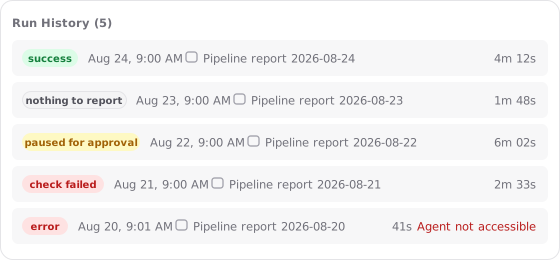
A successful run that stayed quiet
An alert or Live run finished and found nothing that needed attention.
The run completed successfully; silence was the configured result.
The run stopped at a write
The run reached a change it wasn't allowed to make unattended and created an approval instead.
The status describes the run; approve or deny the action from your approval inbox.
The run worked, but its check found a problem
The scheduled run completed and delivered a failing condition or finding.
This differs from Error, where the run itself couldn't finish.
The run itself failed
The red message summarizes the failure, and the run's thread contains the full context.
Repeated consecutive errors automatically pause a Live schedule.
Ownership on workspace agents
A schedule belongs to its creator. Runs use that person's context, count against their usage, and keep that ownership even when other teammates use the agent.
Schedules pause when their creator leaves
The schedule doesn't continue under a missing owner. If its creator leaves the workspace, it pauses. Teammates with run-only access to the shared agent can't create or edit schedules.