Telegram
Bring your agent into Telegram: the bot connection, account pairing, group authorization, and how media and replies flow both ways.
You want to reach your agent from your phone the way you'd message a colleague: a quick DM on the train, a report dropped into a team group, a voice note when your hands are full. Telegram is where the agent meets you; the bot you connect is just the doorway, tied to your account, so the agent answers the people you chose and not everyone who stumbles onto the username.
Your agent in your pocket, answering only who you allow
Connect a bot as the doorway, pair it to your account so the agent recognizes you, and decide chat by chat who can reach it. Every conversation becomes a lasting thread.
How Telegram works
The bot represents your agent
A Telegram bot gives the agent a name, username, and place to receive messages. Its token connects that bot to one Hyperagent agent.
Pairing identifies you
A one-time link ties your Telegram user ID to the bot. The paired account becomes the owner who can use it in DMs and authorize it in groups.
You control who can trigger it
Direct messages are owner-only. In groups, you choose who can reach the agent and which kinds of messages start a run.
Each chat keeps its own thread
Every DM, group, or forum topic maps to a lasting Hyperagent thread, keeping its conversation and replies in the right place.
Connect your agent to Telegram
The doorway is a Telegram bot, and Telegram bots are created inside Telegram, so setup starts with a token from BotFather and ends with the agent recognizing you. On the agent's Invocations tab, open the Telegram control and the Connect Telegram Bot dialog walks the same three steps:
Create the bot in Telegram
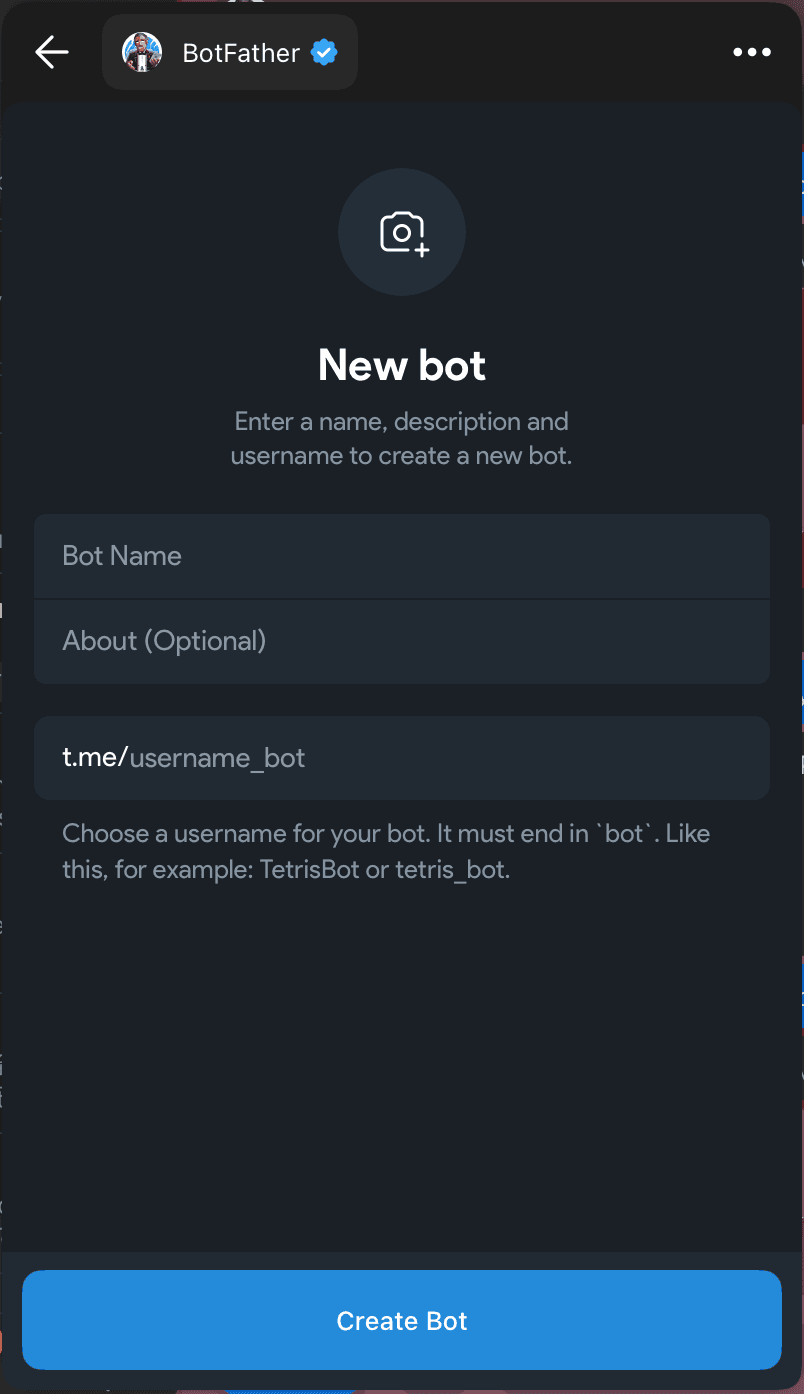
Message @BotFather, send /newbot, then choose a name and username. The username must end in bot; the description is optional. This bot is your agent's face in Telegram, so name it like the agent rather than like infrastructure. Copy the token BotFather returns.
Paste the token and connect
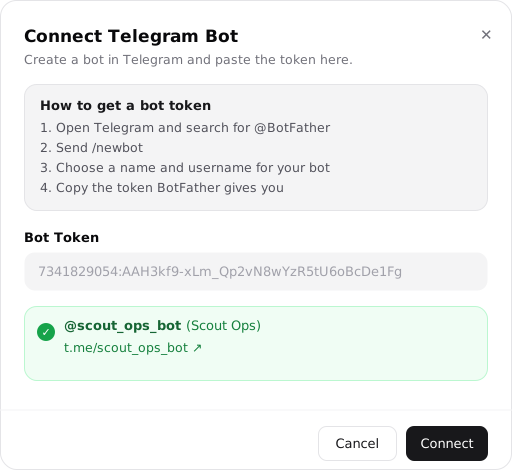
Paste the token into the Bot Token field. Hyperagent validates it live against Telegram, and a valid token surfaces a green confirmation with the bot's @username and display name so you can be sure you pasted the right one. Connect stays disabled until validation succeeds.
Pair with your Telegram account
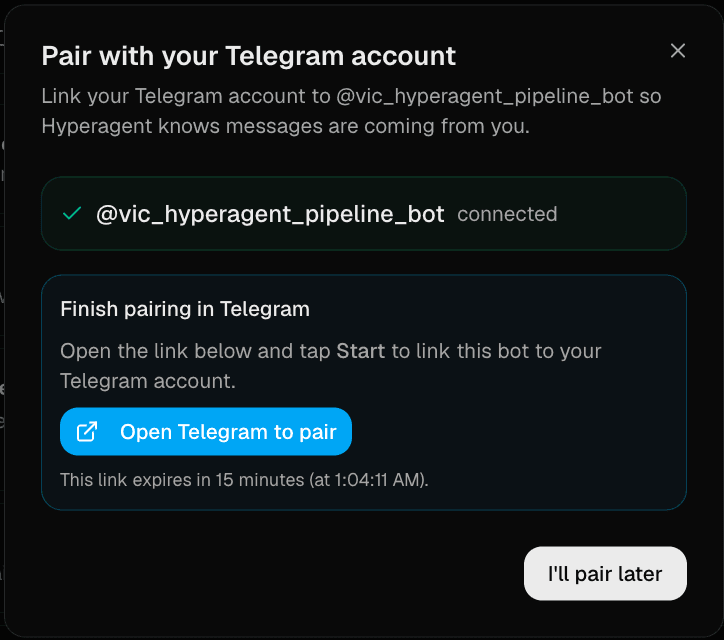
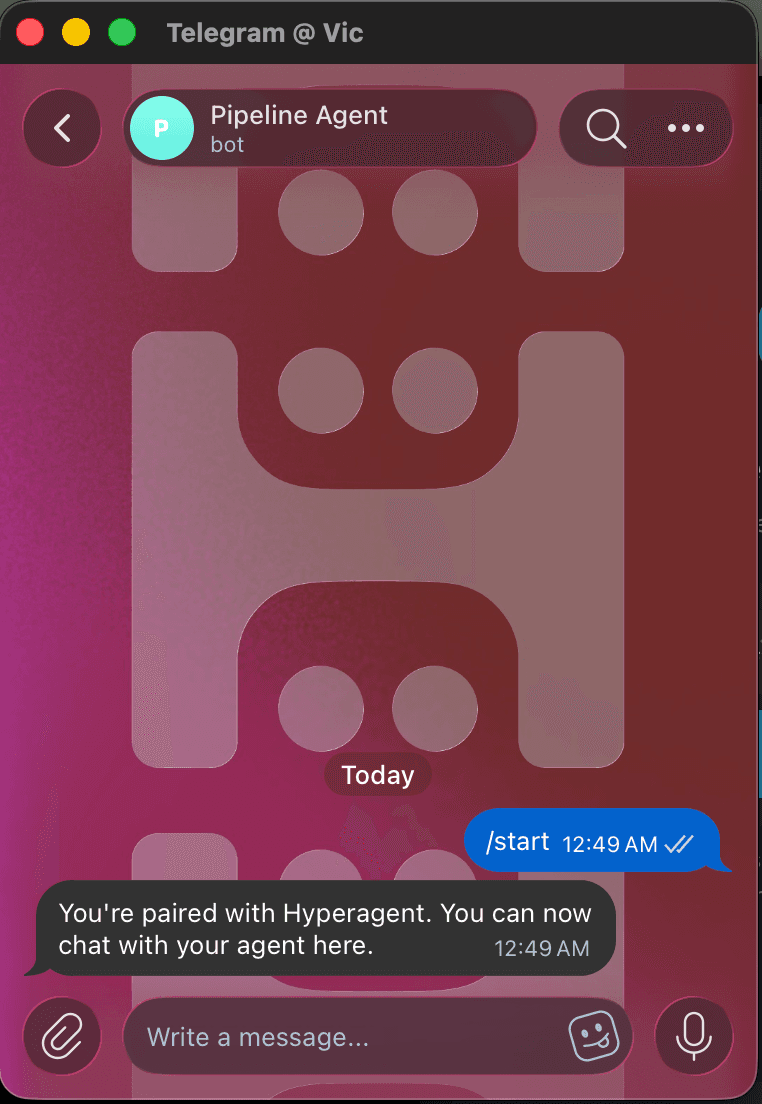
Connecting proves the bot is real; pairing proves you are the owner. Select Open Telegram to pair, then tap Start in Telegram. That stamps your Telegram identity onto the connection, and the agent replies "You're paired with Hyperagent. You can now chat with your agent here."
Telegram identifies people by numeric user ID, which Hyperagent can't know until you pair. Before that link stamps your ID onto the connection, the agent can't distinguish you from a stranger, so an unpaired bot answers no DMs.
The pairing link is valid for 15 minutes
The link is single-use and expires after 15 minutes. The dialog shows the exact expiry time; if it lapses, generate a new one.
Use Re-pair when the owning Telegram account changes. Re-pairing resets the bot's thread mappings so the new owner doesn't inherit the previous owner's conversation history; existing chat threads start fresh.
Connection rules
One bot belongs to one agent, and one token belongs to one bot everywhere on the platform. Reconnecting a fresh token from BotFather replaces the old binding. Your raw token is never stored in plaintext; it lives in the secret store, and the database keeps only the bot's numeric ID and username.
Control who can use the bot
Pairing establishes the owner. From there, direct messages and groups follow different access rules: DMs stay private to that owner, while each group must be explicitly authorized before anyone can use the agent there.
Direct messages
Anyone who finds your bot's username can open a chat with it, but only the paired owner gets answers. The bot matches every incoming DM against its pairing record, and messages from any other account aren't routed to the agent.
The first time a non-owner messages the bot in a given hour, it replies once with a fixed notice:
Sorry, I'm not configured to respond to you. Contact the bot owner for access.
Further DMs from that person within the hour are dropped silently. The first reply tells a legitimate person they've reached the wrong bot; the silence that follows keeps the bot from being used to spam them.
Add the bot to a group
A bot sitting in a group does nothing until you've allowed group chats on the bot and authorized that specific group from inside it. Being added isn't authorization: Telegram lets anyone add a bot to a group, so Hyperagent waits for the paired owner to approve it.
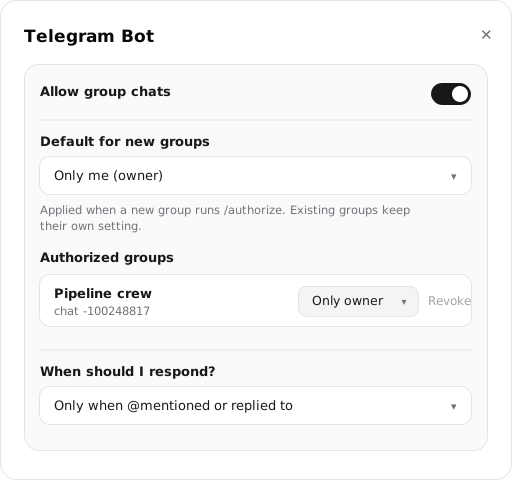
Allow group chats
In the manage dialog, turn on Allow group chats. It's off by default. This reveals the group settings and lets the bot accept authorization.
Add the bot to the group
Add your bot from the group's member list.
Authorize the group
Send /authorize in the group as the paired owner. Commands from anyone else are silently ignored. On success, the bot replies "Group authorized. Members can now talk to me based on this bot's settings."
Until the group is authorized, every message in it is dropped. The /authorize command is checked before response-trigger filtering, so it works regardless of the trigger mode you've chosen.
Choose who can trigger the agent
An authorized group inherits the bot's Default for new groups policy at that moment, then keeps its own copy. Changing the default later doesn't rewrite existing groups, and you can override each group's policy from its row in the manage dialog.
Only me (owner)
Only the paired owner's messages trigger the agent. Everyone else's are ignored, which suits a group where the agent is present but reports only to you.
Anyone in the group
Any member can trigger the agent. Non-owners are limited to roughly one message every three seconds each; the owner isn't rate limited.
Choose when the bot responds
The access policy decides whose messages count. The response trigger decides which of those messages start an agent run, so a busy group doesn't turn every line into work. This setting is shared by all of the bot's groups under When should I respond?
@mentions or replies
The bot reacts when someone @mentions it or replies directly to one of its messages, and stays quiet otherwise.
Commands or replies
The bot reacts only to /commands or direct replies. This is the one mode
that works with Telegram privacy mode left on.
Every message
Every eligible message in an authorized group starts a run. Telegram privacy mode must be turned off.
Configure Telegram privacy mode
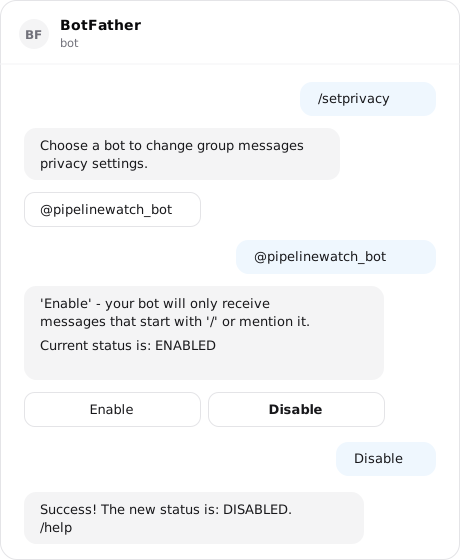
Telegram privacy mode is on by default and determines which group traffic Telegram forwards to the bot. With it on, only /commands and direct replies to the bot's own messages reach Hyperagent. That makes Commands or replies the only mode that works without changing BotFather.
When you choose @mentions or replies, Hyperagent recommends turning privacy mode off because plain @mentions aren't forwarded while it remains on. Every message requires it: Telegram won't send ordinary group messages to the bot otherwise. The manage dialog shows a warning when the selected trigger needs this change.
Disable privacy mode in BotFather, then re-add the bot
Message @BotFather, send /setprivacy, pick your bot, and choose Disable.
Privacy changes only take effect when the bot joins, so remove and re-add it
to any existing group.
How Telegram conversations work
Threads and topics
Every Telegram chat maps to a lasting Hyperagent thread named "Telegram chat." That thread is the record; there isn't a separate Telegram run history.
One owner thread
The conversation with the paired owner stays together in one thread.
One shared thread
A regular group maps to one thread, so its messages and replies keep the same context.
One thread per topic
Each Telegram topic gets its own thread, keeping parallel conversations and replies separate.
Thread trust follows the setting. DM threads are treated as user-facing. Group and supergroup threads are treated as external for memory auto-accept because anyone in the group may contribute to them.
Messages and media
Attachments are routed into the thread and identified by their actual bytes rather than Telegram's label. Each attachment is capped at 20 MB. When a file is too large, the agent is told that it couldn't take it in and can ask for a smaller version.
| You send | The agent gets |
|---|---|
| Photos | Inlined as a vision block it can see directly, plus a short text description for later reference. |
| Documents | Images and PDFs come in as readable content; other files arrive as a stored file reference the agent can open. |
| Voice notes | Transcribed automatically on arrival, so the transcript stands in as your message, and kept as a file it can re-transcribe. |
| Audio files | Stored as a file, not auto-transcribed; the agent can call TranscribeAudio on it when the contents matter. |
| Albums | Several photos sent together are combined into one message with every image attached. |
Video isn't supported yet. A message with nothing routable—no text, caption, or supported attachment—is dropped.
Replies and progress updates
Replies are formatted in Telegram's MarkdownV2 so links render as tappable links. Because Telegram caps a message at 4096 characters and the platform's formatting is applied only when the escaped text fits under that cap, a very long reply falls back to plain text rather than arriving broken.
Images the agent produces through Hyperagent's own file pipeline are sent as real Telegram photos. External image URLs the agent might emit are deliberately demoted to plain links and never fetched and re-sent as photos, which closes off a way for a crafted URL to exfiltrate data or probe internal services.
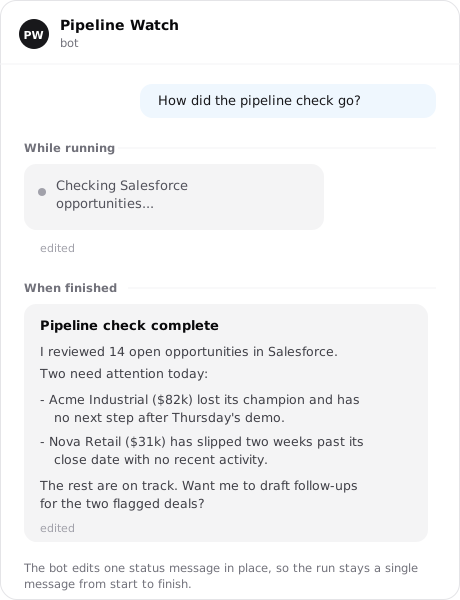
With Show progress updates on, the bot edits a single status message in place during a run to show what the agent is doing. It's on for DMs and off for groups by default, since Also in group chats would double the message count in a shared room.
Deliver scheduled and Live Mode updates
Live Mode and scheduled runs can deliver reports and alerts into a Telegram chat the agent already knows.
Link the destination chat
Message the bot from the DM, group, or topic where you want updates. Hyperagent creates the chat-to-thread mapping from that first message.
Target the linked thread
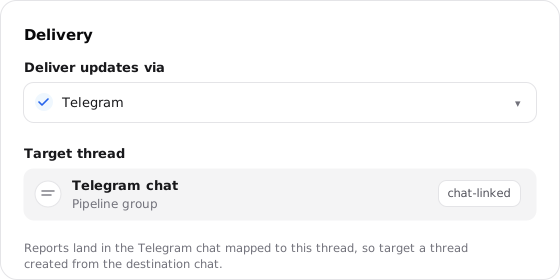
Choose that existing thread for the Live Mode or scheduled run. Delivery follows the schedule's target thread back to its Telegram chat.
Select Telegram delivery
Choose Telegram as the delivery channel and save. Hyperagent checks the connection, pairing, and chat mapping before it lets the watch or schedule run.
Telegram delivery needs an existing thread
A schedule that creates a new thread for every run has no Telegram chat to deliver to. Target a thread that was created from the destination chat.
Before it lets you save, Hyperagent runs a preflight that catches the setup gaps in plain terms:
| If | You'll be told |
|---|---|
| No bot is connected | "Connect a Telegram bot for this agent before using Telegram delivery." |
| The bot isn't paired | "Finish pairing this agent's Telegram bot before using Telegram delivery." |
| The thread isn't linked to a chat | "The selected thread isn't linked to a Telegram chat. Message the agent's bot from the chat you want reports in, then pick that thread." |
Warnings wait for a repeated failure
A delivery warning appears only when the last three completed runs hit the same problem, so one transient failure doesn't raise a false alarm. If the token is revoked in BotFather or someone blocks the bot, Hyperagent surfaces the matching warning and asks you to reconnect or unblock it.