Give an agent its own email address: control who may send, turn messages into threaded work, and let the agent reply or deliver updates.
You want to forward an invoice, support ticket, or lead to an agent and have it pick up the work on its own, the way you would hand it to a colleague. An email address gives the agent that doorway: mail sent to the address starts a run, the message becomes the briefing, and the agent can reply from the same address when you allow it.
An inbox your agent can work from
Mail to the agent's address becomes a run, framed by a prompt template you write. You decide who may send, whether files come through, and whether the agent writes back.
How email works
Mail reaches the agent
Each email address belongs to one agent. Messages sent there can start runs without someone opening Hyperagent first.
Authentication and rules gate entry
Incoming mail must pass sender authentication. Your allow list then decides which authenticated senders may invoke the agent.
The message becomes a briefing
A prompt template turns the sender, subject, body, date, and attachments into the instructions the agent receives in its thread.
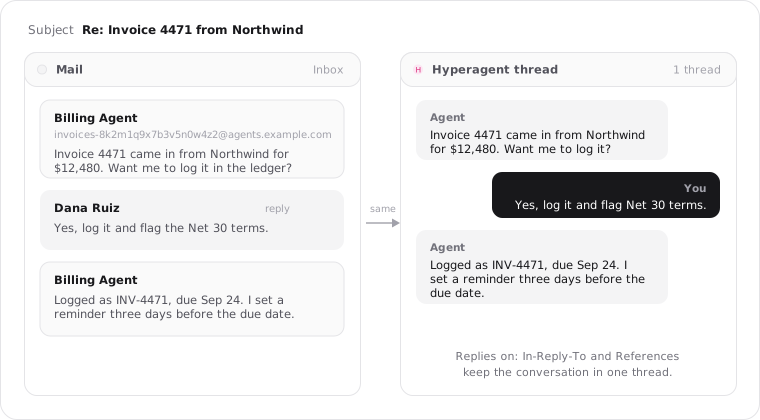
Replies can stay in one thread
With replies on, one email conversation maps to one Hyperagent thread. You can also let the agent start an email to you.
Create and configure an email address
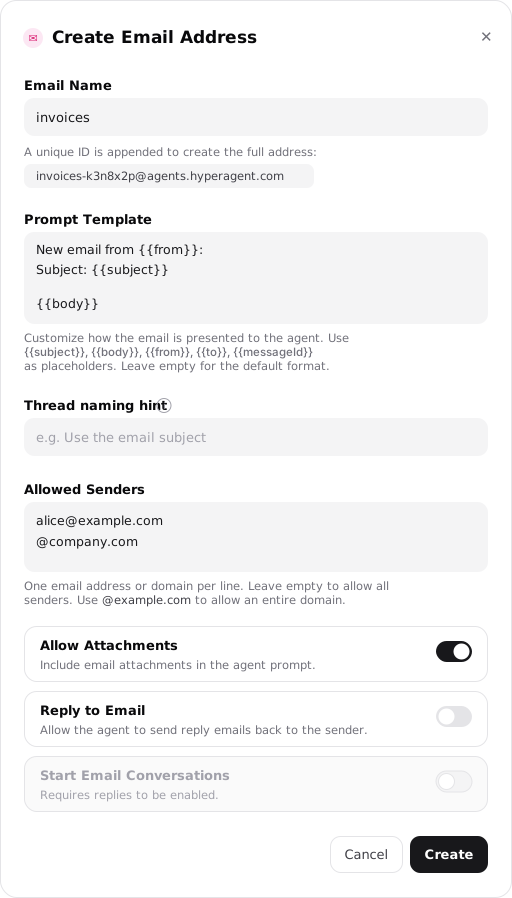
On the agent's Invocations tab, open the Email card and select Create Email Address. The form controls the address, the briefing each message creates, who may send, and whether the agent can answer.
Name the address
Choose the readable start of the address. Hyperagent adds a random suffix and your deployment's email domain.
Frame the work
Write the prompt template that introduces each message to the agent. If replies are off, you can also tell the agent how to name each new thread.
Set access and file handling
Add exact senders or domains, then decide whether attachments should enter the thread with the message.
Choose the conversation behavior
Decide whether the agent may reply and whether it may start a new email conversation with you.
Email configuration options
The part of the address you choose
Every address has the shape {slug}-{suffix}@your-domain:
- Slug: The name you choose—2 to 63 lowercase letters, digits, and hyphens.
- Suffix: A random 19-character string that makes the complete address impractical to guess. It isn't shown separately.
- Domain: Set by your deployment.
After creation. The slug is locked because changing it would orphan mail sent to the old address. Create a new address if you need another name; copy the complete address from its detail page.
Multiple addresses. An agent can have several, each with its own template, sender rules, reply behavior, status, and history.
How each email is handed to the agent
The template wraps every accepted email before the agent sees it.
Available fields: {{from}}, {{to}}, {{subject}}, {{body}}, {{date}}, {{messageId}}, and {{attachments}}. Attachments is a comma-separated list of filenames.
Default template:
New email received:

From: {{from}}
To: {{to}}
Subject: {{subject}}
Date: {{date}}

{{body}}
Custom instructions. Add context when the agent needs direction before reading the message—for example, This is a customer invoice. Extract the line items.
Message body. HTML-only mail is converted to plain text for the prompt, capped at 64 KB, while the original HTML is saved as a thread file. Quoted history is stripped so the agent reads the new message.
How new threads get named
This field appears only when Reply to Email is off, because that mode opens a new thread for every message.
Tell the agent how to title each thread from the email's subject and body so the work stays findable. Leave it empty to use the default name.
See how reply settings control threading.
Who may trigger a run
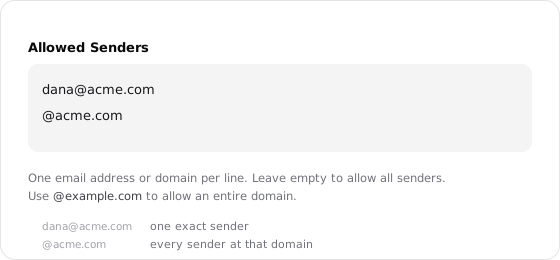
Enter one rule per line:
- Empty list: Any authenticated sender may invoke the agent.
- Exact address: A line such as
alice@example.comadmits only that sender. - Whole domain: A line such as
@company.comadmits every sender at that domain.
A populated list is also a trust boundary: matching senders can use the agent's stronger capabilities, including delegation to subagents. Unmatched senders are rejected silently.
See sender matching, authentication, and capability rules.
Whether files ride along
On by default. Inbound files are saved into the thread, listed in {{attachments}}, and presented to the agent like files uploaded by hand.
- Up to 30 MB per attachment
- Up to 30 MB of attachments for the whole message
- Marked as untrusted content because they came from outside Hyperagent
Turn attachments off when the workflow doesn't need them.
Whether the agent writes back, and how threads work
On by default. This switch controls both the agent's email tool and its thread structure.
- On: The agent gets the Reply to Email tool, and messages in one email conversation continue in one Hyperagent thread.
- Off: Every message opens a new thread, and the agent completes the work without answering by email.
Turning replies off also reveals the Thread naming hint. Starting a new email conversation requires replies to remain on.
See reply headers, From-address behavior, and threading details.
Whether the agent may email first
Off by default. This setting is available only when Reply to Email is on.
Enable it to give the agent the Send Email tool. The agent can start an email to you, its run owner—not an arbitrary address—and your reply returns to the originating thread even when you aren't on the allow list.
Scheduled and Live Mode email delivery use this outbound path.
See outbound conversation behavior and delivery requirements.
Control who can trigger the agent
Every inbound message clears two gates: the receiving mail service must authenticate it, and the sender must satisfy the address's Allowed Senders rules.
Allowed senders
Open inbox
Leave the list empty to accept any authenticated sender. This works for public intake, but it lets more people invoke the agent.
Exact address
A line such as alice@example.com matches that address and no one else.
Whole domain
A line beginning with @, such as @company.com, admits every sender at
that domain by matching the end of the address.
Enter one rule per line. There is no wildcard or separate subdomain syntax, and Hyperagent stores patterns in lowercase so matching is case-insensitive. Once the list contains a rule, unmatched senders are rejected silently.
Scope write-capable agents before publishing the address
An empty list creates an open inbox for any authenticated sender. Use exact addresses or domains when the agent can write to connected systems or take other consequential actions.
Rejected messages never bounce
Virus, spam, authentication, replay, size, rate-limit, paused-address, and allow-list failures are silent. A bounce would confirm that the address is live or reveal its sender rules. When a run row already exists, the failure reason appears there for you instead.
What an accepted sender can do
Email-invoked runs use the agent's normal tools and integration access; they aren't forced into the read-only behavior a standard schedule starts with. The allow list is therefore both an entry gate and a trust boundary.
An open inbox authorizes accepted mail for ordinary work. When a sender matches a populated allow list, Hyperagent treats that sender as explicitly trusted, which also lets the email-invoked run delegate work to subagents on their behalf.
Choose how email conversations work
Reply behavior and threading
Replies off
Every inbound message opens its own thread, named from the Thread naming hint. The agent does the work without answering by email.
Replies on
Messages in one email conversation continue in one Hyperagent thread, and the agent can reply from its own address.
With replies on, Hyperagent follows the standard In-Reply-To and References headers to find the thread a message belongs to. The agent's replies come from {slug}-{suffix}@your-domain, using the agent's name as the display name. The agent can't change the From address, and the subject remains Re: plus the original without accumulating prefixes.
Let the agent email you first
Start Email Conversations is off by default and becomes available when Reply to Email is on. Enabling it gives the agent the Send Email tool so it can start an email to you, its run owner. It can't use this setting to email arbitrary addresses.
Your reply returns to the originating thread through an agent-initiated exception, even if your address isn't on the allow list. Scheduled and Live Mode email delivery use this outbound path.
Operate and monitor an address
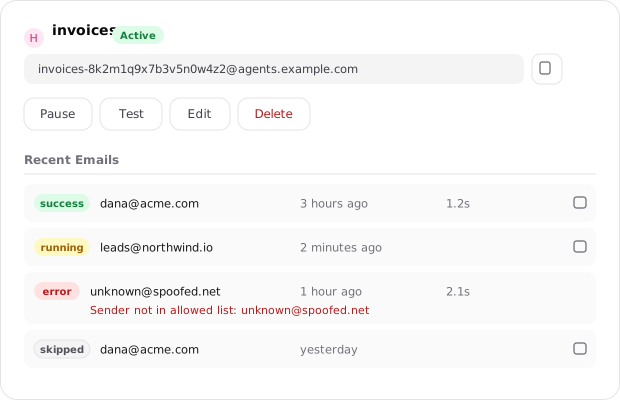
Each address is managed independently, including its state, test runs, settings, and history.
Pause, resume, or archive
An address can be active, paused, or archived. Pausing stops inbound mail from starting runs without deleting the address or its history; resuming turns it back on. You can pause, resume, edit, test, or delete one address without affecting another address on the same agent.
Test the configuration
Send Test Email opens a dialog where you enter a From address, subject, and body. The To address is fixed to the email invocation you're testing.
A test skips SES delivery and the replay guard so you can exercise the prompt template and reply behavior end to end. If the agent replies, Hyperagent redirects that reply to your own email instead of the simulated sender.
Review Recent Emails
The Recent Emails section on the address detail page logs what has arrived. Each row shows a status badge, sender address, when the run started, its duration, and a link to the thread. Before anything arrives, it reads No emails received yet. A failed run shows its error beneath the row.
Ownership on workspace agents
Multiple workspace members can see and edit an agent's email addresses, but each address has one runtime owner: the member whose context and usage the runs execute under.
Addresses pause when their owner leaves
If the runtime owner leaves the workspace, the address pauses instead of running without an owner. Any remaining member can resume it, which makes that member the new runtime owner.
Deliver scheduled and Live Mode updates
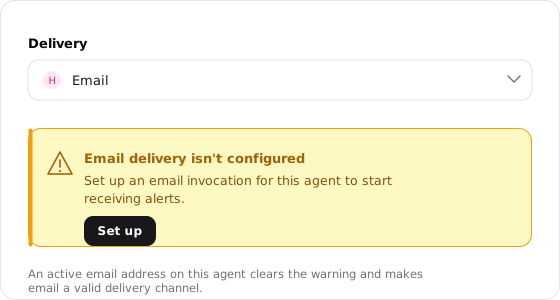
A scheduled run or Live Mode watch needs an active email address on the same agent before it can deliver updates by email. The address gives the run a valid From address, and Start Email Conversations provides the outbound path to the run owner.
Email delivery isn't configured
Set up an email invocation for this agent to start receiving alerts.
The warning's Set up button opens the Create Email Address dialog. Once an active address exists, email becomes a valid delivery channel and the warning clears.