MCP clients
Connect Claude Code, Claude, Cursor, or another MCP client so it can start work with your Hyperagent agents.
An MCP client can start work with any agent you can reach
Connect the client to your Hyperagent account once. It can discover your available agents, start a thread, follow the work in the background, and read the result back where you asked.
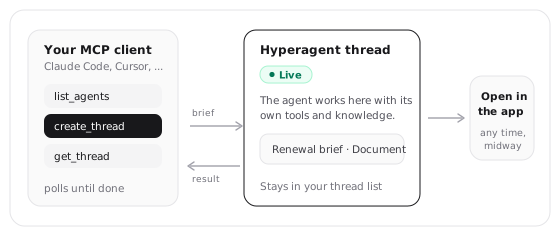
The connection belongs to your account rather than one agent. There is no MCP card to enable on an agent's Invocations tab. Your client discovers the personal, shared, and workspace agents your account can currently reach.
This is inbound MCP: an external AI client starts work with Hyperagent. To give a Hyperagent agent tools from an external server, use Custom MCP.
Model Context Protocol is the standard the client uses to discover and call these Hyperagent tools. You configure one remote server connection rather than a separate integration for every agent.
How an MCP invocation works
Create a thread
The client calls create_thread with an agent and a
self-contained message. Hyperagent starts the work and immediately returns a
threadId.
Poll in the background
The agent continues after the tool call returns. The client polls
get_thread until the thread is no longer running.
Read or follow up
The last assistant message contains the result. Use
send_message to continue the same thread or open it in
Hyperagent.
The run is asynchronous. There is no single call that waits for the entire job and returns its final answer. Closing or disconnecting the client does not turn the thread into a hidden process; it remains a normal Hyperagent thread that appears in your thread list and in list_threads, ready to open or continue.
An MCP run acts with the same trust as a turn you send in Hyperagent
The OAuth connection belongs to you, so work started by the client acts with your existing access. Use the same care you would when sending the request from the Hyperagent app.
Connect your client
Every supported client points to https://hyperagent.com/api/mcp and completes OAuth in a browser. There is no API key for you to generate or paste.
Open MCP access settings
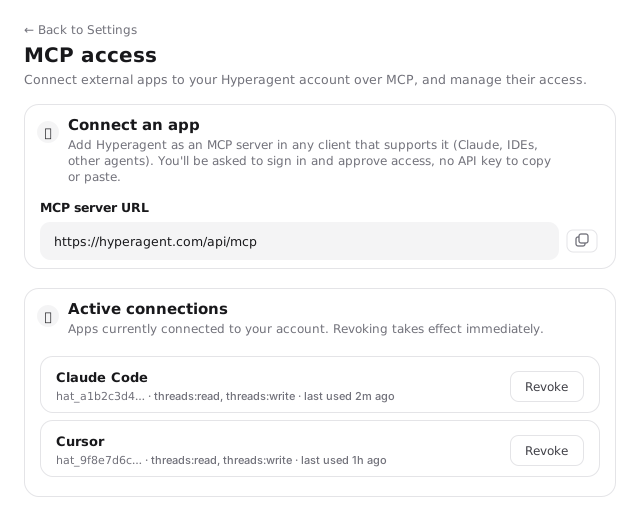
Go to Settings → MCP access. Copy the server URL from Connect an app.
Add Hyperagent to the client
Run:
claude mcp add --transport http hyperagent https://hyperagent.com/api/mcpLaunch Claude Code, run /mcp, select hyperagent, and
complete the browser sign-in.
Open Settings → Connectors → Add custom connector, name the connection, and enter the server URL. Connect and approve access in the browser.
Connecting from behind a VPN or firewall
The Claude web and desktop apps reach Hyperagent from Claude's servers, not your machine. If your instance sits behind a VPN or firewall, allow that traffic. Otherwise the connector signs in but can't open the session. Claude Code connects from your own machine and isn't affected.
Register the server, then sign in:
codex mcp add hyperagent --url https://hyperagent.com/api/mcp
codex mcp login hyperagent
The login command opens the browser for OAuth. Check the connection
with codex mcp list.
Add Hyperagent to ~/.cursor/mcp.json (or a project's
.cursor/mcp.json):
{
  "mcpServers": {
    "hyperagent": {
      "url": "https://hyperagent.com/api/mcp"
    }
  }
}
Then open Cursor Settings → MCP, find hyperagent, and complete the browser sign-in when it prompts.
Any other client that supports a remote HTTP MCP server with OAuth works the same way: give it the server URL and complete the browser sign-in.
Review and approve access
The consent screen lists the scopes the client requested. Approve them, and the client stores its connection and can reconnect without another manual setup.
Start with one agent
Ask the client to list your agents, choose one, and send a complete first request. Confirm the result comes back before relying on the connection in a longer workflow.
What your client can do
| Tool | What it does |
|---|---|
list_agents | Lists available agents with their ID, name, description, and execution mode. |
create_thread | Starts work on an agent and immediately returns a threadId. |
send_message | Sends a follow-up to an existing thread, immediately when idle or after the active turn. |
get_thread | Reads recent messages and reports whether the thread is still running. |
list_threads | Pages through your threads, newest first. |
create_attachment_upload | Creates a direct file upload and returns the fileId used with a message. |
list_pending_approvals | Lists actions and drafts waiting for your decision, most urgent first. |
resolve_approval | Approves or denies one pending item. |
MCP doesn't directly manage agents or knowledge
The MCP server doesn't include tools for creating or configuring agents, skills, or memories. An agent with the right permissions can still do that work when you prompt it through MCP.
Ask-first agents can't run over MCP
An agent set to Ask first pauses mid-run to get your approval before sensitive actions. MCP has no surface to show that approval prompt, so create_thread refuses to start one:
Can't start that agent over MCP: it's set to Ask first, and MCP has no approval surface. Run it in Hyperagent, or switch the agent to Auto.
The agent still appears in list_agents so you can see it and its execution mode. To run it from your editor, either run it in Hyperagent instead, or switch it to Auto if it's safe to run on its own.
Start a run, then poll for the result
The single most important thing to know is that runs don't block your editor. create_thread returns a threadId the instant you call it, and the agent keeps working after the call ends. There is no synchronous "run and give me the answer" call.
To collect the result, poll get_thread until it reports the run is no longer running, then read the last assistant message. It's a normal thread on your account, so you can also open it in Hyperagent to watch the full run or continue it there. Send a follow-up with send_message to keep the same thread going.
Manage access
Every client is its own connection, signed in through OAuth. You can see and revoke them all at Settings → MCP access: each connection lists its scopes and when it was last used, and revoking one cuts that client off immediately without touching the others. A connected client acts as you and reaches only what you already can, and it can't create or edit skills, memories, or agent configuration.
Attach a file without loading it into client context
Call create_attachment_upload with the file name, type, and exact size. Hyperagent returns a fileId and short-lived upload URL. Upload the bytes directly, then include the fileId in create_thread or send_message.
curl -T report.pdf -H "If-None-Match: *" "<uploadUrl>"The file moves to storage rather than through the client's model context or the MCP endpoint.
Access and security
Each client completes its own OAuth 2.1 connection and receives only the scopes approved on its consent screen. Hyperagent issues that client a bearer token prefixed hat_. The secret is delivered to the client once and is never shown for you to copy; Settings displays only the connection and token prefix.
| Scope | What it grants |
|---|---|
threads:read | Read your agents, threads, and messages |
threads:write | Create threads and send messages as you |
approvals:read | See pending actions and drafts |
approvals:write | Approve or deny pending items |
The client acts with your existing access
It can reach the same agents and threads you can, including shared resources already available to you. Connecting MCP does not grant new access elsewhere in the account.
Hyperagent supports up to 50 active client connections. Each appears in Settings → MCP access with its scopes, token prefix, and last-used time. Revoke cuts off that client immediately without affecting the others.