Find and reuse Library items
Find saved work in the right workspace, check its source, and reuse or manage the item.
Use this guide when you know the work you need but not the conversation it came from. For example, find a saved weekly brief, check that it is the right result, then bring it into the next task or share it with someone else.
The Library concept explains what belongs here. If you want one agent's past task files or its standing references, use Find and reuse an agent's files instead.
Find the item
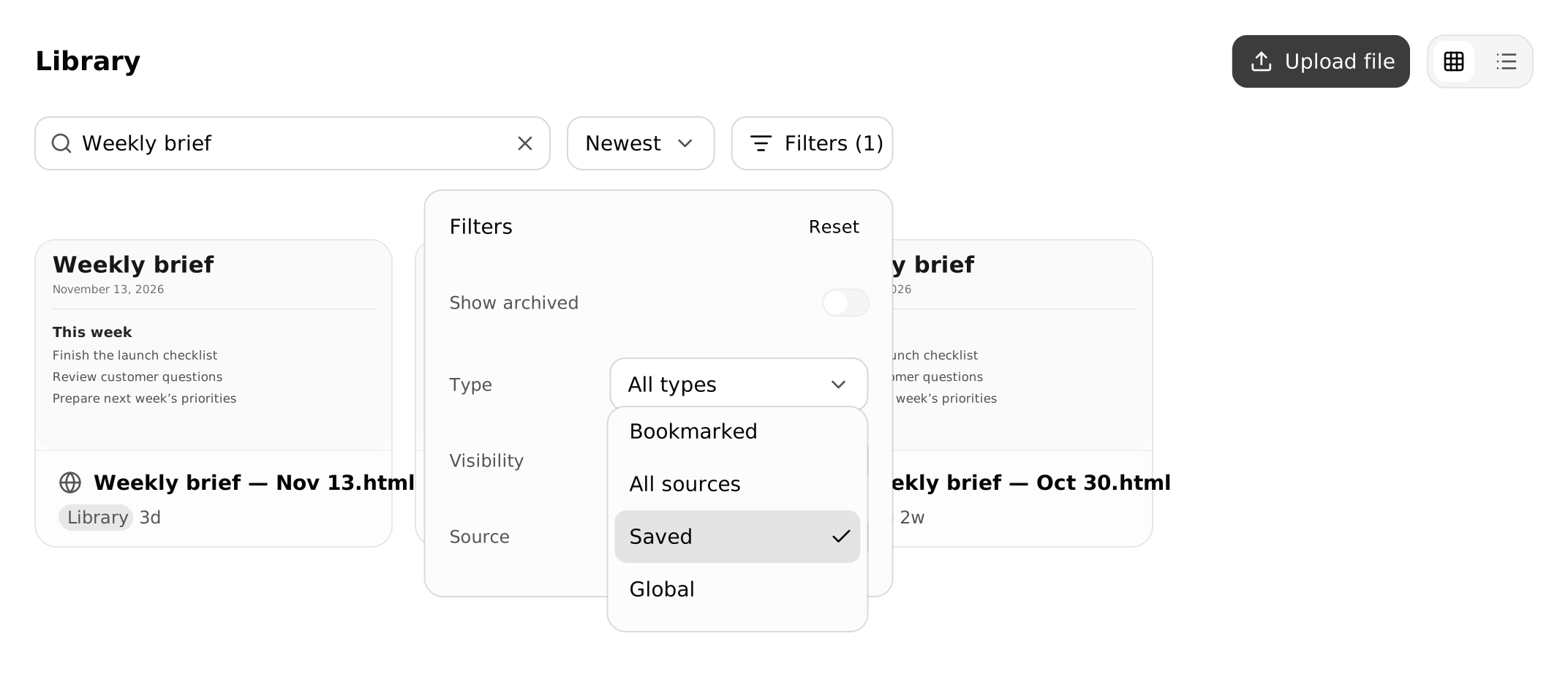
Open the right workspace's Library
Select the workspace where the work was produced or saved, then open Library. Choose Personal for your personal work, or the team workspace for work kept there.
Check the workspace before changing permissions or uploading another copy. Library results follow your access; a missing result does not by itself mean the file was deleted.
Search, then narrow the results
Enter a title, filename, or source-thread name in Search library…. Use a distinctive part of the name, such as Weekly brief, rather than a broad word that matches many items.
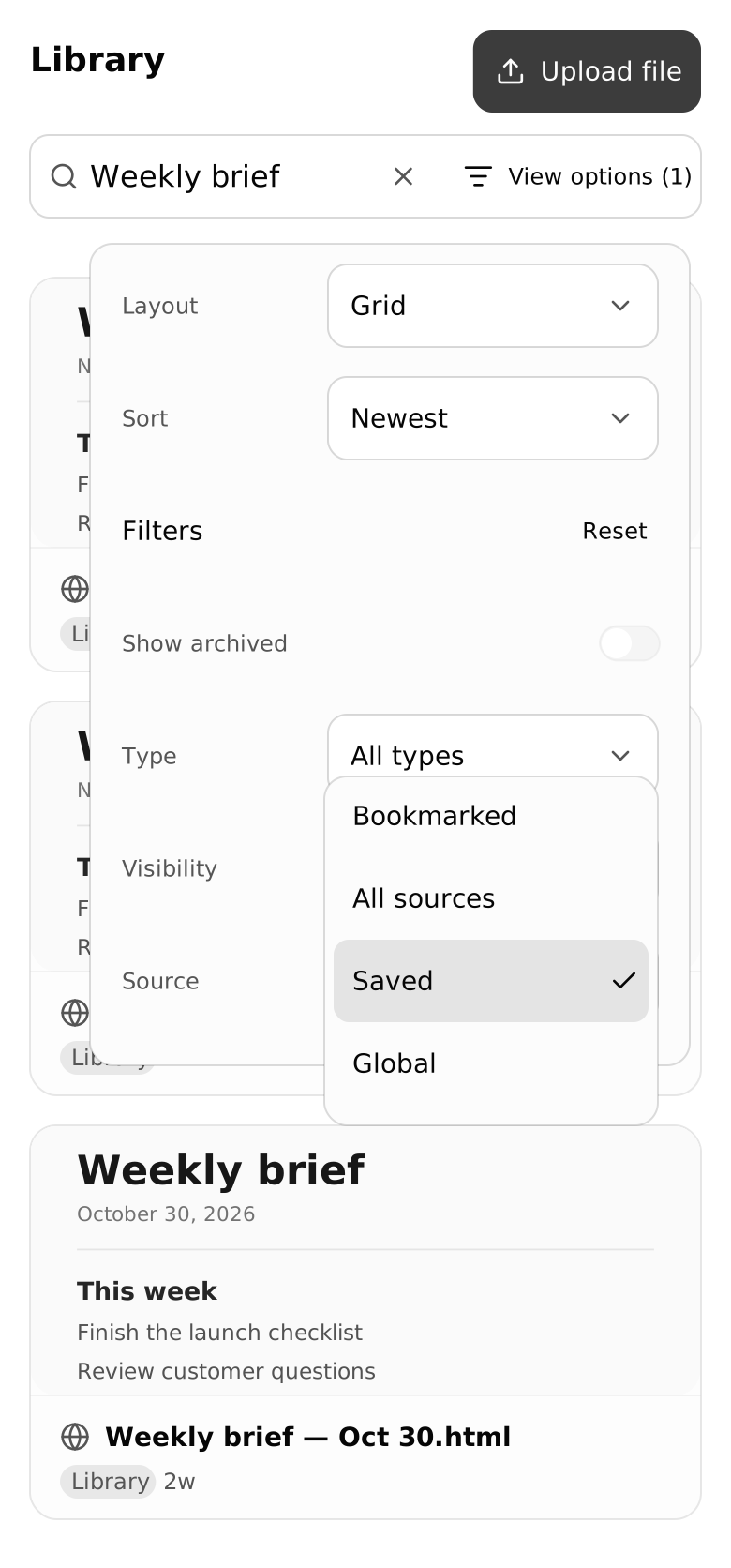
Open Filters. On a narrow screen, open View options. Choose the filter that answers what you remember about the item:
| What you remember | Control to use |
|---|---|
| It was a document, table, image, or another kind of output | Choose its Type. |
| You saved it to the workspace Library | Choose Source → Saved. |
| You bookmarked it earlier | Choose Source → Bookmarked. |
| It came from a particular agent or project | Choose that available agent or project under Source. |
| It had a published link | Choose Visibility → Published. |
| The source conversation was archived | Turn on Show archived. |
In Personal, Source → Global also finds global items. Use Newest or Oldest to change the order. Reset clears the filter choices; clear the search text separately when you want to broaden both.
Saved and Bookmarked are different. Saved finds files kept in the workspace Library. Bookmarked finds items you marked to return to; bookmarking does not save another workspace file or grant access.
Open the item and check its source
Select the result to open its viewer. Check the title and content rather than relying on the thumbnail alone.
For an item from a conversation, follow an available thread link in its details to review the request, sources, and discussion. If you cannot open that thread, the file's availability does not override its permissions.
A file saved directly to the Library has Library attribution rather than a source conversation. Supported files can show a thumbnail after processing succeeds. A missing preview is not a reason to assume the upload failed or to upload the same file again.
Choose how to use it again
Choose the action that fits the next job:
- Use it once: Mention a supported document or table in the next conversation, attach the file, or supply an appropriate share link. Tell the agent what to do with it.
- Keep it as an agent reference: Follow the saved-reference guide. A Library entry alone does not make the agent consult it on future tasks.
- Take a copy elsewhere: Use the item's available download or export action. Tables can be exported as CSV or JSON; available actions depend on the item type.
- Let someone view the result: Use the supported publication controls and check the resulting link. Publication settings explain access and updates.
For a reused source, ask the agent to identify what it opened and check the result against the item. Finding or linking a file is not proof that it was read.
Bookmark an item you will return to
Open the item and choose Bookmark. Use Source → Bookmarked the next time you look for it. Choose Remove bookmark when you no longer need that shortcut.
A bookmark changes how you find the item, not its owner, sharing permissions, or the references attached to an agent.
Add a file without a source thread
In the intended workspace's Library, choose Upload file and select the file on your device. This control appears when uploads are available and your role can add files.
Wait for File uploaded, then confirm that the file appears in the Library. If an error appears, resolve it before trying again. A thumbnail can arrive after the file itself because preview processing is separate, and not every file type receives a preview.
Update a file already saved to a workspace
For an item you can edit, update the existing record rather than creating an unrelated copy. Identify the exact item when asking the agent to revise it, then open the saved result to check the change.
History and editing depend on the artifact type. Use available history to inspect an earlier version, and check the published result separately if someone relies on its share link. Saving an edit is not a reason to assume every published copy changed with it.
Delete an eligible file permanently
Use this procedure for a generated or uploaded file whose menu offers Delete.
Check who will lose the file before deleting it
Deletion cannot be undone. Deleting a workspace Library file removes it for everyone in that workspace and from linked conversations. Preview links to the deleted file stop working.
- Open the file and choose Delete from its actions menu.
- Review the warning and confirm permanent deletion.
- If Unpublish before deleting appears, choose Manage publication, unpublish the file if you have permission, then retry deletion.
You must own the source thread or be an Owner of the workspace Library where the file is saved. This action is not offered for files in a Room agent's history. If you cannot complete the action, ask the appropriate owner rather than changing unrelated access settings.
If the item is missing
Check these before creating another copy:
- Workspace: Return to the workspace where it was produced or saved.
- Search and filters: Clear the search and use Reset. Include archived work if necessary.
- Access: Confirm that you can read the file and, separately, any source conversation you need.
- Exact reference: Try the item's ID, a source-thread link, or one of your own published or share links when you have it.
Search can match indexed document text and table descriptions or column names. It does not search table rows or the contents of ordinary files. A more specific title or exact reference can be more useful than a word buried in a PDF or spreadsheet row.