Command Center
The cockpit for running many agents at once: catch what's waiting on you, see what's running, and track cost and quality across the fleet, then drill into the one that needs you.
You're managing a workspace's agents, and most of them work while you're not watching: one on a 7 AM schedule, one answering in Slack, one triggered by a webhook. You can't open each one to check on it. The Command Center is where you don't have to: one page that catches what's waiting on you, shows what's running, and tracks cost and quality across every agent at once.
Unattended agents fail silently; one glance here catches it
A blocked approval just waits, a runaway schedule just spends, and quality drifts with nobody in the thread. Checking the Command Center like an inbox is how an unattended fleet stays a managed one.
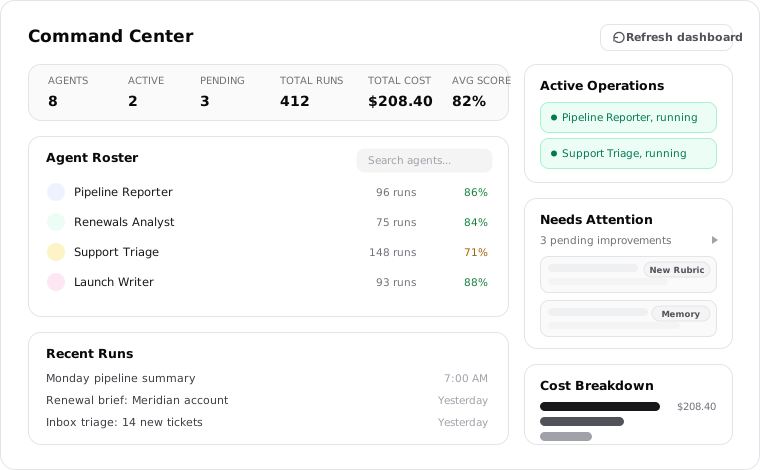
Workspace fleet and agent Activity
The workspace Command Center gives Owners an operating view across workspace-owned agents and their runs. It is different from an agent's Activity tab, which focuses on one agent's history. Open the workspace's Command Center to compare the fleet, then open Activity or a run when one agent needs closer attention.
The workspace dashboard is Owner-only. Editor access to maintain agents does not grant access to this cross-member oversight view. The personal Command Center remains a separate view of your own agents.
Open Inbox for decisions
Command Center and Inbox serve different jobs. Command Center gives you the operating picture; Inbox shows requests and problems waiting on you. Follow Needs Attention to the workspace Inbox to review your questions, approvals, mentions, and failing schedules.
Not every improvement proposal is a paused run, and not every item can be approved in place. Review learning proposals in Learning, and follow an Inbox item to its conversation when it needs a fuller review.
See what's running right now
Before you kick off new work, Active Operations tells you what's already in flight across the workspace: the agent runs executing right now. An empty Active Operations panel means the dashboard has no current operations to show. It's the fastest way to know whether an agent is still mid-task before you pile on.
Catch a runaway cost
Cost is the number that surprises operators of unattended fleets, so the Command Center keeps it in view. The Total Cost figure sits in the headline stats, and Cost Breakdown shows where the spend is going; Use that breakdown to find the agent behind an unexpected increase, then inspect its runs before deciding what to change.
See whether quality is holding
Agents drift, and a scheduled agent can degrade for weeks before anyone opens a thread. Avg Score in the stats and Score Trends over time are the early warning: a falling score is your cue to open that agent, read an evaluated run, and investigate. A run without an evaluation is not evidence of good or bad quality. The scores come from the rubrics you set in Rubrics and evaluations.
Find the agent to dig into
The Command Center points; the detail lives one click away. The Agent Roster helps you find workspace-owned agents, and Recent Runs brings recent work across that fleet into one view. An agent opens to its own page, a run opens its thread, and that agent's full history is its Activity tab. So the loop is: notice it here, drill in there, act in the thread.