Manage a room
Find and star rooms, join the ones you need, change a room's settings, leave or archive it, and check what its agents cost.
Rooms accumulate. This page covers how to find the right one, keep it tidy, and know what it costs.
Find and join rooms
Open Rooms from the sidebar to see the rooms directory. In a team workspace, switch between Joined and All rooms to see the rooms you're in or everything the workspace has. Search by name, show only Starred rooms, sort by recent activity or alphabetically, or include archived rooms through Filters.
Every room in a team workspace is visible to every workspace member. Open a room you haven't joined and you can read it; select Join room to post and receive updates. In a personal workspace you're already a member of every room you create.
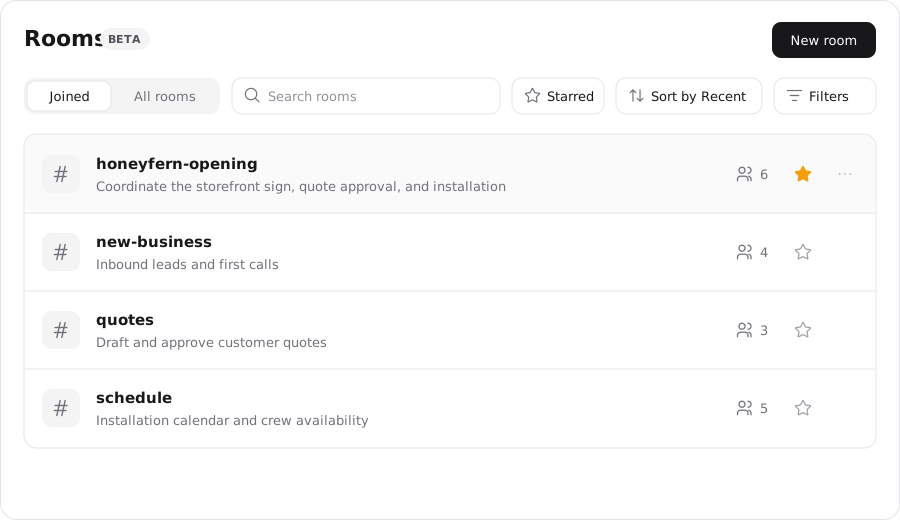
Star the rooms you use most
Select the star beside a room's name, in the header or in the directory, to keep it at the top of your sidebar. Starring is personal to you and doesn't affect other members.
Change a room's settings
Open the room actions menu and select Settings. Room managers can change the Name and Description. Everyone can see which Workspace the room belongs to and who the Room owner is.
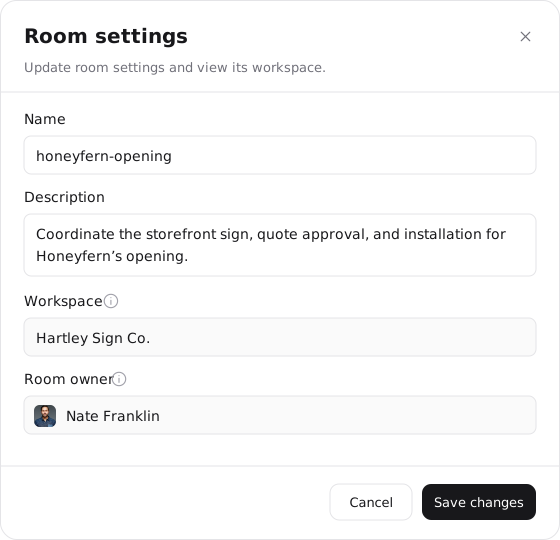
Two things are fixed at creation. A room can't move between workspaces, and the room owner is the account its agents run under. If the owner leaves the workspace or their account becomes inactive, the room's agents pause until the owner is back or the work moves to a new room.
You can also type /settings in the composer to open this dialog, along with /invite, /remove, /leave, and /archive for the other common actions. These commands act immediately and are never posted as messages.
Leave a room
Open Manage room members, find your own row, and select Leave room. You stop receiving updates, and your messages stay. You can rejoin at any time. If you created the room, leaving doesn't transfer ownership: in a team workspace the room's agents keep running under your account while you remain a workspace member.
Archive, restore, and delete
When a room's work is done, a room manager can Archive room from the room actions menu. The room moves to the archived list and becomes read-only. Its history stays available, and a manager can Restore room later to pick the work back up.
Deleting is separate and permanent. Only a workspace owner can Delete room, and only after it has been archived. Deleting removes the room, its participants, and its entire message history.
Archive before deleting
Archiving is reversible and keeps the history. Deletion is not. Archive first, and delete only when you're sure nothing in the room is still needed.
Check what a room costs
Open the room actions menu and select Usage. The panel shows the room's total for the selected period and a breakdown by agent. Expand an agent to separate the cost of its conversations from any background work it ran.
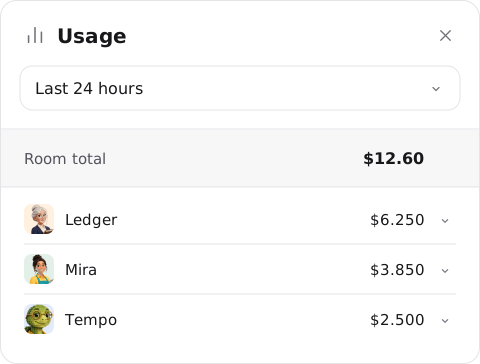
Usage in a room accrues to the room owner's account, since that's the account the agents run under.