HubSpot
Connect HubSpot so your agents can read and update contacts, companies, deals, and tickets.
With HubSpot connected, your agents can read and update your contacts, companies, deals, and tickets:
- Keep your pipeline clean — update deal stages, log notes, and fix stale records by asking, not clicking.
- Get answers instead of building reports — ask questions about your pipeline and get live answers from your CRM data.
- Turn scattered context into records — paste meeting notes or emails and have the agent create the contacts and deals.
- Triage support tickets — summarize open tickets and create follow-up tasks.
You'll need: a Hyperagent account and a HubSpot user with permission to connect apps to your HubSpot account.
Connect HubSpot
The connection starts from Hyperagent — if you found us in the HubSpot App Marketplace, sign in to Hyperagent first and follow the steps below.
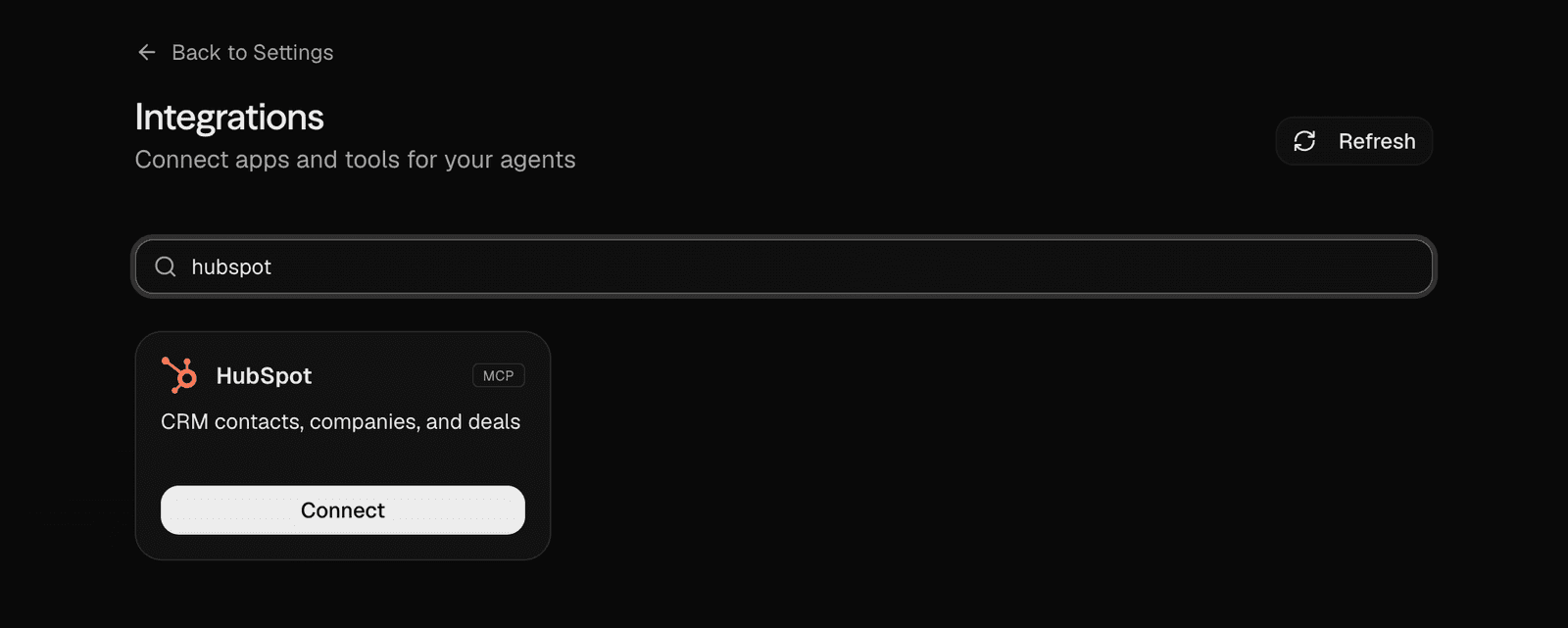
Connect the HubSpot card
Find the HubSpot card and click Connect.
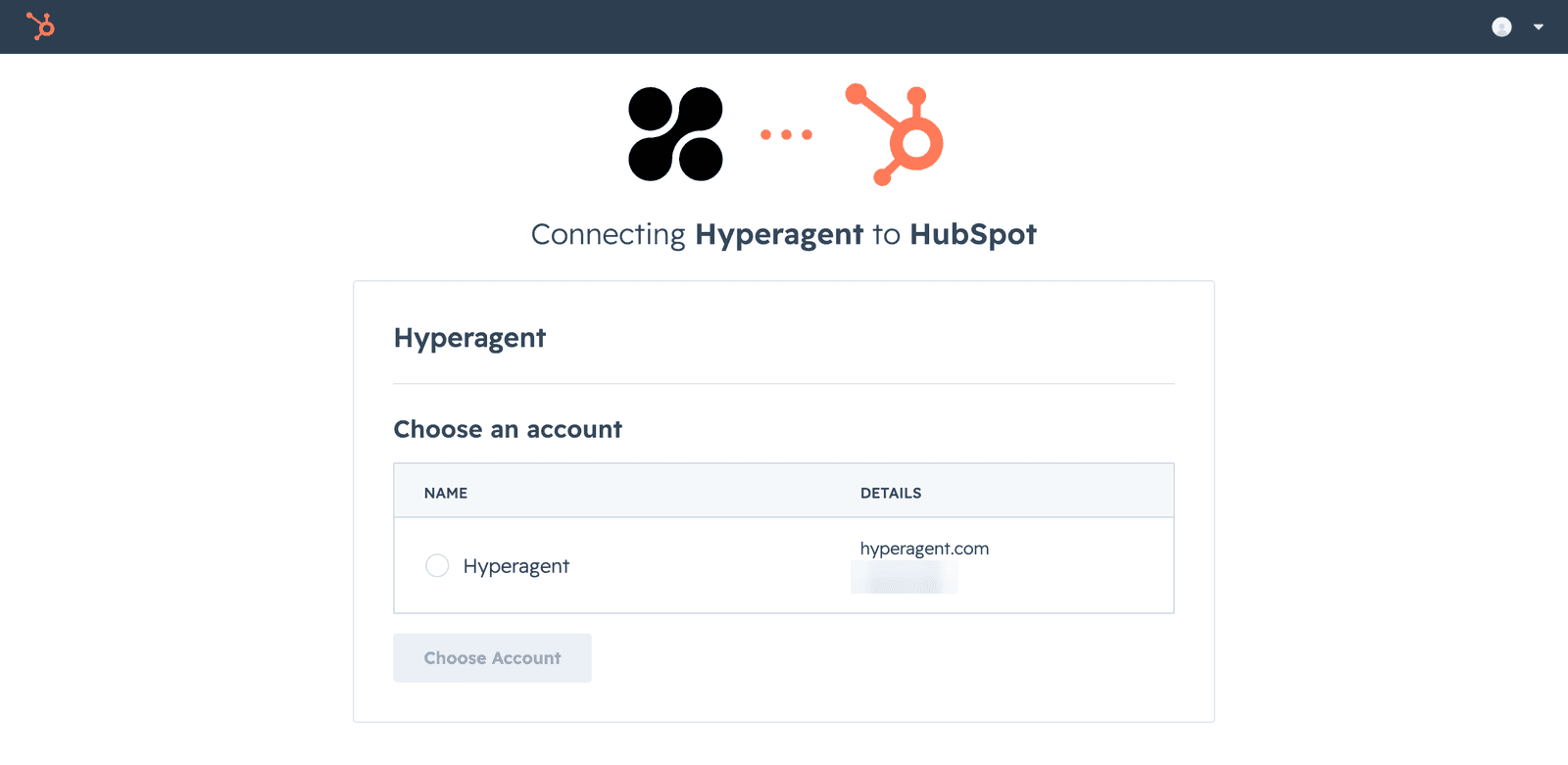
Choose your HubSpot account
A HubSpot window opens. Sign in to HubSpot if you aren't already, and choose the account you want to connect if you belong to more than one.
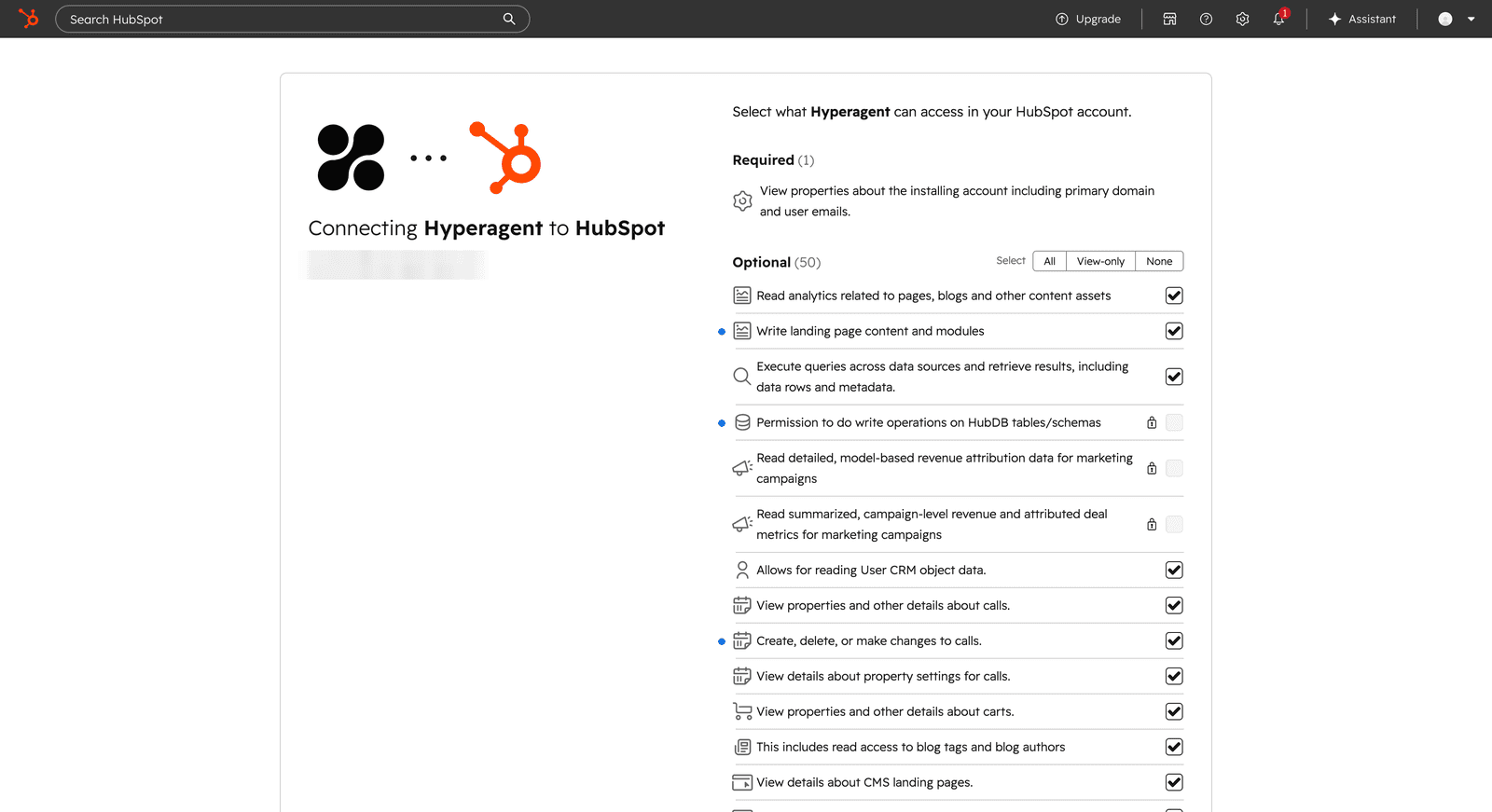
Approve access
Review what Hyperagent can access. Keeping the defaults is recommended — deselecting optional permissions limits what your agents can do. Tick the confirmation checkbox at the bottom and click Connect app.
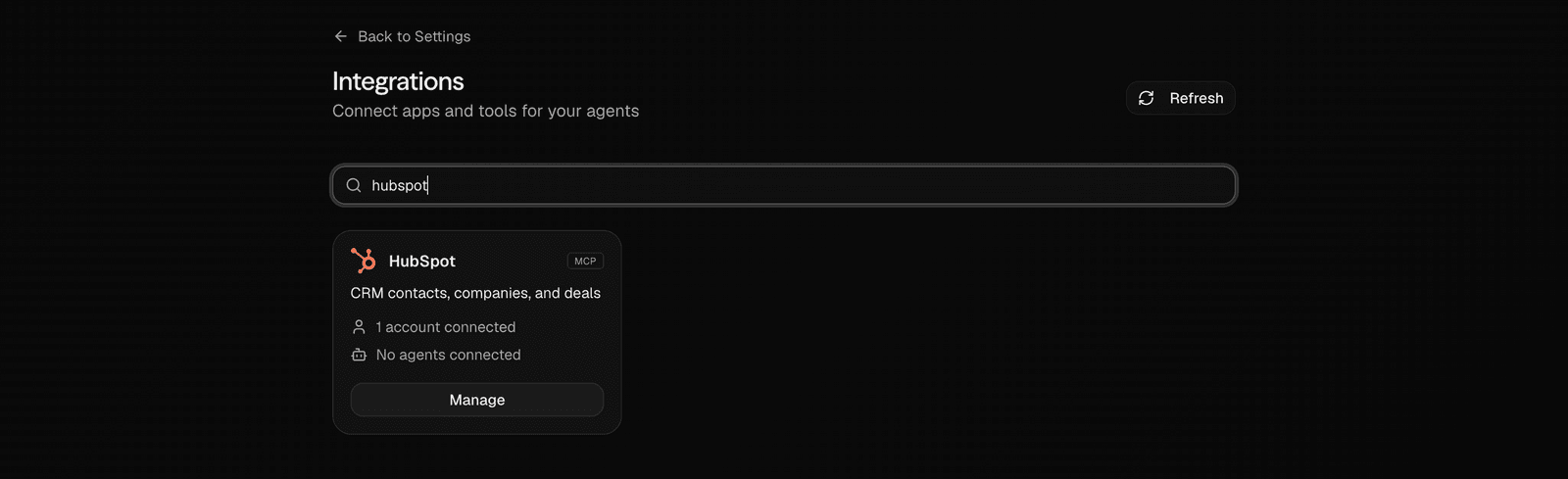
Done
The window closes and the HubSpot card shows as connected. That's it — there's no further configuration.
More than one HubSpot account? Repeat these steps to connect additional accounts. Agents keep the accounts separate.
Confirm it works
Start a new thread and ask something only your live CRM can answer, like List my open deals in HubSpot. The agent should reply with real records from your account. If it asks you to connect HubSpot instead, head back to Settings → Integrations and retry the connection.
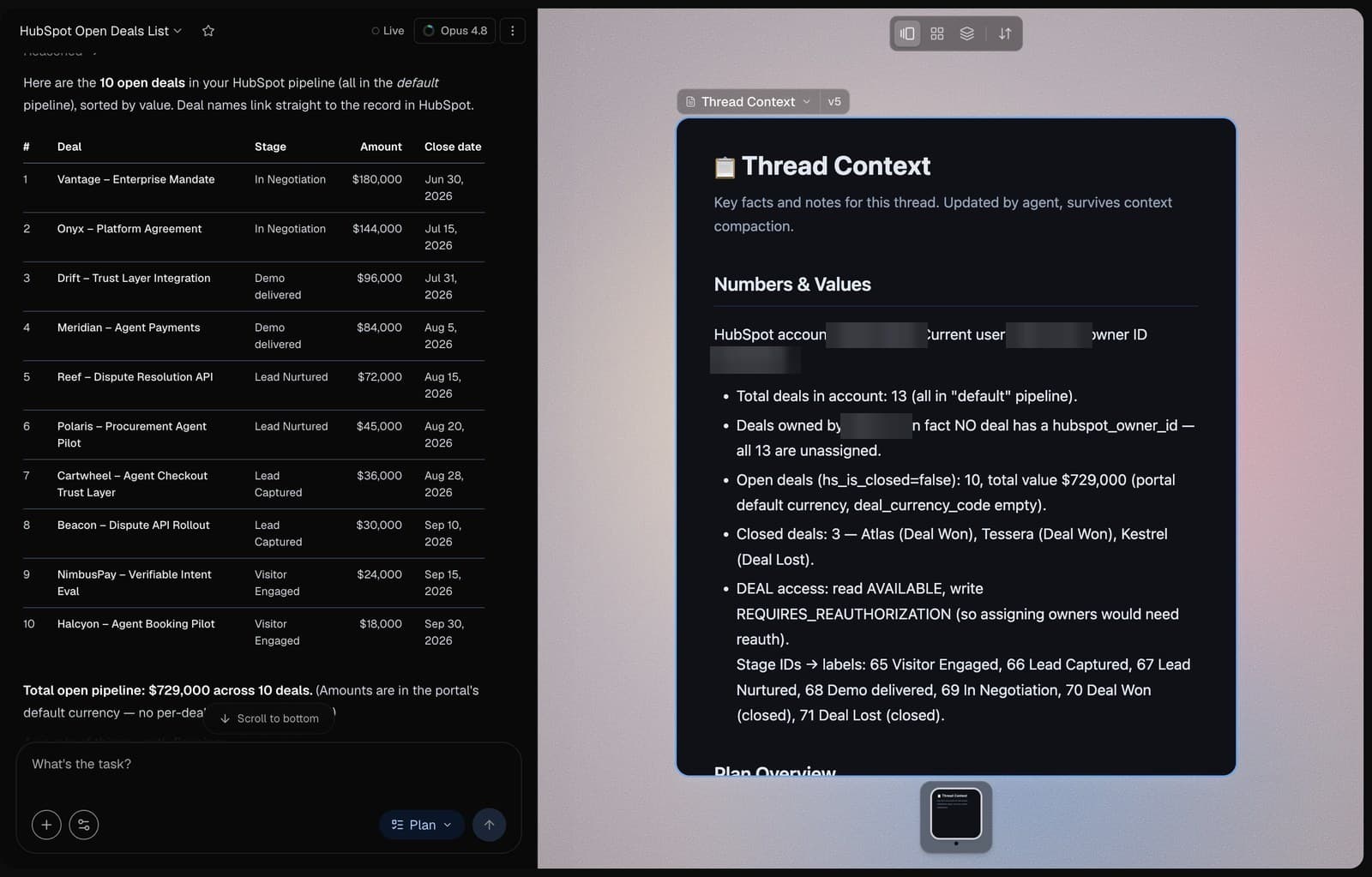
Put it to work
Any agent you use can work with HubSpot once it's connected — just describe the task. Some things to try:
Move the Acme Corp deal to Contract Sent and add a note about today's callWhich deals in my pipeline haven't been touched in two weeks?Turn these meeting notes into a new contact and dealSummarize my open support tickets and draft follow-ups for the urgent ones
This also works everywhere your agents run — scheduled tasks, Slack, and email — not just in the Hyperagent app.
Disconnect
You can disconnect from either side:
- From Hyperagent: go to Settings → Integrations, find the HubSpot card, and disconnect. Hyperagent revokes its access tokens with HubSpot immediately.
- From HubSpot: click the settings icon in HubSpot, then Integrations → Connected Apps, find Hyperagent, and choose Actions → Uninstall.
What happens to your data: disconnecting stops all agent access to your CRM immediately. Nothing is deleted from HubSpot. Your past threads in Hyperagent are kept. Disconnecting from Hyperagent alone leaves the app listed on your HubSpot account — to remove it entirely, also uninstall it from HubSpot's Connected Apps page.
Uninstall from HubSpot
To fully remove Hyperagent from your HubSpot account, uninstall it from Settings → Integrations → Connected Apps. HubSpot's How to uninstall an app guide walks through the steps.