Overview and operating model
Running client work as an AI automation agency requires clear boundaries around data, liability, compute costs, and permissions. You cannot mix Client A's context, customer records, and internal prompts with Client B's. At the same time, your agency team needs central oversight to monitor agent performance, tune prompts, and jump in when an agent needs human help.
Hyperagent supports this agency workflow out of the box through Workspaces, role-based governance, workspace-owned agents, and flexible billing models.
This guide outlines the standard operating architecture for agencies building, deploying, and maintaining agents for SMB clients today.
Workspace architecture and isolation
The golden rule: one workspace per client
Always create a dedicated Workspace for each client engagement (Workspaces).
A workspace isolates resources by default:
- Agents: Agents created in or transferred to this workspace belong to its team. (Note: A personal agent explicitly shared into the workspace remains runnable by members, but stays under its author's ownership).
- Skills and custom tools: Reusable procedures and scripts added to the workspace stay scoped to this client.
- Memories and knowledge: Workspace memories and agent-owned memories stay inside the workspace perimeter. (Note: An agent explicitly shared from Personal retains access to the personal memories configured by its author; keeping client agents workspace-owned prevents personal context crossover).
- Documents and artifacts: Research reports, plans, generated tables, and files remain within the client perimeter.
- Conversations and threads: All client runs, chat logs, and execution histories are contained in that workspace.
Never run multiple clients inside a single workspace. Even if you are the sole operator building prototypes, starting in a dedicated workspace prevents prompt crossover, accidental credential reuse, or contaminated memory pools.
Navigating client workspaces
Agency operators navigate between client accounts using the workspace switcher at the top of the sidebar.
- Personal: Reserved for your own internal agency operations, private research, and skill prototyping.
- Client Workspaces: Each client has its own named workspace (e.g., "[Client] Acme Logistics", "[Client] Apex Dental").
- Switching workspaces immediately re-scopes the sidebar, thread history, agent directory, and knowledge base.
Roles and access governance
Hyperagent provides three distinct workspace roles: Owner, Editor, and Member (Workspace roles). Use them to separate who administers the environment, who maintains prompts and tools, and who merely runs the agents.
Role allocation matrix
Owner
- Who gets it
- Agency Account Lead & Client Primary Admin
- Capabilities
- Full workspace admin, member management, role assignments, read-only oversight across all member threads within that workspace, permanent resource deletion.
- Why this matters for agencies
- Gives the agency lead visibility across all client runs in that workspace to debug issues and audit usage (What's private and what's shared). Does not grant access to members' Personal threads or other workspaces.
Editor
- Who gets it
- Agency Builders & Client Technical Co-builders
- Capabilities
- Create and edit workspace agents, skills, memories, and documents.
- Why this matters for agencies
- Allows agency engineers to adjust system prompts, attach skills, and tune behavior without granting access to member administration or cross-thread reading.
Member
- Who gets it
- Client End-Users & Day-to-Day Staff
- Capabilities
- Run agents, start threads, read workspace-library documents and memories. Cannot edit agent configurations, skills, or workspace memories.
- Why this matters for agencies
- Crucial guardrail: Prevents clients from accidentally altering system prompts, switching models, breaking tool integrations, or deleting core skills.
Invitation strategy
- When inviting client team members, use Email Invites rather than the reusable workspace link (Create a workspace and add people).
- Reusable workspace links default everyone to Editor.
- Sending individual email invites lets you explicitly select Member as the starting role, ensuring client staff can use the agents without permission to modify the underlying agent configurations.
Billing and financial architecture
Your agency or your client can pay Hyperagent. Choose who owns and funds the workspace before you start. With Workspace billing on, that organization pays for all work in its workspaces, including guest tests and automations.
- Client-owned and client-funded: The client creates the workspace under its organization and pays Hyperagent. Your agency joins to build and maintain agents, then charges its service fees separately.
- Agency-owned and agency-funded: Your agency creates a separate workspace for each client under your agency's organization and pays Hyperagent. You invoice the client separately under your service agreement.
Client-funded example: your agency builds a quoting agent in Acme Logistics' workspace. With Workspace billing on, Acme pays Hyperagent for all three:
- Acme staff use the agentWork in Acme's workspaceAcme's Hyperagent planAcme pays Hyperagent
- You test the agentWork in the same workspaceAcme's Hyperagent planYour agency does not pay for this test run
- The agent runs on a scheduleA workspace-owned agent runs unattendedAcme's Hyperagent planIncludes schedules and Live Mode
Acme pays because the workspace belongs to Acme's organization and Workspace billing is on. In an agency-owned, agency-funded workspace, your agency pays for the same three types of work.
Who pays Hyperagent?
The workspace's organization pays when Workspace billing is on. The switch covers all of that organization's workspaces, not a separate payer choice for each workspace. Those workspaces use one plan and credit balance.
| Work in the client workspace | Billed to | Setup requirement |
|---|---|---|
| Client staff use an agent | Workspace's organization | Owning organization has Workspace billing on |
| Agency builder tests an agent | Workspace's organization | Owning organization has Workspace billing on. Builder has workspace access. |
| Schedule or Live Mode runs | Workspace's organization | Owning organization has Workspace billing on. Agent belongs to this workspace. |
Keep these arrangements separate
Agree your agency fee separately. Put your build, maintenance, and support fees in your service agreement. If your agency pays Hyperagent, agree any usage charges with the client too. Your agency handles its own invoices and payment collection.
Give builders workspace access. Invite them as Owners or Editors. In a client-funded workspace, agency builders do not need to join the client's billing organization.
Keep production under client control. Payment does not transfer schedule ownership or connected accounts. Have a client account own and test production setups before handover.
Set up the chosen funding model
- Have the paying organization create the workspace. For client-funded work, have the client create the workspace under its organization and invite your agency. For agency-funded work, create it under your agency's organization and invite the client. Keep one workspace per client in either model.
- Have the billing Owner enable Shared Billing. The paying organization's billing Owner chooses a paid web plan and opens Settings → Billing. On the Shared Billing card, enter an Organization name and select Enable Shared Billing. If it is already enabled, use the existing card. This moves that account's plan, payment method, and credits to the organization. There is no self-serve undo.
- Turn on Workspace billing. The paying organization's billing Owner turns on Workspace billing on the same card. Refresh the page and confirm it stays on. The organization then pays for tests and automations in all its workspaces, using one plan and credit balance.
- Check the setup before launch. Ask the billing Owner to review the plan, credits, and spending controls. Test inside the client workspace from an agency account and a client account. Have the person responsible for production create and test schedules and Live Mode. Use client-controlled accounts before a full handover.
Shared Billing sets up the shared plan. Workspace billing covers work in its workspaces. Workspace access and billing membership are separate. Only add people to a billing organization if it should also cover their work outside its funded workspaces. Shared Billing details.
If Workspace billing is off, the existing personal or Shared Billing arrangements apply instead. In that case, schedules and Live Mode use the schedule owner's billing arrangement. Turning the switch off does not select agency funding. Confirm it is on before relying on either workspace-funded model.
Agent deployment and multi-agent architecture
Hyperagent supports two agent ownership types: Workspace-Owned and Shared Personal (Workspace agents).
Always choose workspace-owned agents for client engagements
When deploying agents for clients, always build or transfer them as Workspace-Owned:
- Collaborative Maintenance: All agency Editors and Owners can inspect and tune the agent's system prompt, tools, context files, and model settings together.
- Multi-Agent Delegation: Workspace-owned agents can delegate tasks to other workspace-owned agents (Agent delegation). Shared personal agents cannot receive delegated work.
- Configuration Persistence: The agent definition, prompt, model settings, and linked memories belong to the workspace. If an individual agency builder leaves your firm, the agent configuration remains intact in the workspace.
- Schedule Ownership Separation: The workspace's organization can pay for a schedule without owning the setup. Have a client Owner create production schedules and Live Mode setups before handover. Billing does not transfer schedules or connected accounts (Schedules).
Moving an agent from personal R&D into a client workspace
If you prototype an agent in your Personal workspace first:
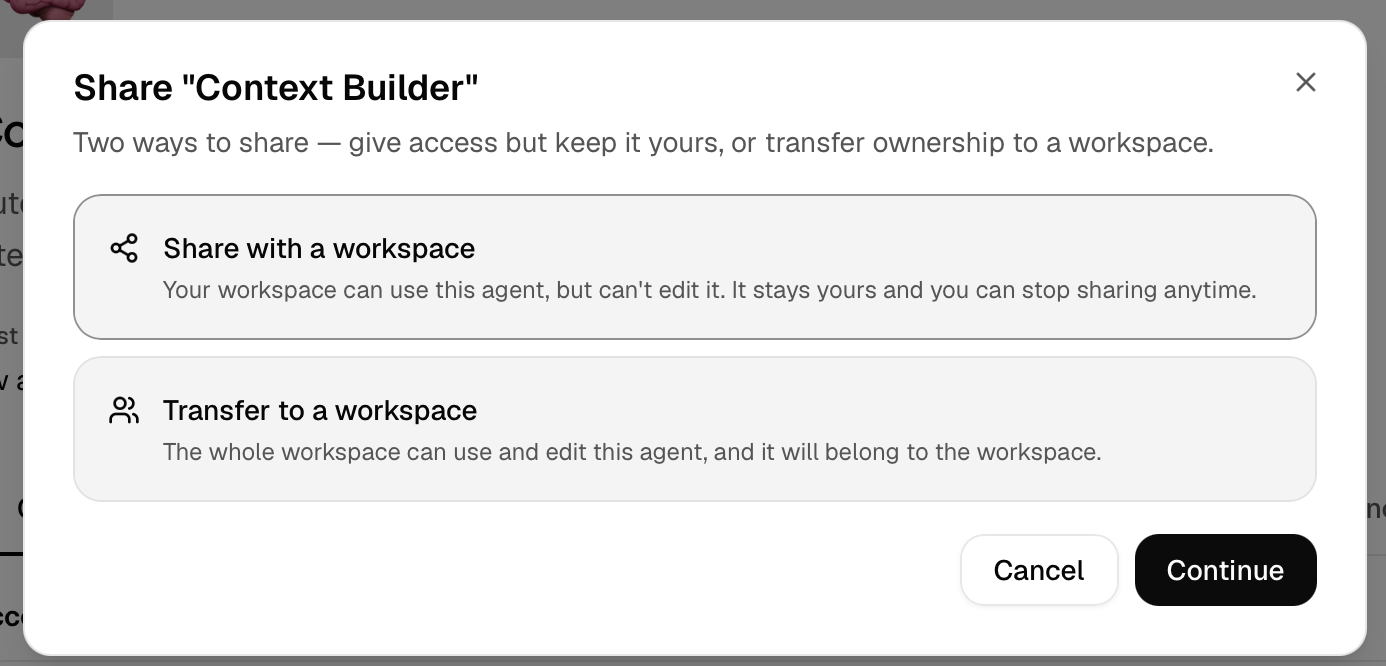
- Open the agent's configuration and click Share....
- Select Transfer to a workspace (do not select "Share with a workspace", which only grants run-only access).
- Select the target client workspace.
- Review the transfer screen to confirm that associated tools, skills, and memories move cleanly into the workspace.
Managing agency templates across multiple clients
Hyperagent does not currently feature an automated cross-workspace template sync tool. To standardize offerings across multiple client workspaces:
- Maintain an Agency Golden Template Base: Keep master agent configurations, prompt specifications, and toolsets in your internal agency workspace.
- Export and Import Configurations: Export agent configuration JSON files from your master template. When spinning up a new client engagement, import the configuration into the client's workspace.
- Packaging Standard Fleets: Package functional clusters (for example: Inbound Lead Triage, Meeting Prep, and Content Operations) as proven templates, then customize the final 20% (integrations and company tone) for each client.
Tooling, credentials and integrations
Client agents frequently require access to third-party services: Google Workspace, Slack, CRMs, data warehouses, and custom APIs. In Hyperagent, tool connections attach to user accounts, not abstract workspace identities.
1. Native integrations (OAuth and MCP)
- Integrations are authorized via Settings → Integrations inside the client workspace.
- Connection Identity: An OAuth integration (for example, Slack or Google Drive) is authorized under the specific user account that connected it.
- Unattended Run Safety: Scheduled runs and Live Mode heartbeat checks run unattended. Confirm in the schedule settings whether "Integration writes during this schedule's runs" should be enabled (read/write) or kept read-only (Schedules).
- Account Independence: If an agency engineer connects an integration using their personal or agency login, that connection depends on their continued account state. For client production workflows, have a client administrator authorize the integration so ongoing access remains under client control.
2. Workspace Skills (custom scripts and API credentials)
When deploying custom scripts through Workspace Skills (Workspace skills), choose the credential mode based on who owns the tool:
- "Use my credentials": The skill executes using the API credentials provided by the person who shared or configured the skill. Useful when the agency supplies shared utility tooling (such as a web-scraping API key or proxy). If the sharer's stored credentials are missing, the next run prompts for credentials.
- "Each member adds their own": Each user running the skill is prompted to enter their own credentials. Essential when an agent acts on behalf of individual client staff members (such as personal calendar access or individual CRM seats).
Best practice for client work
For client infrastructure, have a client Owner connect native integrations and enter production API keys. Keep agency-provided utility tools under "Use my credentials". This ensures client production workflows remain stable regardless of agency personnel changes.
Knowledge curation and quality governance
One of the primary ongoing responsibilities of an automation agency is ensuring that client agents continuously improve without hallucinating or drifting from business reality (Workspace memories).
The agent learning workflow
Hyperagent agents learn continuously from interaction, but agency governance is required to maintain accuracy:
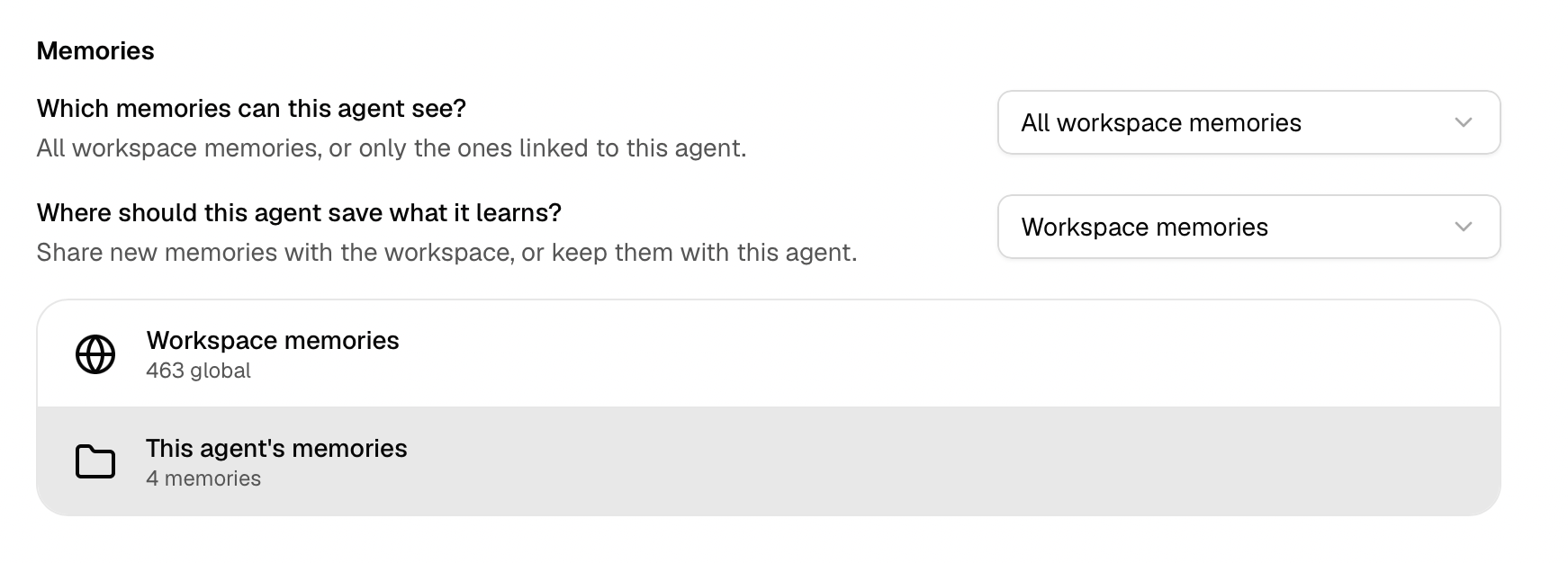
- Set Initial Save Destination: In the agent's Knowledge settings, configure the save destination to This agent's memories rather than the shared workspace library.
- Enable Suggestions: Set learning behavior to Suggested for review rather than autonomous auto-save (Manage learning behavior).
- The Three-Step Curation Sequence:
- Step 1 (Review Suggestion): Agency operators open the suggestions queue in Learning to review proposed learnings surfaced from client runs.
- Step 2 (Accept to Agent): Accept and save accurate, verified lessons. This persists the lesson as an agent-owned memory (
This agent's memories), ensuring it assists that specific agent without prematurely altering shared context. - Step 3 (Promote to Workspace): When a saved memory represents broad company policy, brand guidelines, or shared operational rules, open the memory's actions menu on the Workspace memories page and select Promote to Workspace memories.
This three-step sequence guarantees that unvetted agent suggestions never enter the client's shared organizational truth without deliberate human approval.
Client delivery, monitoring and handoff lifecycle
Deploying client agents follows four operational phases from initial provisioning to long-term operations or eventual client handover.
Phase 1: Workspace and billing provisioning
- Choose client-funded or agency-funded work. The paying organization creates a dedicated Workspace for the client (for example, "[Client] Acme Corp").
- The paying organization's billing Owner enables Shared Billing in Settings → Billing, then turns on Workspace billing on the same card. Confirm the switch stays on after refreshing. That organization's plan then pays for agency tests and client automations in the workspace.
- For client-owned work, the client Owner invites the Agency Account Lead as an Owner via email. For agency-owned work, the agency Owner invites the client with the agreed role.
Phase 2: Agent configuration and context definition
- Agency builders import agent configurations into the client workspace as Workspace-Owned agents (Workspace agents).
- Agency operators define multi-agent delegation paths between workspace agents (Agent delegation).
- Essential client standard operating procedures, schemas, and brand guidelines are pinned as Context Documents.
- Knowledge settings are configured: save destination set to This agent's memories and learning behavior set to Suggested for review (Workspace memories).
Phase 3: Integration binding and operational launch
- Client native integrations (Google Workspace, Slack, CRM) are connected under client credentials.
- A client Owner creates and tests production schedules and Live Mode setups. The workspace's organization pays for these runs when Workspace billing is on. Owning the setup also keeps it under client control at handover (Schedules).
- Client staff are invited via email as Members to run agents without permission to edit prompts or tool configs (Workspace roles).
- The client team is onboarded to Inbox to handle approvals, answer agent clarification questions, and view finished outputs.
- Agency operators use Command Center to monitor fleet health: active operations, recent runs, and compute spend.
Phase 4: Long-term retainers vs. full client handover
Operating on a retainer
The agency remains in the workspace as an Owner or Editor to maintain agent prompts, add new skills, and review suggested memories weekly. With Workspace billing on, the workspace's organization pays Hyperagent for those runs. Under the client-funded model, the client pays Hyperagent directly. Under the agency-funded model, your agency pays Hyperagent and invoices the client separately. Agree maintenance, support, and any usage charges in your service agreement.
Full handover audit (if the client takes over entirely)
If an agency offboards and removes its accounts, avoid assuming automatic continuity. For an agency-funded workspace, agree the client's future workspace and billing setup before you leave. Adding a client Owner does not change the workspace's billing organization. Follow this transition checklist before stepping down:
- Audit Production Dependencies: Identify agency-dependent connections, skill credentials, and schedules. Move production dependencies to client-controlled accounts and test them before removing agency access.
- Native Integrations: Confirm that all third-party integrations (Slack, Google Drive, CRM) are authorized by an active client account.
- Custom Skills & API Keys: For skills set to "Use my credentials", confirm that the stored credentials belong to a client administrator account so runs do not hit a "Credentials missing" state.
- Scheduled Invocations: Confirm that a client account owns the production schedules and Live Mode setups. Test them before removing agency access. The client paying for a run does not transfer an agency-owned schedule or connected account.
- Ownership Transfer: Promote a client administrator to Owner before agency accounts step down. A workspace must always have at least one active Owner (Create a workspace and add people).
Client kickoff checklist
The verified setup sequence for launching a new client engagement. Every item is on the page; nothing to expand.
Client kickoff checklist
- Who pays Hyperagent: Choose the client-owned, client-funded model or the agency-owned, agency-funded model. Turn on Workspace billing for the paying organization.
- What your agency charges: Agree build, maintenance, support, and any usage charges in your service agreement. Your agency invoices the client separately.
- Before handover: Have a client account own and test the production schedules, Live Mode setups, and connected accounts before agency access ends.
STEP 1 Workspace & Billing Provisioning
- Paying organization creates a dedicated client workspace via
Sidebar → Create workspace(for example, "[Client] Acme Logistics"). - Paying organization's billing Owner chooses a paid web plan and enables Shared Billing in
Settings → Billing. - Paying organization's billing Owner turns on Workspace billing on the same card. Refresh to confirm it stays on.
- Paying organization's billing Owner reviews the plan, credits, and spending controls in
Settings → Billing. Agree the agency's service fee separately. - Workspace Owner invites the other party via email with the agreed role. For client-owned work, invite the Agency Account Lead as an Owner.
STEP 2 Agency Team Onboarding & Governance
- Agency Account Lead creates or joins the dedicated client workspace under the chosen organization.
- Agency Lead invites agency technical builders via email with the Editor role.
- Give builders workspace access. In the client-funded model, keep agency builders on their agency billing account outside the client's billing organization.
STEP 3 Agent Deployment & Multi-Agent Architecture
- Import master agency agent JSON configurations into the client workspace.
- Verify all agents are set to Workspace-Owned (not shared personal).
- Configure delegation scopes between workspace-owned agents where needed.
- Pin client SOPs, brand guidelines, and schema definitions as Context Documents.
STEP 4 Tools, Integrations & Credentials
- Client Owner connects client native tools (Google Workspace, Slack, CRM) under
Settings → Integrations. - Set agency-provided utility tools to "Use my credentials".
- Set user-specific client actions to "Each member adds their own".
- Set unattended schedule integration write permissions (read-only vs. read/write).
STEP 5 Knowledge Curation & Quality Settings
- Configure agent memory save destination to This agent's memories.
- Set learning behavior to Suggested for review (disable autonomous auto-save).
- Schedule weekly agency operator check-ins to review suggestions, accept verified lessons to the agent, and Promote to Workspace memories for shared business rules.
STEP 6 Client User Onboarding & Channel Invocations
- Invite client day-to-day staff via email with the Member role.
- Connect agents to client Slack channels with clear trigger rules (e.g., mentions-only).
- Client Owner creates production schedules and Live Mode setups under their account. Test them before launch or handover.
- Onboard client team to Inbox (
Sidebar → Inbox) for approvals and questions.