MCP server
Connect Claude Code, the Claude apps, and other MCP clients to Hyperagent.
Use Hyperagent's MCP server when you want to hand work to your agents from the AI client you already use. From Claude Code, Claude, or another compatible client, you can start a task with a configured agent, let it run in the background, and bring the result back into your current workflow.
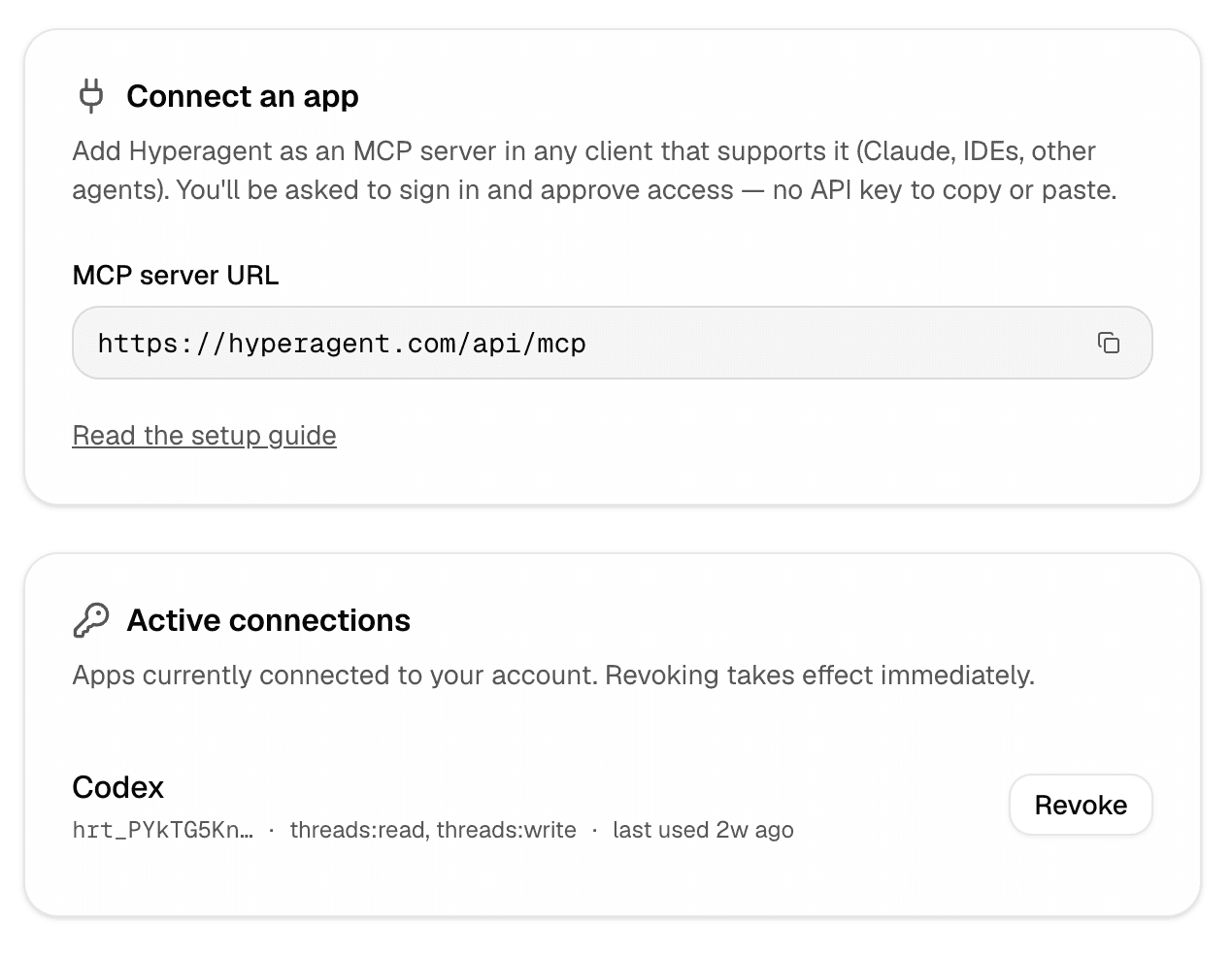
Model Context Protocol (MCP) is a standard way for AI clients to connect to tools and services. Hyperagent runs a hosted MCP server at https://hyperagent.com/api/mcp, giving a connected client tools to list the agents you can reach, start threads, send follow-ups, and read results. This page explains how to connect a client and how that access works.
This is Hyperagent as an MCP server. To attach an external tool server to an agent, see Custom MCP. For the decision tree, see Tools & Integrations.
Tools
Once connected, a client has these tools:
| Tool | What it does |
|---|---|
list_agents | List the agents you can start threads on, with each agent's id, name, and description. |
create_thread | Start a new thread running one of your agents. Returns a threadId right away; the agent works in the background. |
send_message | Add a follow-up turn to an existing thread. Runs immediately if the thread is idle, or after the current turn finishes. |
get_thread | Read a thread's messages and whether it's still running. Poll this to track progress and collect results. |
list_threads | Browse your threads. |
create_attachment_upload | Attach a file to a thread without pulling its bytes into your context. Returns an upload URL you PUT the file to, plus a fileId to pass along. |
Hosted MCP does not create or edit skills, memories, or agent configuration.
Connect a client
Every client points at https://hyperagent.com/api/mcp and authenticates with a one-time browser sign-in (Google, Apple, or Microsoft) plus a consent step. After that the client holds a token and reconnects on its own.
Claude Code
claude mcp add --transport http hyperagent https://hyperagent.com/api/mcpLaunch Claude Code, run /mcp, select hyperagent, and complete the browser sign-in.
Claude (web and desktop)
Open Settings → Connectors → Add custom connector, give it a name, and enter https://hyperagent.com/api/mcp. Connect and approve the consent screen.
Other MCP clients
Any client that supports a remote, OAuth-authenticated HTTP MCP server can connect to https://hyperagent.com/api/mcp. For client-specific steps and to manage authorized connections, see hyperagent.com/settings/mcp-access.
Access
When you connect a client, you sign in and approve a consent screen. The client then acts as you and can:
- Read your agents, threads, and messages.
- Create threads and send messages on your behalf.
A connected client gets no access you don't already have. It can only reach the agents you can. Review and revoke connected clients anytime at hyperagent.com/settings/mcp-access.
A typical run
| Step | Call |
|---|---|
| Find an agent | list_agents, then copy its id |
| Start a thread | create_thread with that agentId and a self-contained message; returns a threadId |
| Wait for it | poll get_thread until the thread is no longer running |
| Read or continue | read the final messages, or send_message to keep going |
The opening message becomes the thread's first user turn, so make it self-contained. The agent runs in the background with no one to clarify mid-run. To attach a file, call create_attachment_upload, PUT the bytes to the returned URL, then pass the fileId to create_thread or send_message.