Configuration
Set up each part of an agent: its brief, autonomy, knowledge, integrations, doorways, and tools.
You want an agent to produce work you recognize, even when the request arrives next week or through a different channel. Its configuration is the durable contract behind that consistency: the responsibility it owns, the standards it follows, the resources it can use, and the boundaries it works within.
Configure the role, not one assignment
An agent's configuration describes how it should work across many jobs. The request, source material, and finished output for one job belong in its thread.
Everything below lives in one place. Open Agents in the sidebar and click your agent: the configuration tabs run across the top of its page: Instructions, Autonomy, Knowledge, and Integrations, with Invocations and Tools under More. The sections here follow that same order.
Set up each part
Give it a brief and a model
Instructions are the role itself: who the agent works for, what finished work looks like, and the judgment calls it should make without asking. The model settings underneath decide how much thinking each new thread starts with.
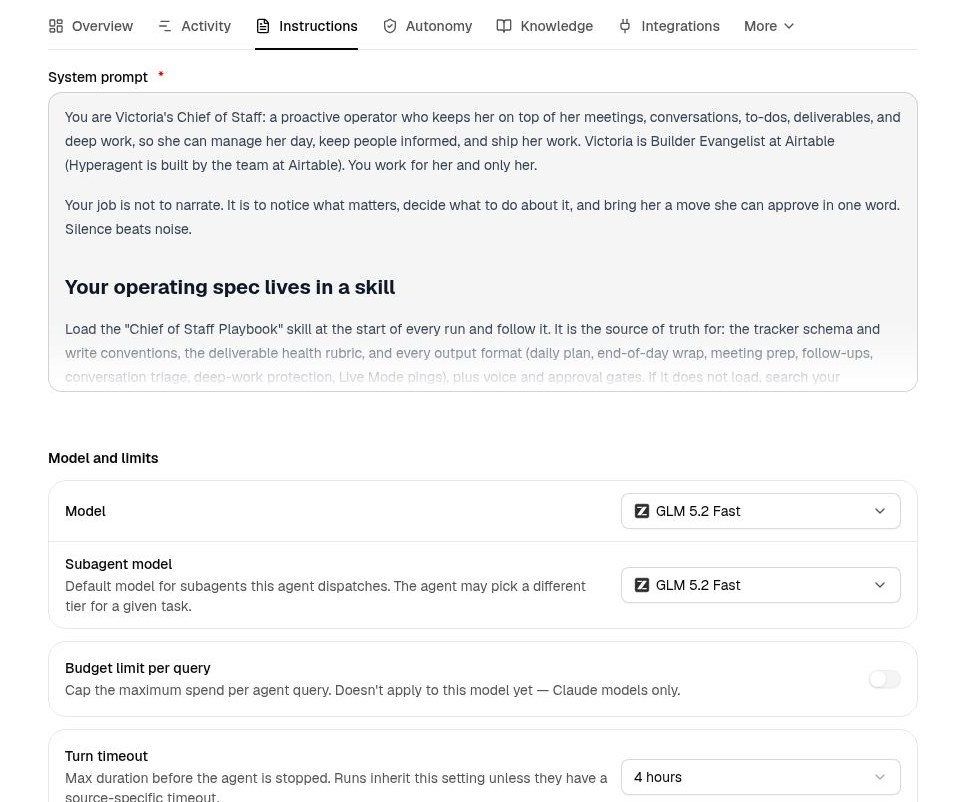
On the agent's page, open the Instructions tab:
- Write the System prompt: the responsibility the agent owns, the standards its output must meet, and how it should decide when you're not there. Keep reusable methods and standing facts out of it; those belong in skills and memories, where they can grow without a prompt rewrite.
- Under Model and limits, pick the Model new threads start with, and the Subagent model for workers it dispatches. Match the compute to the work, not the agent's title. See Models and compute.
- Turn timeout caps how long one run may go before it's stopped; runs inherit it unless their invocation sets its own. Budget limit per query caps spend per request.
Decide what it may do on its own
Reading and drafting carry different consequences from sending messages or changing records. Autonomy sets the default posture once, from the consequences of the work.
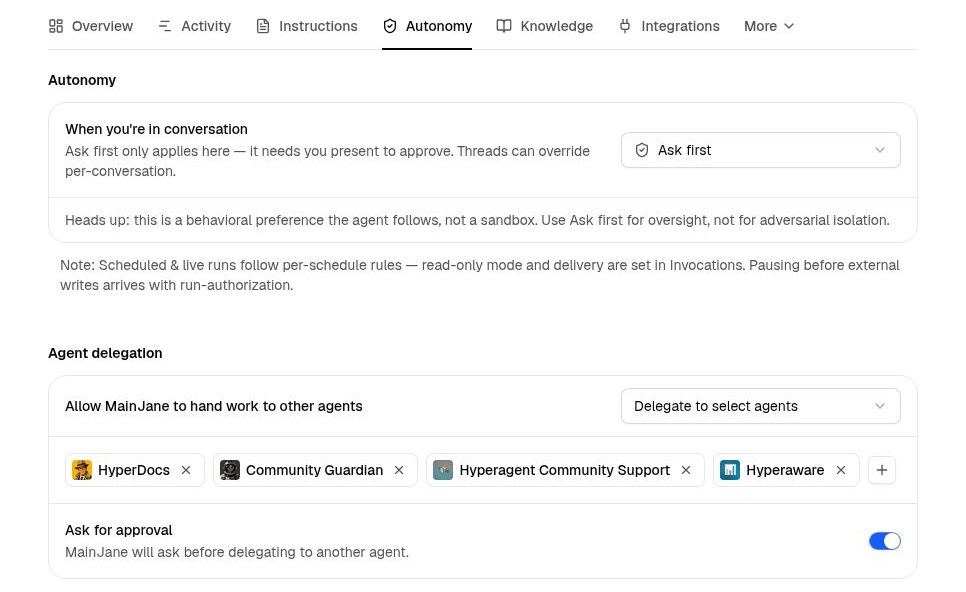
On the agent's page, open the Autonomy tab:
- Set When you're in conversation to Auto (runs end-to-end) or Ask first (pauses for your approval before sensitive actions). When an agent operating in Ask first mode requests approval for external actions, approval cards expand large file-backed parameter payloads (
paramsFile) inline so you can inspect complete arguments, text bodies, and file diffs before approving. Ask first needs you present to answer, so it applies in conversation; any thread can override it for itself. Scheduled and live runs are governed separately, by each schedule's own rules in Invocations. - Under Agent delegation, choose whether this agent may hand work to other agents, and to which ones: an explicit allowlist, or a mode that includes your other agents automatically. Leave Ask for approval on to review handoffs to other agents before they run. When self-delegation is permitted, an agent can start a fresh copy of itself without a separate delegation approval. That copy inherits the calling run's action-approval posture; tool permissions, write restrictions, and delegation depth limits still apply. See Other agents for how a delegated run works.
Choose what it knows and how it learns
Knowledge is what the agent brings to the work beyond its prompt: the memories and skills it may reach, the documents it always carries, and what it's allowed to keep from its own runs.
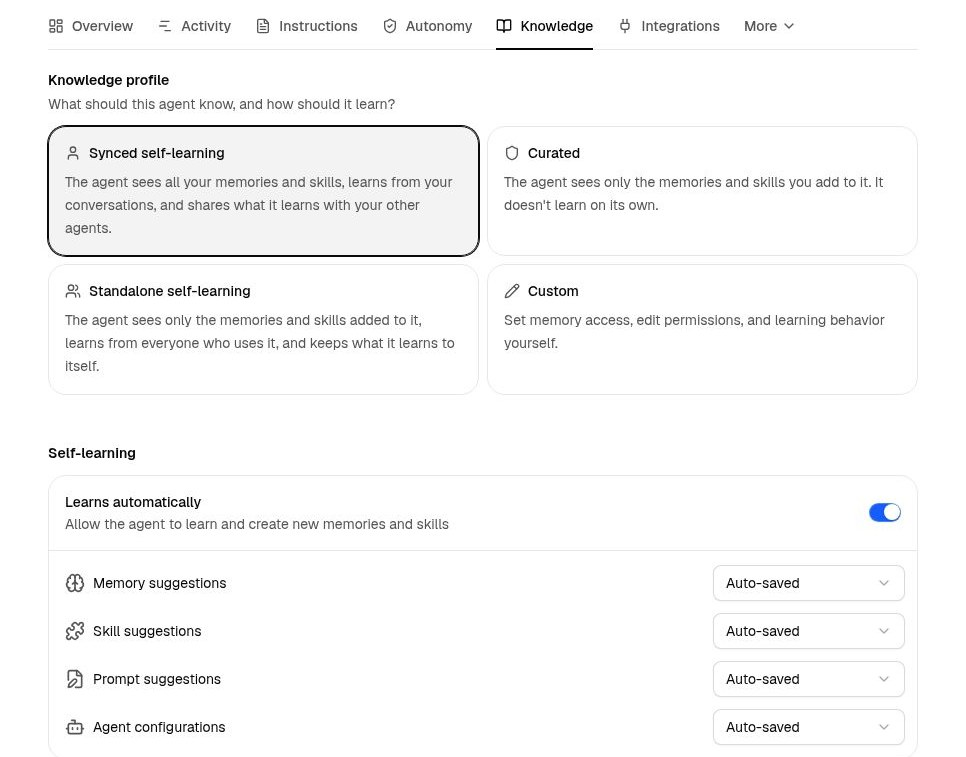
On the agent's page, open the Knowledge tab and pick a Knowledge profile to define how the agent learns. Synced self-learning shares your full library and learns as it works; Curated sees only what you add and doesn't learn on its own; Standalone keeps what it learns to itself; Custom lets you set each control yourself. See Knowledge access for more detail.
Give your agent the right context
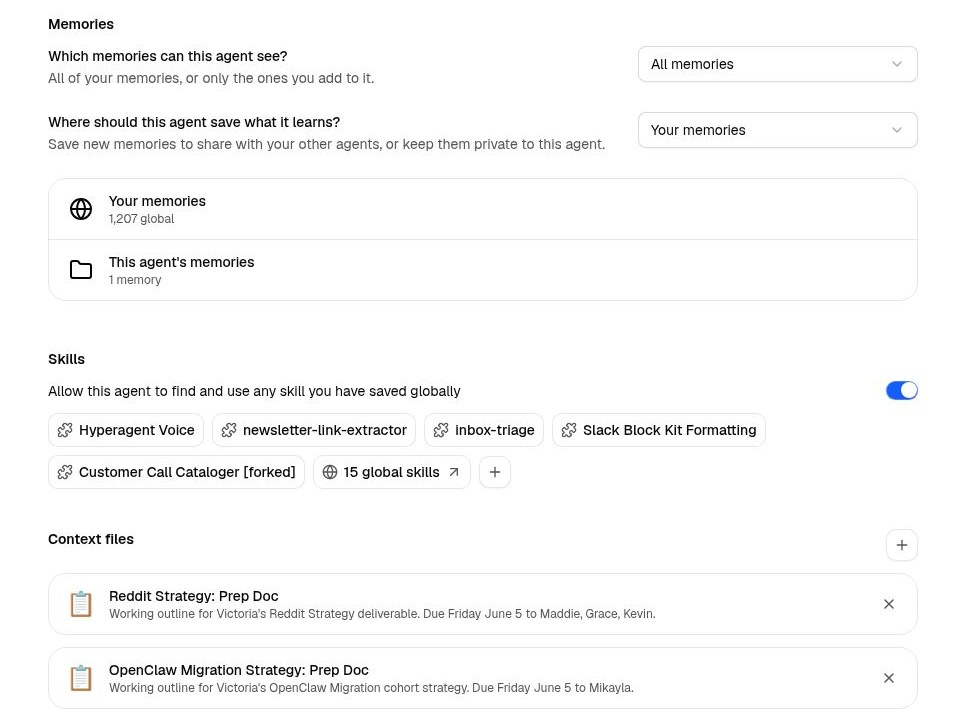
Memories
Choose which memories the agent can see, and where its new lessons are saved: shared with your other agents, or private to this one.
Skills
Let it reach every skill you've saved, or turn that off and attach the specific skills the role needs with +.
Context files
Pin the documents and structured tables the agent should carry into every run, like a working outline, standards doc, or customer tracking table. Context Files supports linking and pinning structured Tables alongside documents.
Connect the services it works in
Integrations are the external systems the agent may act in: email, calendars, CRMs, databases. Each card is a service, and each chip under it is an account the agent may use.
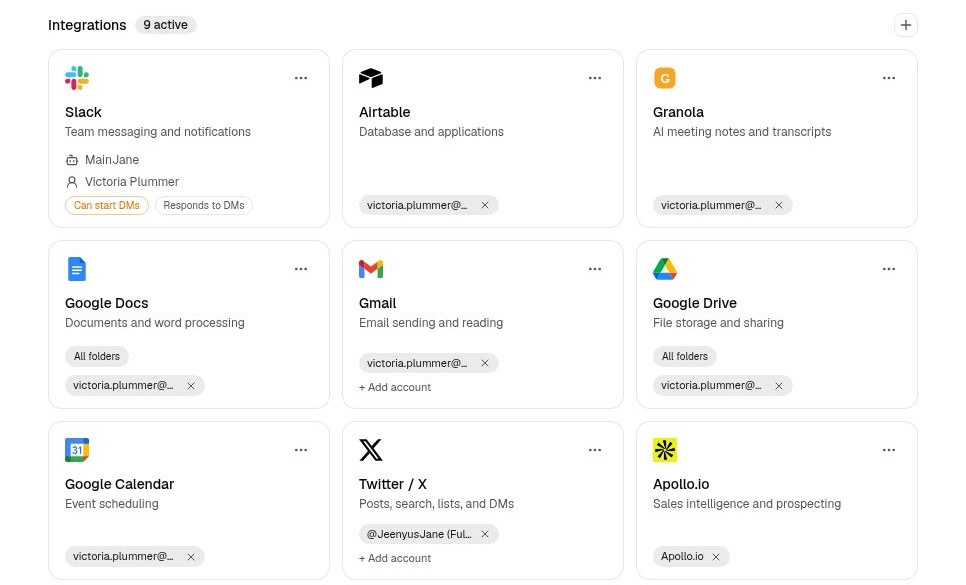
On the agent's page, open the Integrations tab:
- Click + in the corner to add a service, or + Add account on a card to connect another account for one it already has. Connecting an account automatically enables the integration's capabilities on the agent.
- Remove an account chip to narrow the agent to the accounts its job actually needs. Start from the responsibility and grant no broader.
- When a custom MCP server token expires, click Sign in again to refresh authentication in place without losing your configured agent bindings.
Browse what's available in Integrations, or go straight to Slack, HubSpot, Databricks, or custom MCP servers.
Bring your agent to where your work is
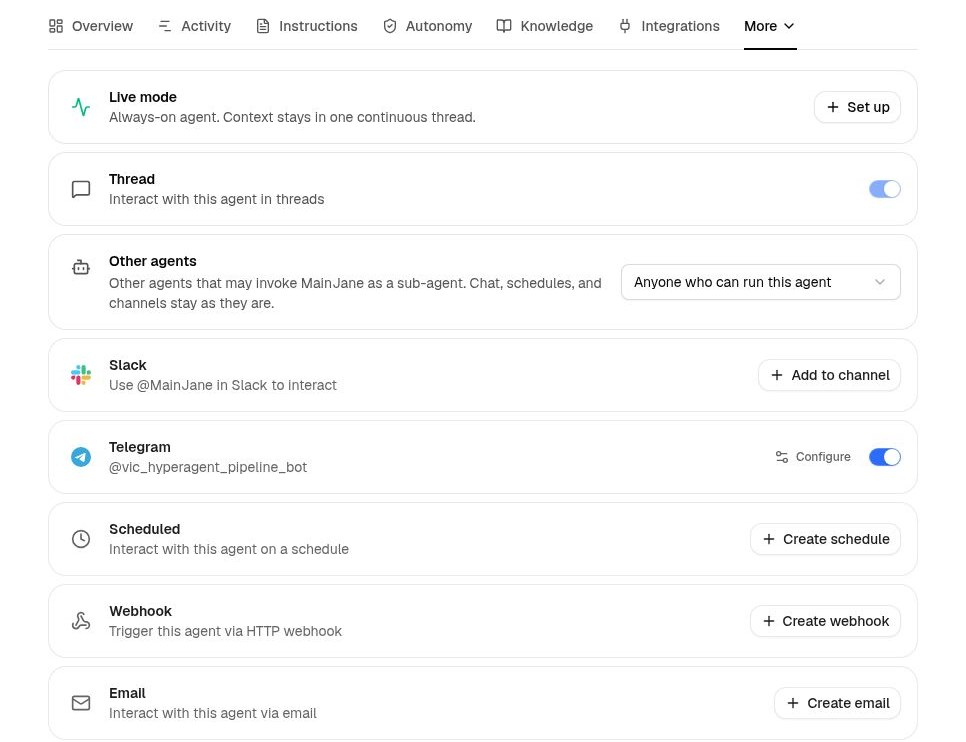
The same configured role can be reached from a thread, a schedule, Slack, email, a webhook, or another agent. Each row on this tab is one doorway, with its own setup.
On the agent's page, choose Invocations:
- Thread is on from the start: that's chatting with the agent in the app.
- Choose how and where the agent should start and deliver work: on a schedule, through Live mode, in Slack or Telegram, by email, or through another invocation.
Learn more about Invocations to pick the right channel for your agent, including Telegram.
Enable its built-in capabilities
Tools are what the agent can do directly: search the web, drive a browser, run code, generate media. Instructions define the responsibility; tools decide which parts of it the agent can execute itself.
- Toggle each capability on or off. They're grouped (research, browser, data and code, documents, media) so related tools travel together. Code execution remains available. Turning Documents off limits document-library access, but an agent can still read and update its own working notes for the current run.
- Use Smart pick to have a sensible set chosen from the agent's role, or All / None to start from either end.
- Enable the smallest useful set: add a tool when the work requires it, not because it might be useful someday.
Go deeper on research, the browser, data and code, webpages and slides, or media generation.
Test it before you put it on call
A configuration is a working hypothesis about how the agent should perform. Test it with real work before teammates or automations depend on it.
Run the job by hand
Give the agent a realistic assignment with the source material, ambiguity, and quality bar it will face in practice. A polished demo prompt hides the gaps you need to find.
Audit the thread
Inspect what the agent read, which tools and integrations it used, where it paused, and what it produced. Fix the configuration from evidence in the run rather than from the final answer alone.
Fix the right layer
Test the actual doorway
If the agent will run from a schedule, Slack, email, or another invocation, test it there. Unattended work exposes missing context, permissions, approvals, and delivery choices that an interactive thread can hide.
Configuration changes apply to new threads
A thread keeps the instructions, model, and runtime it started with. Test edits in a new thread, and use configuration history to restore an earlier version when a change misses the mark.